


.jpg.a8b184e26c2c7143438a65893a1b7496.jpg)

danksg
-
Joined
-
Last visited
Everything posted by danksg
-
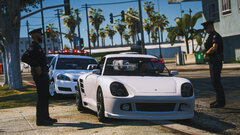
From the album: Dank LSPDFR Adventures
LSPD - Traffic Stop Backup -
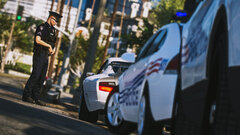
From the album: Dank LSPDFR Adventures
LSPD - Traffic Stop -
Rainy Traffic Stop (SASP)
-
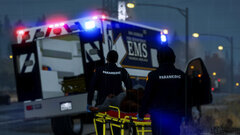
From the album: Dank LSPDFR Adventures
SASP - EMS -
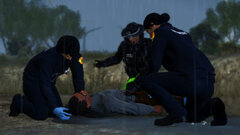
From the album: Dank LSPDFR Adventures
SASP - EMS -
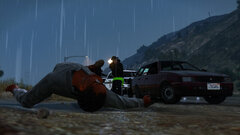
From the album: Dank LSPDFR Adventures
SASP - Gun! -
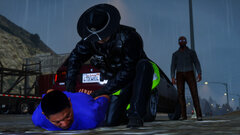
From the album: Dank LSPDFR Adventures
SASP - Arrest -
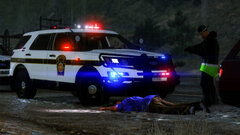
From the album: Dank LSPDFR Adventures
SASP - Arrest -
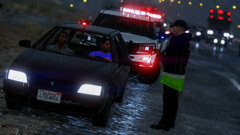
From the album: Dank LSPDFR Adventures
SASP - Rainy Traffic Stop -
There's always time for a pic before starting patrol. I know I'm not the only one who's been here...
-
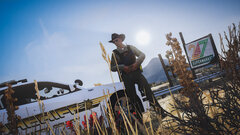 Thanks!
 -
From the album: Dank LSPDFR Adventures
LSSD - 10-41, but first a pic -
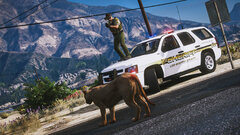
From the album: Dank LSPDFR Adventures
-
It's been a while since I've played LSPDFR and shared anything here, so here's a traffic stop I made over in Sandy Shores.
-
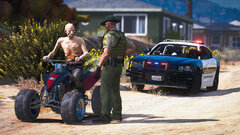
From the album: Dank LSPDFR Adventures
LSSD - Traffic Stop -
It seems that R* even bypasses previous versions stored by RPH now. One moment I was playing LSPDFR on a rolled back version of GTAV, next thing I know, the launcher is forcing me to update the game.
-
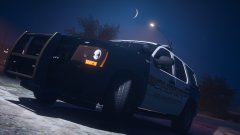
From the album: Dank LSPDFR Adventures
LSCSO - 2014 TahoeHey there, good lookin'!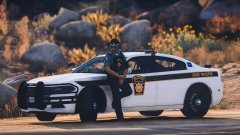
From the album: Dank LSPDFR Adventures
SASP - Good lookin'Haven't uploaded in quite a while, so here's a FPIS down in Los Santos!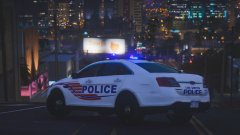
From the album: Dank LSPDFR Adventures
LSPD - TaurusConfronting a Heavily Armoured Gunman (Part 3 of 4) EMS & coroners on-scene. Casualty report: 7 KIA, 1 Critically wounded.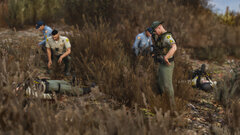
From the album: Dank LSPDFR Adventures
LSSD - Heaviness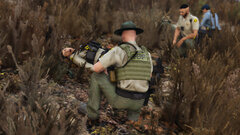
From the album: Dank LSPDFR Adventures
LSSD - DOA



