


RealKorra
Members
-
Joined
-
Last visited
Everything posted by RealKorra
-
From the album: IMVU: Cassandra - PC
-
From the album: IMVU: Cassandra - PC
-
From the album: IMVU: Cassandra - PC
-
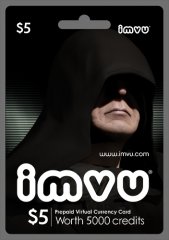
From the album: IMVU Cards
Darth Sidious?! who the hell put him on a card? -
it's little funny cuz i made IMVU cards as an joke.
-
From the album: IMVU Cards
Captain Robert -
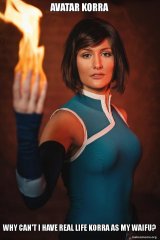
From the album: Korra Memes
-
collection of Korra Memes i have been making, collected over the years
-
-

From the album: Korra Memes
-
-
-
-
-
-
-
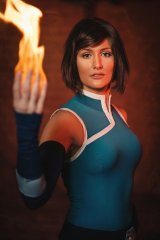
From the album: LIVE Korra Cosplay - Dangerous Cosplay
-
this is one cosplay i love coming from my favorite cosplayer. she attempted most dangerous kind of cosplay, using real, Live flames.
-
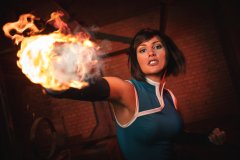
From the album: LIVE Korra Cosplay - Dangerous Cosplay
-
thanks! it did worked
-
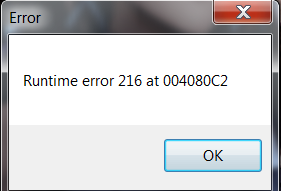
i can't launch Openiv in order to install a car i did make a mods folder in gta folder.. i still get runtime error for openiv. as pictured.
-
sounds good! i do agree, it is difficult. i was Police Skins maker on There.com where i made four different police skins lul. it would be nice to know where i need to go to get started on it for GTAV. any suggestions? plus i need little assistance with Player Location Display mod, am i supposed to put it in GTAV folder or LSPDER folder? that one was RAR file. i usually only download Zip files because they're easier to install.
-
thanks i have a question. can anyone have skills to create mods like car skins or is such mod not easy to create?
-
thanks! i will. haha. that's something to find out 😛 so i have update, i have successfully installed LSPDER and added few new plugins, vehicles, outfits, looks etc to make my time as Police Officer fun ^^
-
LMS, your profile picture made me think of beach lol where was it taken at?


