



XLR
Members
-
Joined
-
Last visited
Everything posted by XLR
-
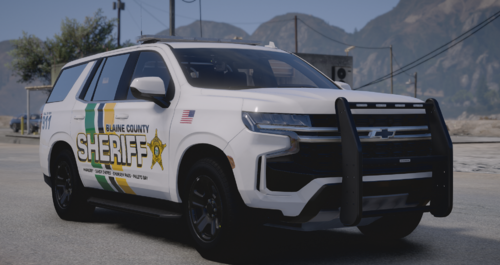 Hi! Great work! What font did you use for the townships and for the SHERIFF? Thanks!
 -
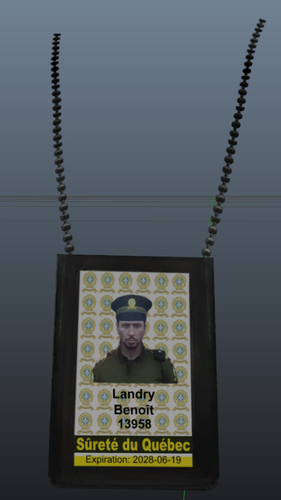 Petite modification pour le badge FIB, version SQ. Nom et matricule fictif, mais ça va faire l'affaire, dites que vous êtes Benoît Landry rendu là! Creation: XLR ID badge of the SQ -- Do not claim as your own Do not resell Do not reupload Dont be stupid No support provided.
 -
 Jeremy Dewitte is in the house
 -
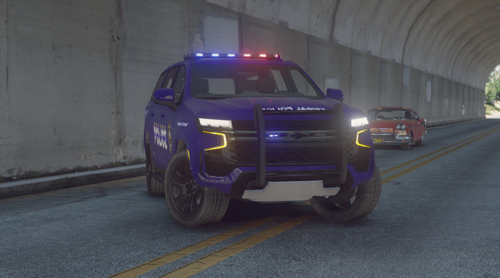 I only do FiveM, sorry.
 -
-
I plan on doing Kahnawake next and then I'll see 🙂
-
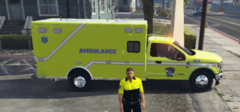 Très mauvaise qualité, on dirais du 0k, mauvaise police d'écriture, placement du logo beaucoup trop bas, les lignes sont beaucoup trop petites, manque l'appélation d'US en haut de la boîte.
 -
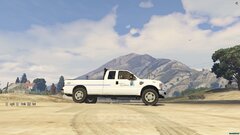 Mauvais placement du logo et très mauvaise qualité, on dirais du 0.5k
 -
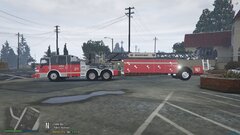 Le SIM utilise pas cette police d'écriture.
 -
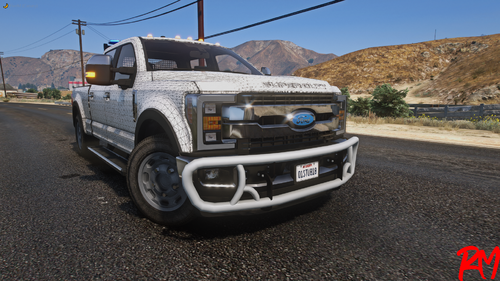 Good job!
 -
Vehicle made by XLR Development [https://discord.gg/2wvuy6J7qF] Join my discord for future updates and/or some nice future cars. Commissions are also open for patches, logos, textures. Commissions for vehicles are currently closed. This vehicle is made to reproduce the Kanesatake Mohawk Police [Future police dept. in the province of Quebec, Canada] tribal police. Please take note that this is a budget build, therefore there aren't that many lights on it, no it's not a Christmas tree. Please take note this is my first car, so no it's not perfect and don't complain.
-
pour 50$ jpeut t'en donner 1.
-
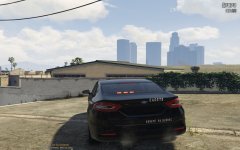 Cadet et SQ mal placé mais bon Et les cadets ont pas de rouge et bleu
 -
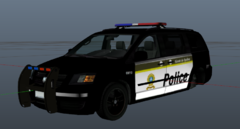 0 réaliste mais bon
 -
Nous ouvrons une communauté FiveM bientôt, restez à l'affût!
-
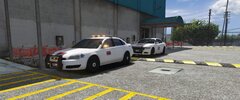 SECURITAS
-
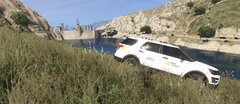 Hydro-Québec sécurité industrielle
-
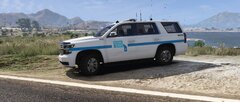 Inspection Revenu Québec
-
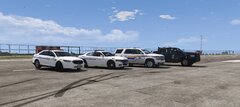 École Nationale de Police Québec et Protection de la Faune du Québec
-
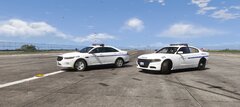 École Nationale de Police Québec
-
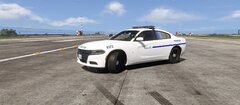 École Nationale de Police Québec - Charger
-
.png.1f86922eee78bafcbca869cc54528599.png) Whelen DELTA EARLY WIP
Whelen DELTA EARLY WIP
-
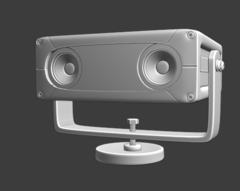 camera ALPR
-
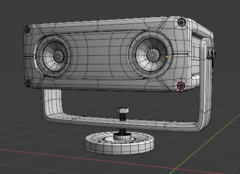 Camera ALPR
-
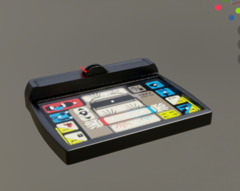 Clavier ZONE Technologie V2 SQ
-
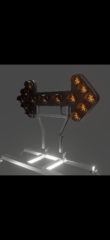 image0
-
 image1.png
-
-
From the album: Equipements Surete du Quebec
-
From the album: Equipements Surete du Quebec
-
From the album: Equipements Surete du Quebec
-
From the album: Equipements Surete du Quebec
-
From the album: Equipements Surete du Quebec
-
From the album: Equipements Surete du Quebec
-
From the album: Equipements Surete du Quebec
-
From the album: Equipements Surete du Quebec
-
From the album: Equipements Surete du Quebec
-
From the album: Equipements Surete du Quebec



.png.1f86922eee78bafcbca869cc54528599.png)
