Skip to content
View in the app

A better way to browse. Learn more.

LCPDFR.com

A full-screen app on your home screen with push notifications, badges and more.

To install this app on iOS and iPadOS
  1. Tap the Share icon in Safari
  2. Scroll the menu and tap Add to Home Screen.
  3. Tap Add in the top-right corner.
To install this app on Android
  1. Tap the 3-dot menu (⋮) in the top-right corner of the browser.
  2. Tap Add to Home screen or Install app.
  3. Confirm by tapping Install.

Mr.PattyMayoOof

Members
  • Joined

  • Last visited

  1. Okay, lastly make sure that all of your textures and reflections qualities in settings are on high. Anything under that tab (forgot the options there) should be on high considering the fact that it can affect the colors of the map but in this case the car.
  2. Sorry for the extreme late response, im pretty busy now a' days but anyways, try navigating to the zip file: ZipFile>Instructions>Install Guide and Info.txt. Then, you can try to lower down both: 491 car.defaultlight.day.emissive.on 967.77 492 car.defaultlight.night.emissive.on 802.74 To something like 600-710 You might want to experiment with your liking's but each car pack might have a different light setup then others with its light-bar, wigwags, etc so just experiment. Some people do have the problem of red lights turning into a yellow type shade, and this solution was the way I fixed it. If it doesn't work, feel free to message me under This "quote" and I would love to know if it worked out for you! 🙂 Cheers, and happy holidays mate!
  3. Mr.PattyMayoOof started following Albo1125
  4. No problem man, if you ever need help with this file, don't feel afraid to ask. I appreciate it! 🙂
  5. Mr.PattyMayoOof started following LibertyDesigns
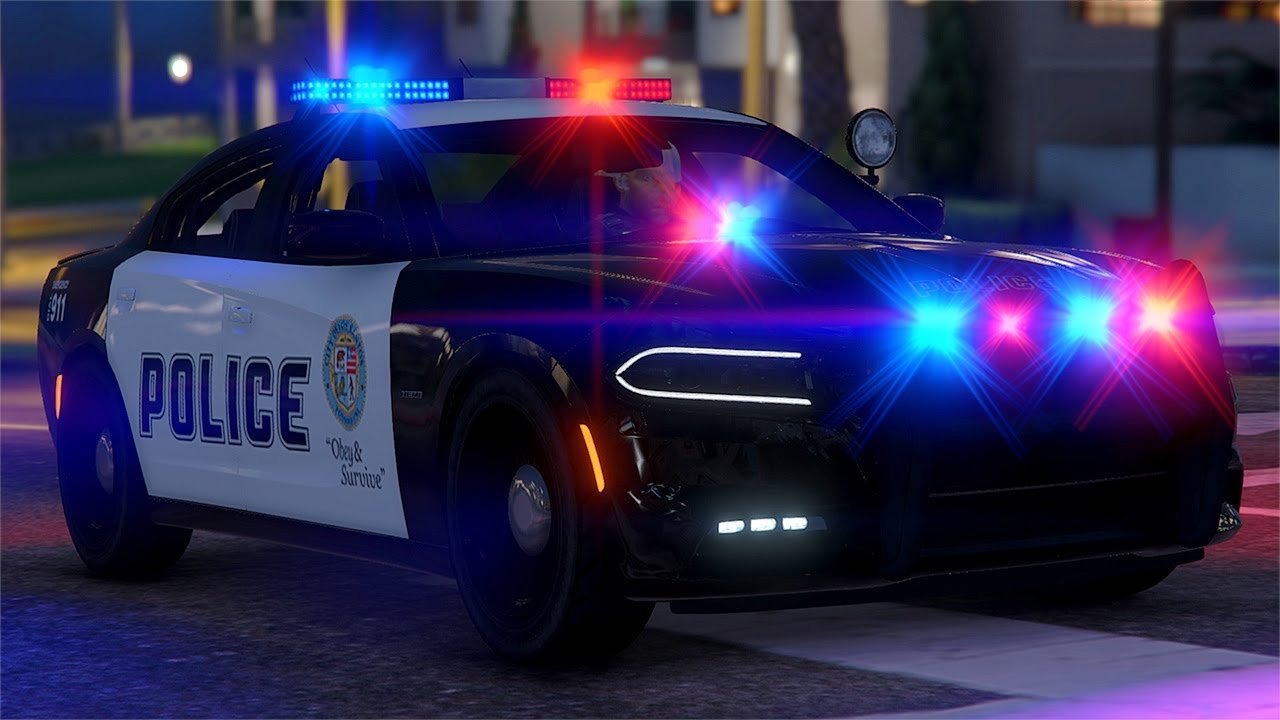
  6. Doesnt Look the best with my screenshot software but, when and if you do decide to install this, you can adjust settings with the guide under the installations folder that explains and helps you out with configing this. No graphics mod is required but..yea.

Account

Navigation

Search

Search

Configure browser push notifications

Chrome (Android)
  1. Tap the lock icon next to the address bar.
  2. Tap Permissions → Notifications.
  3. Adjust your preference.
Chrome (Desktop)
  1. Click the padlock icon in the address bar.
  2. Select Site settings.
  3. Find Notifications and adjust your preference.