Skip to content
View in the app

A better way to browse. Learn more.

LCPDFR.com

A full-screen app on your home screen with push notifications, badges and more.

To install this app on iOS and iPadOS
  1. Tap the Share icon in Safari
  2. Scroll the menu and tap Add to Home Screen.
  3. Tap Add in the top-right corner.
To install this app on Android
  1. Tap the 3-dot menu (⋮) in the top-right corner of the browser.
  2. Tap Add to Home screen or Install app.
  3. Confirm by tapping Install.

Pashamsa

Members
  • Joined

  • Last visited

Everything posted by Pashamsa

  1. I used open IV and followed the instructions, yet It does not show up with plug-ins and not even a loading screen for the script will show up in game?
  2. Is there a way I can change that, and heres what pops up, but only half the time, other times the game works fine
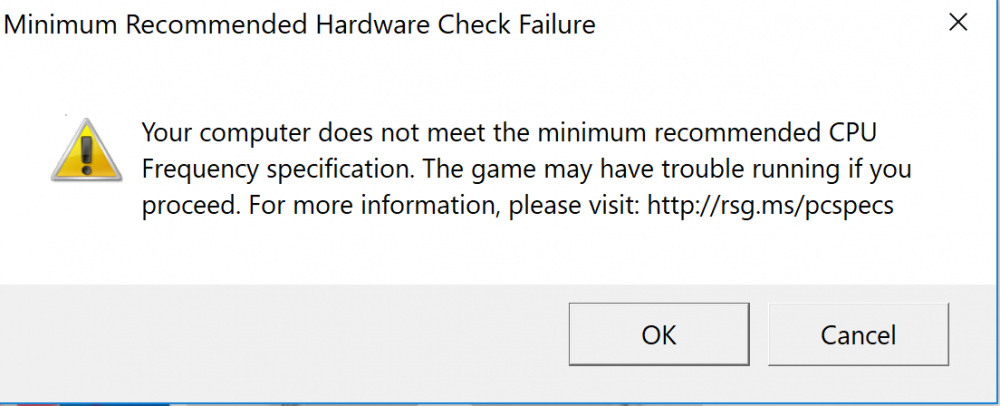
  3. It only happens about 50% of the time where I run GTA 5/ RageHook where part of the time it runs fine, no lag, no problem, but sometimes befor the GTA 5 game window an error will say Unable to meet CPU requirements, if you countiune it may not work, and when I push ok, it goes to a very small window and runs the game and under the game settings it says I have more graphic memory than I actually have, and changing all my graphic settings differently , making my game lag significantly Thoughts ?

Account

Navigation

Search

Search

Configure browser push notifications

Chrome (Android)
  1. Tap the lock icon next to the address bar.
  2. Tap Permissions → Notifications.
  3. Adjust your preference.
Chrome (Desktop)
  1. Click the padlock icon in the address bar.
  2. Select Site settings.
  3. Find Notifications and adjust your preference.