




UnknownBastion
Community Team
-
Joined
-
Last visited
Everything posted by UnknownBastion
-
Does normal GTA V crash at all?
-
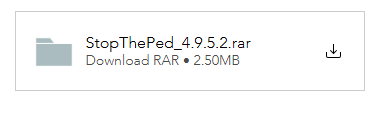
You do NOT need to pay for this in order to get a working copy of the plugin. You can get it free from the site. Please refrain from suggesting people pay for content that they can get for free. @Bob151532 You can download StopThePed here. You will need an adblocker for the site so you don't get all those pesky redirects. You will click the box below in the screenshot to initiate the download.
-
"Object reference not set to an instance of an object." error in relation to BetterEMS. This usually has to do with a mods folder issue. Rename mods to _mods and try again.
-
Rename mods to _mods and try again. This topic has been moved to the appropriate forum. Please post in the correct location in the future.
-
As of right now, there is no update the release for Enhanced. Right now the focus for this specific build is to just port it over to Enhanced. Keep in mind that the ai in GTA V are only as smart as Rockstar makes them. The Devs of LSPDFR can only do so much on their end to prevent the ai from being dumb.
-
Add the AdvancedHookV.dll file to the exceptions list for your anti-virus. Then re-install the newest one following the steps I provided above. Then restart PC and test again.
-
Add the Main Directory to the exceptions list for your anti-virus. Then re-install the manual LSPDFR and restart PC. If you are still experiencing the same exact error, consult pages 3-5 of the RPH FAQ.
-
Same error message?
-
For now, you will be playing on the Legacy version. I am sure they will make a post when it does become available.
-
Remove Wilderness Callouts. Try again. If it is random crashes, it might be the mods folder.
-
Remove Restrain the Deceased and try again.
-
I honestly recommend Simple Trainer over Menyoo anyways.
-
Go to the ELS download page. Then select Download This File and select the top download option. Then move the AdvancedHook.dll file from the download into the Main Directory.
-
Remove Immersive Effects. Try again.
-
Glad you got it resolved!
-
Sounds good!
-
You should have no issue sending the log as is and not in a zip file.
-
First off, go ahead and update your GTA V. You can do this by deleting the GTAV.exe and then verifying game files. How To Verify: Once that is done, re-install manual LSPDFR and retry.
-
While most of these are outdated, they are not the cause of the crash. @toster0908 Rename mods to _mods and try using LSPDFR again.
-
Couple of things: 1. Update your BasicCallouts to this one. 2. Go into the lspdfr.ini and change the following to reflect below: AmbientSpawn.MaxCopsInArea = 0 AmbientSpawn.MaxSpawnedCopsInArea = 0
-
Reminder: Please make all posts in English only unless in the dedicated international forums. Could you please elaborate on your issue?
-
Usually this means that when you installed a vehicle, you may have messed up on the meta file entries that you have to make with the vehicle model itself. Your topic has been moved to GTA V Support, this is not LSPDFR related. Please post in the correct location in the future.
-
Try launching GTA V normally first. Then once fully in story mode, tab out and launch RagePluginHook. Your topic has been moved to GTA V Support, this is not LSPDFR related. Please post in the correct location in the future.
-
If I recall, you have to press E first to turn the sirens on and then press J.
-
Something to note is that you should probably use the manual install of LSPDFR instead of the auto-installer. Your topic has been moved to GTA V Support, this is not LSPDFR related. Please post in the correct location in the future.

