



ovilexfan
Members
-
Joined
-
Last visited
Everything posted by ovilexfan
-
-
From the album: Crown Vics
Looking over the city. -
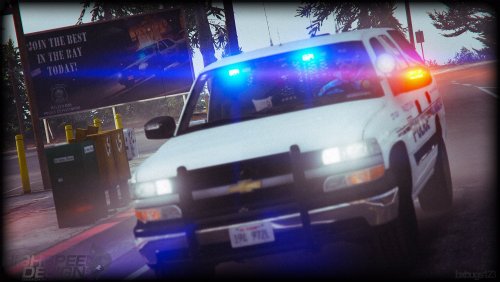 I'm using Albo's Modding DLC Pack V, and it worked until I installed the Tahoe.
- 133 comments
- 36 reviews
-
-
-
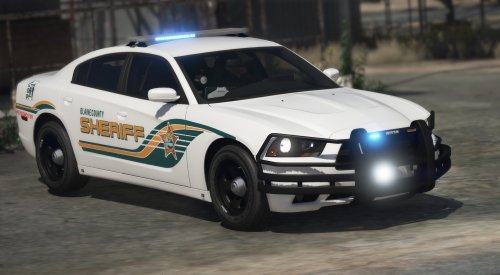 I love this pack, it is one of the best sheriff packs out there. Can't wait for the FPIU and the Impala.
- 75 comments
- 19 reviews
-
-

- 1
-
-
I edited everything properly, did the vehicles.meta and the carvarations, I tried following Albo's video on the pack, still nothing. Is it that Modding DLC Pack V doesn't work with the current version of GTA V? I've seen so many people use that pack and it works for them.
-
I tried to launch GTA to play LSPDFR through Rage and after it says "loading and populating gameworld" I get a crash on rage and GTA 5. Tried running it on administrator mode, still the same thing. Below is my log and in the link is my crash files. The only thing I was doing was installing ELS vehicles, and I did those correctly. I did a clean reinstall of Rage, and it still crashes. Do I need to do a clean reinstall of GTA? Please help me. Crash Files RagePluginHook.log RagePluginHook_06092018_164349.log
-

