
Dan with da van
Members
-
Joined
-
Last visited
Everything posted by Dan with da van
-
-
-
 What problems with collisions what do you mean just name the collision fx extra_1 [COL]
- 38 comments
- 13 reviews
-
Sure thing
-
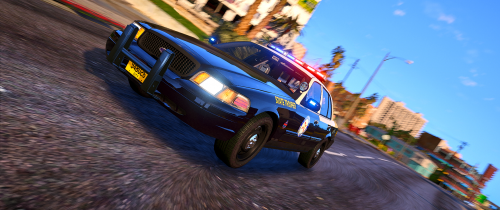
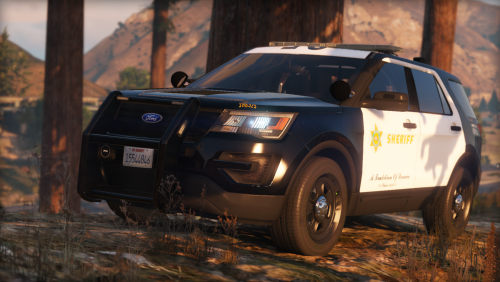
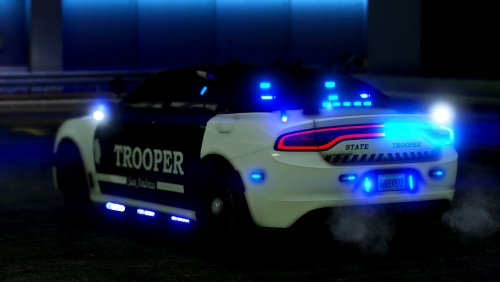
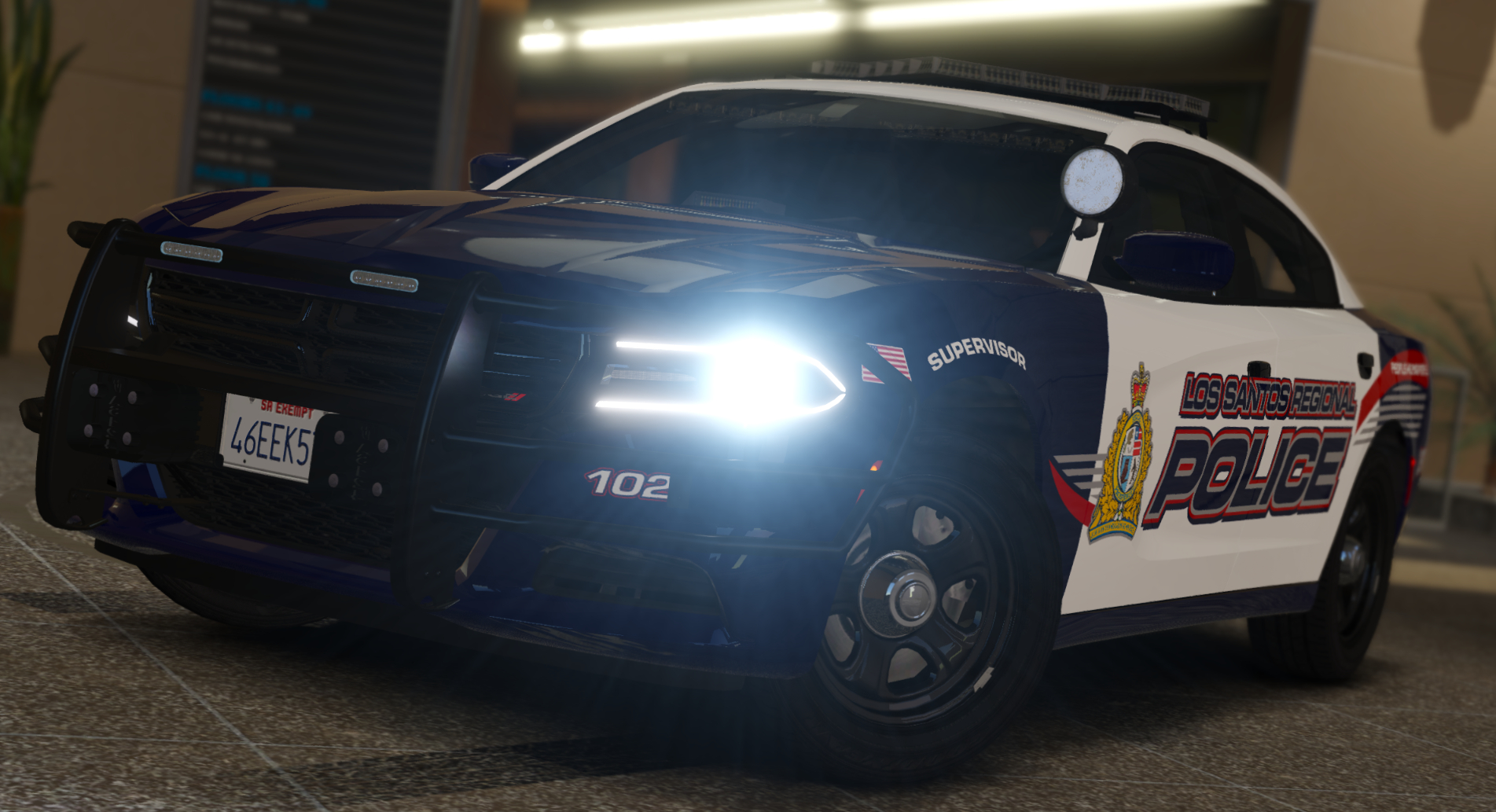
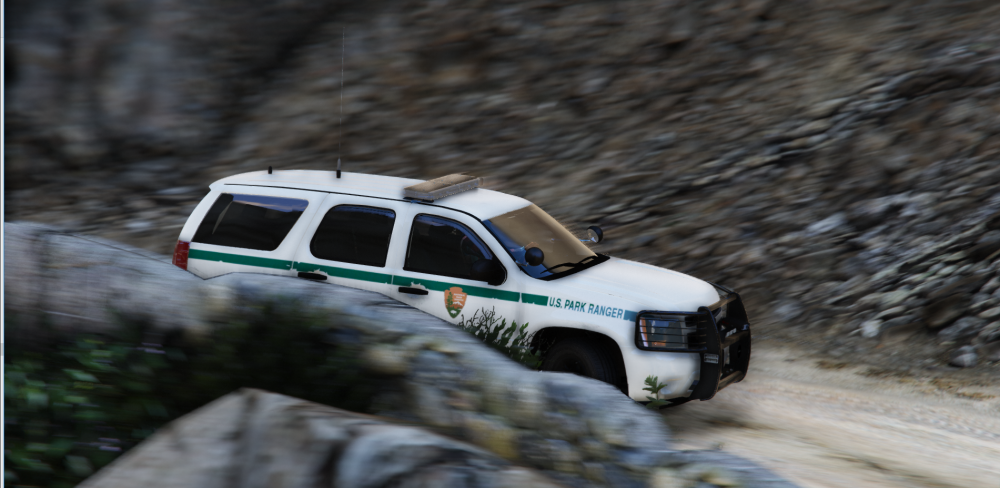
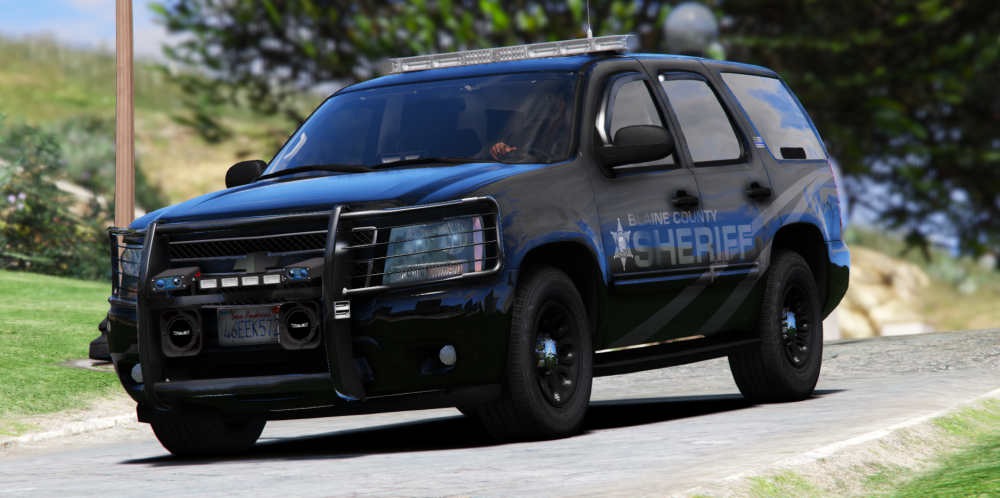
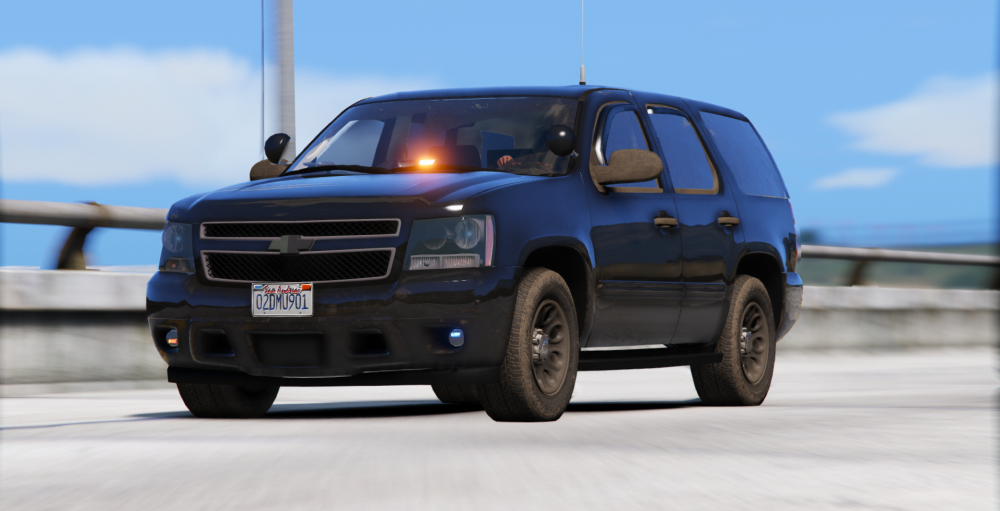
Hello everybody and hope you're having a amazing day. I wanted to show off some of our vehicles to know what you think about them?
-
 You should make LASD/LSSD
 -
-
.thumb.png.28aa0963faa0c6b7fe8ec683d28ec677.png) no idea maybe panto but this will work https://da.gta5-mods.com/vehicles/peel-p50-realistic-and-silly-handling
no idea maybe panto but this will work https://da.gta5-mods.com/vehicles/peel-p50-realistic-and-silly-handling- 17 comments
- 5 reviews
-
Blaine County Sheriff's office 1966 Peel P50 [ELS] You are expected to know how to install when downloading Known mistakes template errors meh Join my server: https://discord.gg/chBNzXn If you are gonna install this handling is recommended https://da.gta5-mods.com/vehicles/peel-p50-realistic-and-silly-handling Videos: You are only allowed to use in FiveM if you get permission from the author (Dan with the Van)
- 17 comments
- 5 reviews
-
-

- 10
-
-
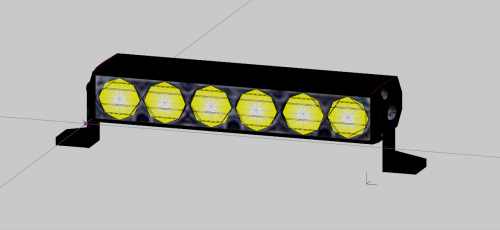 Uoooh me likey
 -
-
-
-
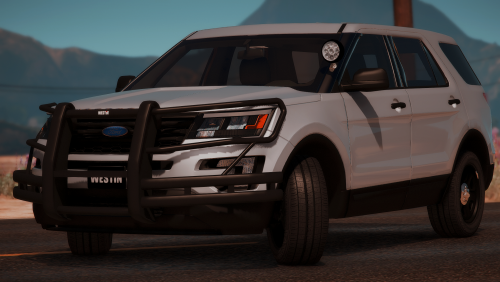 probably not LMFAO
 -
Is it off center?
-
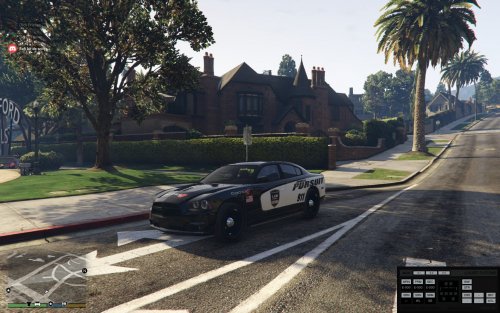 🙂 it's okay we have all been there
 -
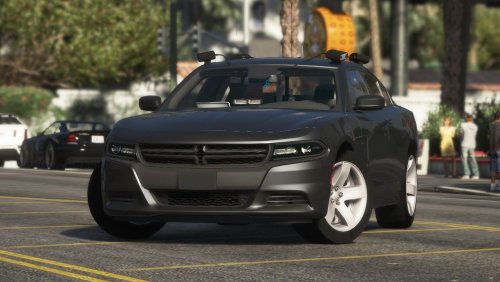
The picture is a 2012 Charger and you are saying 2015? No pictures of ingame and it doesn't say which chargers it fits there are multiple.
-
-
-
-
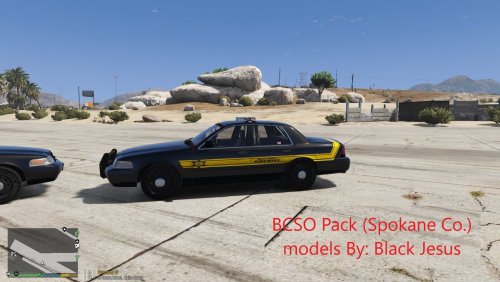 very badly done these are not thought out
 -
-
-
Sure
-
Hey everybody I wanna announce I am going to begin on more Tampa Police Deparment vehicles maybe even a pack at some point 🙂 I will need some beta testers for the skins to help me on my way just DM or comment below if you are interested 😛 -Daniel LCC group


.thumb.png.28aa0963faa0c6b7fe8ec683d28ec677.png)