
Jmdzett
Members
-
Joined
-
Last visited
Everything posted by Jmdzett
-
Been waiting for this!
-
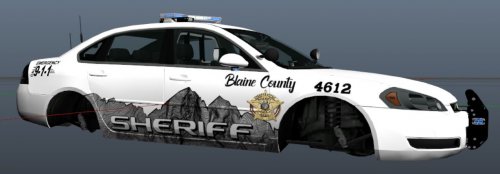 Awesome texture, I live in CO, and actually like seeing the Colorado themes, I will have to put this on my vehicles. Thanks for sharing.
- 4 comments
- 1 review
-
-

- 1
-
-
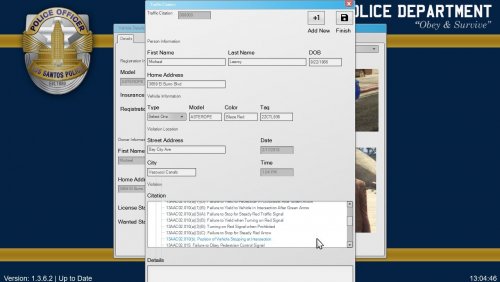 I am trying to figure out how to install the Alaska definitions into Computer +. Do you have a readme file, or can you tell me what to do? Nevermind, just figured it out lol
- 4 comments
- 2 reviews
-
-
- 1
-
-
As much as I hate to see you ending your modding, I have greatly appreciated all the mods you made for LSPDFR, I came into the LSPDFR scene only about a year ago, and your mods were some of the first I ever installed. Enjoy your 'retirement' sir, and thanks for everything you brought to the table to make LSPDFR enjoyable.
-
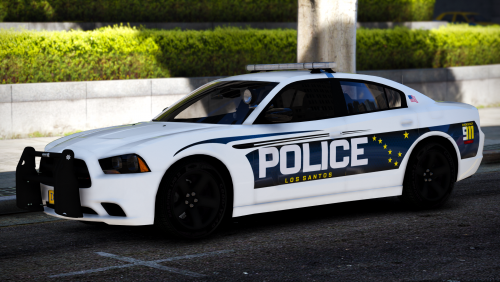 Is there a readme for installation? I can't seem to figure out how to put these skins in. Awesome design!
- 14 comments
- 15 reviews
-
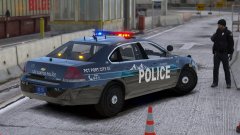 Nice, let me know when you get this pack, I love the packs you create.
 -
Anyone know when or if they will get Script Hook V updated? I rely on it for my ELS and since it isn't supported I literally am locked out of LSPDFR until its update or I disable the mod and the ones I use that go with it.
-
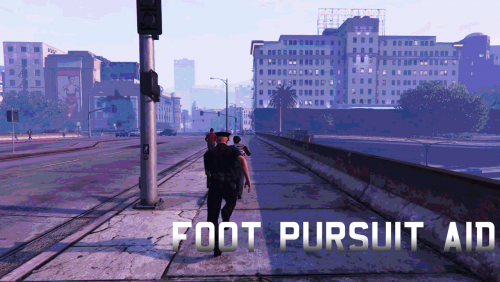 I keep getting an "Access Denied" message when I try unzipping the file, is there anything I need to do to fix this?
- 40 comments
- 20 reviews
-