


Creators: Due to background reprocessing of files, approvals and file security checks may be delayed. Thanks for your patience.


Mags
Community Team
-
Joined
-
Last visited
Everything posted by Mags
-

From the album: GTA Series Random
-
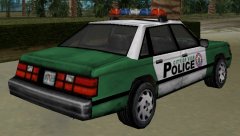
From the album: GTA Series Random
-
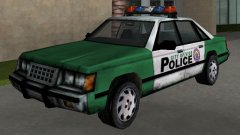
From the album: GTA Series Random
-
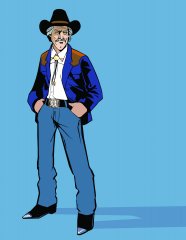
From the album: GTA Series Random
-

From the album: GTA Series Random
-
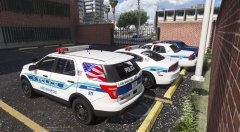 very cool!
 -
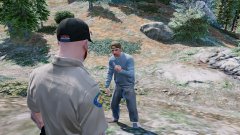 lol
lol -
 cool skin!
 -
-
-
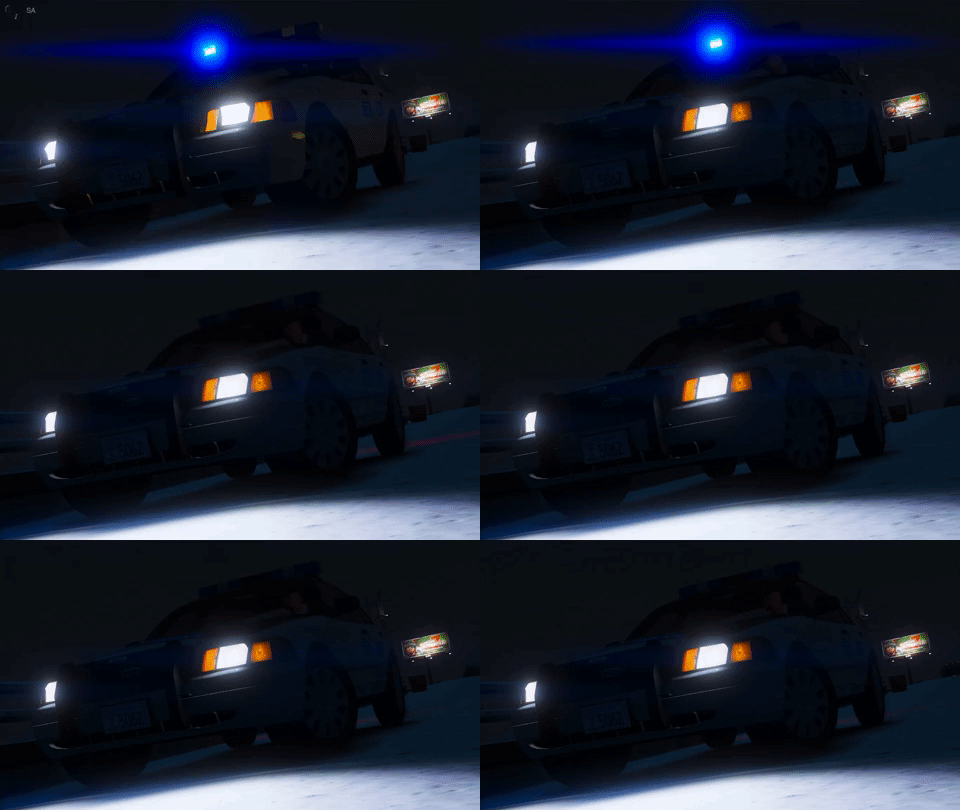 love that lightbar especially the old strobes
 -
-
True, I'm sure a lot of people wished he opened sourced it, but the end of the day he created it so he's going to do what he wants to do.
-
The two options you have is try using 0.5 it might speed it up or try going to the start menu then running a benchmark some people said they did that every time they started the game, and it made their lights faster. It depends on your computer. ELS speed is dependant of your FPS, Higher FPS means ELS speed will be increased, Lower FPS means ELS speed will be decreased. Remember a lot of times you can use the search feature at the top of the site. Most of the time your question will be either answered, or there will be multiple other ways to achieve what you want
-
In response the creator of ELS has real life obligations just like any other adult. Lt. Caine has always been good about coming out with great updates. He's not going to update a mod every week, plus he uses his free time to make a free mod for every one to enjoy. I am more than sure it will be updated.
-
-
 Nice shot!
 -
.png.b8b645c7c899bc266785aaabd1b47bb6.png) The storm looks so real! Very cool!
The storm looks so real! Very cool! -
.png.89deca90f64e687d074bb11055a18cf9.png) Nice pic!
Nice pic! -
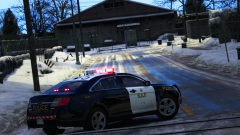 Nice shot!
 -
 Nice night shot!
 -
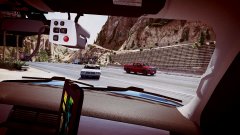 I like this shot!
 -
I play GTA on a 42" Samsung LED. I would never go back to a small normal size computer monitor, and the graphics are amazing! Since your from the US I would try Walmart they usually run surprising deals on tvs!
-
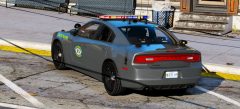 Nice! Very Cool!
 -
 Very cool!


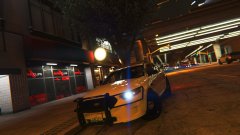



.png.b8b645c7c899bc266785aaabd1b47bb6.png)
.png.89deca90f64e687d074bb11055a18cf9.png)
