



RangerZ
Members
-
Joined
-
Last visited
Everything posted by RangerZ
-
-
-
 Then don’t use the file and your problem is solved. Also I refuse to help you until you can show some respect to me and everyone using the file.
- 175 comments
- 24 reviews
-
-

-

- 3
-
-
Idk. Your the only person to complain out of 5,961 people so maybe it is your game...
- 175 comments
- 24 reviews
-
-
- 1
-
-
-
-
-
-
-
-
-
-
-
-
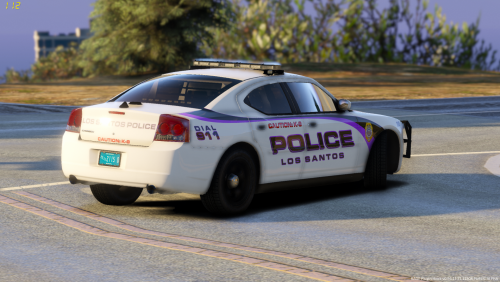 Huge thanks to ERIC for the skin! Credit to Deputy Chief Eric, Lead Texture Artist from the GTA Mobile Alabama Clan for the livery Link to his account: https://www.lcpdfr.com/profile/220805-providencelaw/ Please give him a follow to show some support! NOTE: EXTRA 12 will enable/disable the solar panel on the lightbar
- 25 comments
- 4 reviews
-
-
- 7
-
-
 They actually are, but it looks weird. I think I need to change the material.
- 17 comments
- 10 reviews
-
-
-
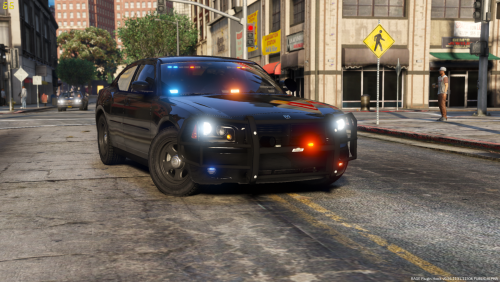
Merry Christmas! NOTE: EXTRA 12 will enable/disable the "white boxes", on the trunk, and the "ALPRs", on the push bar
- 17 comments
- 10 reviews
-
-
-
- 16
-
Through the trainer u would be able to change the color. I’ll take a look later!- 175 comments
- 24 reviews


