



RangerZ
Members
-
Joined
-
Last visited
Everything posted by RangerZ
-
 Y’all really no life this comment section…
 -
 @JackTheDev Cant just have a chill comment section. People cant act right smh.
 -
-
 Find you vehicle.meta File then go under the sheriff 2 slot and change the handling id to police3
- 24 comments
- 10 reviews
-
-
-
-
 Lol
Lol -
Polecat rn -> 😳
-
-
-
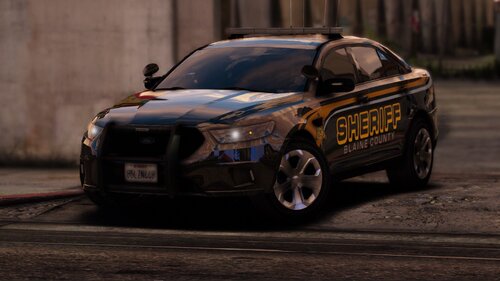 Take a transparent png and go into the .ytd and replace it over the Taurus windows file.
- 29 comments
- 4 reviews
-
-
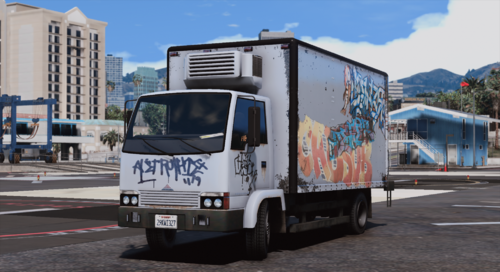 Imagine giving a file 1 star because of the name. Lol. That’s pathetic. I think it’s amazing and I love the creativity and the little command center thingy!
- 21 comments
- 7 reviews
-
-

- 2
-
-
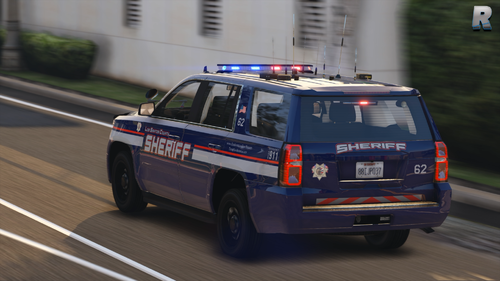 the tint is default. Go into the trainer and keep vehicle clean and it will work fine.
- 8 comments
- 1 review
-
-
-
-
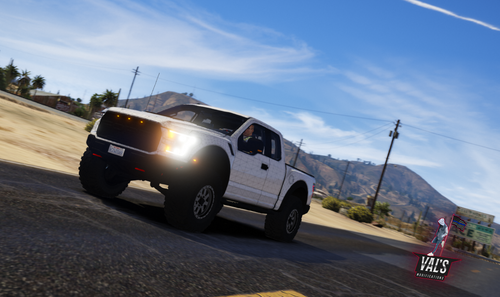 I think you guys should do a nice Caprice! But I do love this.
 -
-
-
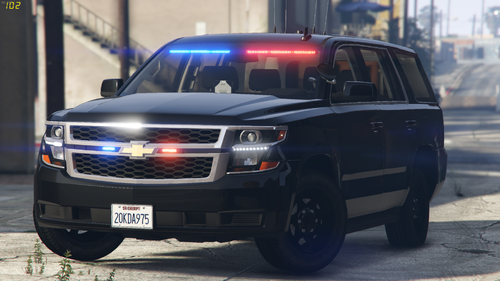 I could do that There was an issue with the skin and I just haven’t gotten around to re doing the vehicles but that can be the next pack.
- 19 comments
- 6 reviews
-
-
- 1
-
-
-
They are lore friendly. The in game department is called FIB so that’s why I did that.
- 19 comments
- 6 reviews
-

Folder.thumb.png.783e9e441b3e874bcfedd22c5efca01a.png)


