



Nick181983
Members
-
Joined
-
Last visited
Everything posted by Nick181983
-
 Paparazo crashes on the way to destination somehow anyone has the same issue?
- 255 comments
- 16 reviews
-
-

- 1
-
-
-
-
Don’t understand how to use github some Callouts crash like transport need required
-
-
-
-
-
I have i7 3770 gtx 1080 16gb rams i don’t know why FPS is very low while playing lspdfr it could be all the updates and stuff without playing lspdfr my FPS is 60-80 while playing lspdfr it dropped to 10-20 FPS
-
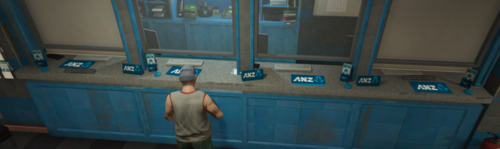 could not find dt_1_23_small_bank
 -
Do you have dinput8.dll In your main gtaV folder if you delete it and try launching it again
-
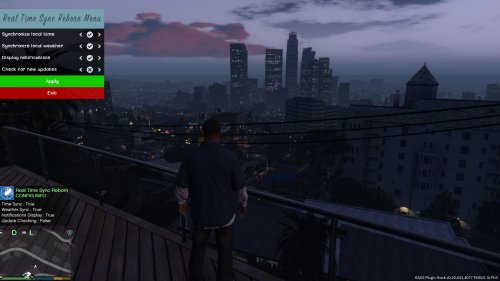 using stealth mode not working on controller while using this plugin, using native training with the controller phone activate and when unload the plugin stealth mode works on controller and using dpad up controller phone don't activate weird
- 125 comments
- 11 reviews
-
 If you cancel call using Albo1125 radio you can’t accept any more LSPS calls is this permanent or can use the callouts again if redownload and put in the main folder?? or close the game
 -
 Attacked police station: callout manager failed to start Attacked police station any reason??
- 302 comments
- 66 reviews
-
.thumb.jpg.f0dec059068381f414a4652f9748d8c6.jpg) wheres the els?
wheres the els? -
-





.thumb.jpg.f0dec059068381f414a4652f9748d8c6.jpg)
.thumb.png.0e766faa25784c4c91a92faf4d35dbf8.png)