


rabbit1988
Members
-
Joined
-
Last visited
Everything posted by rabbit1988
-
First, please don´t bump topics. Espeacially when there is not much time beetween the last post and the bump. Please extract the rar.files and open the folder in windows explorer. Then put them into OpenIv
-
Please post your RPH-Log
-
Please take a screenshot of C:\Program Files (x86)\Steam\steamapps\common\Grand Theft Auto V Also of C:\Program Files (x86)\Steam\steamapps\common\Grand Theft Auto V\ lspdfr\data
-
@Black Death Super buggy isn´t true. Have no problems with it. If you encounter problems, you should start a topic with your log attached.
-
Well, you still have a lot of plugins that don´t be updated. Please make sure you remove all of them.
-
Please post your RPH-Log
-
There is something wrong with your police smart radio. Please delete the plugin for a test and try to play.
-
All of your plugins didn´t install properly. Please read the instructions carefully.
-
Try to set PluginTimeoutThreshold to 60000. Also delete Vocal dispatch just for a try.
-
Please post the new RPH-Log. Also post a screenshot of your GTA Main folder
-
Like I thought That isn´t your game folder. Also your log says game folder has no plugins. Seems like you installed it to wrong place 😉
-
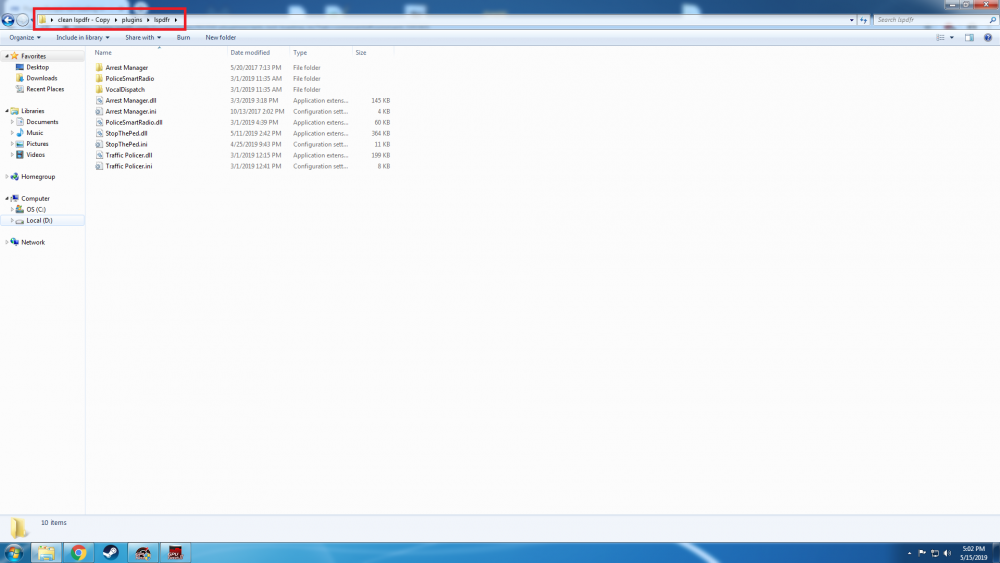
Please post a screenshot of your GTA5/plugins/lspdfr folder
-
Look here: https://www.lcpdfr.com/forums/topic/89691-read-will-save-your-time-common-issues-fixes-and-bugs/
-
Please post your PC specs. Also please attach the whole log file. @kc1aei Do you have a modfolder?
-
Well the white dots are implemented in Traffic Policer. You need to set them on in the ini. Drunk driver is also an addition of this plugin. Other plugins adds events too. But there are also events like fights, GTA ect implemented in vanilla LSPDFR. But you can post your Logfile to see if everything is work correctly 🙂
-
Delete all plugins don´t updated for LSPDFR 0.4 Also set PluginTimeoutThreshold to 60000
-
😉 Maybe it´s the choice of your words but it sounds complaining 🙂
-
Then rename it to mods 2 and try again.
-
Can´t see anything wrong in this logfile. I would suggest to delete every plugin to see if it works. Does the whole game crashes or only LSPDFR? Btw, that wasn´t the actual log. Your actual log is always in the GTA folder, same name but without time and date.
-
Well the error text of OpenIV would be helpful 😄
-
Please post your RPH-log
-
First, just for your Info. This wasn´t the newest log. THe actual log is always in the GTA folder. Same name, but without time and date 😉 For your problem: Set PluginTimeoutThreshold in RPH-Settings to 60000. Also, if you have a problem, please search for it first. This error+solution is find on so many topics, also in the common issues, if you google the error you find so many answers. So please just search and try by your own first next time 🙂 If game still freezed after changing the Setting, please report back with actual log file.
-
Well, searching on your own would be a nice start. Just set PluginTimeoutThreshold to 60000. Also next time, search for the problem first, please. Don´t take this personally but it´s annoying to write the same sentence 7 or 8 times in only 48 hours. 🙂
-
I don´t know how it works on keyboard, but with controller you need to press A repeatedly to sprint. Not just hold 😉
-
This isn´t the full log. Please attach the full log to help you.

