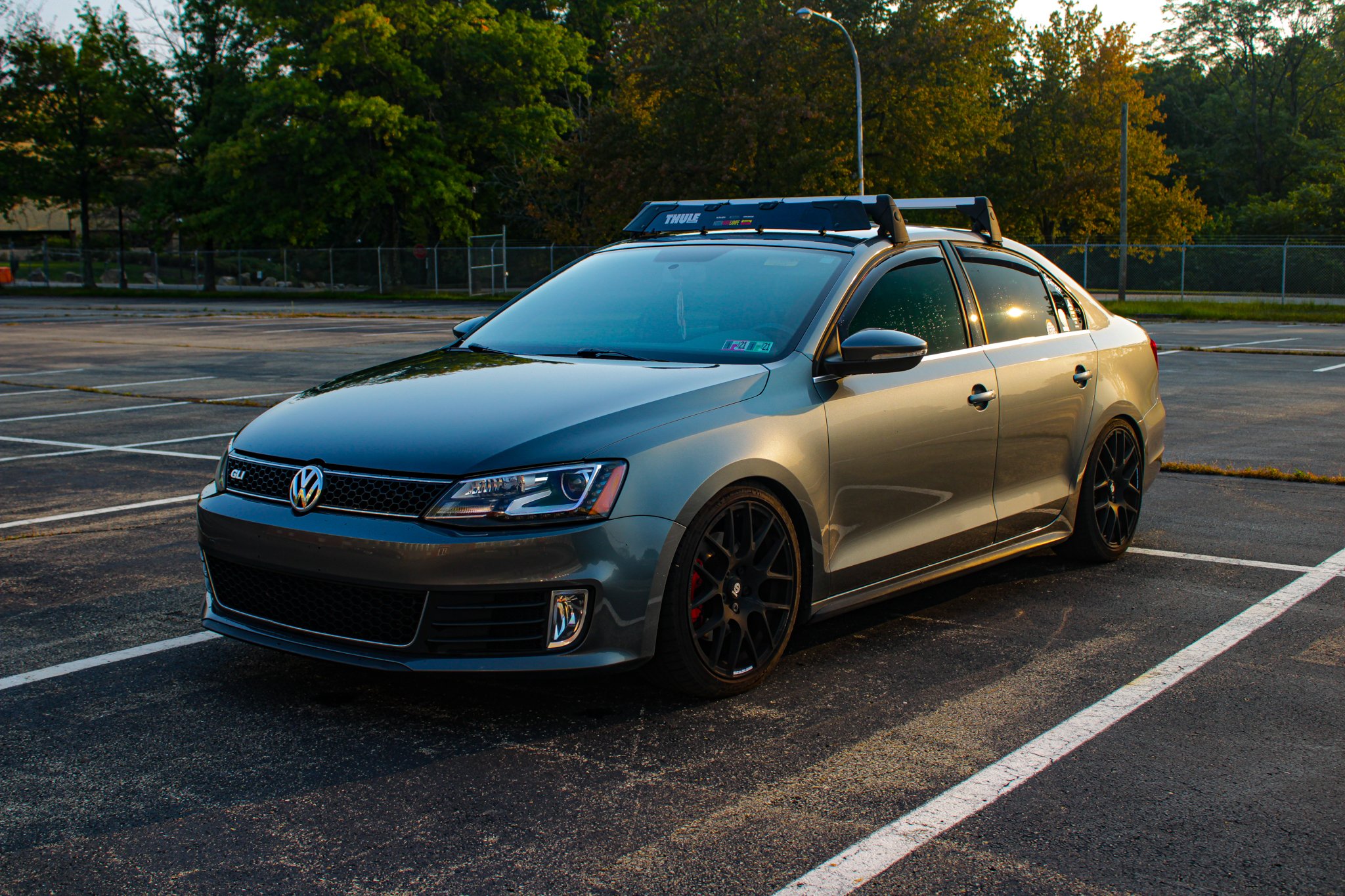
Welcome to my page-thingy! My about me section was kinda boring, so I thought I might make it un-boring! Well, at least I would try to do so...
Anyways....You may have seen me around the forums and elsewhere on the site, but if not, I am CRAWFORDx96! I joined here in June of 2012 because of NicolaiB's LCPDFR videos. I don't know how I even found them, but I thought they were hilarious, and the mod looked really cool, so I bought the game. Fast forward 2 years and now we are here! I enjoy making the videos of me playing LCPDFR, but once I am done editing them, I usually find something I don't like in the video, then scrap the entire thing. So I don't have very many videos on the YouTube, but I do have a few, so check 'em out! Every now and then I also like to try and make skins for cars. I never used Photoshop up until a few months ago when I edited my first skin, so I don't release stuff all that often because it looks like crap. Another big one, if you hadn't noticed, I thoroughly enjoy the BBC television program that is Top Gear. Notice how I said BBC, that is the English version of Top Gear, not the American. Top Gear UK is much better than Top Gear US in my opinion.
This is a list of people that I have met on here that have helped me and are just cool people:
ineseri
Iconography
JAM-Justin35
Reibu
Bxbugs123
And just about anybody else who hangs out at Fort Carson Radio!
That is all for now, until I can think of something else to put here.