
Christopher0
Members
-
Joined
-
Last visited
Everything posted by Christopher0
-
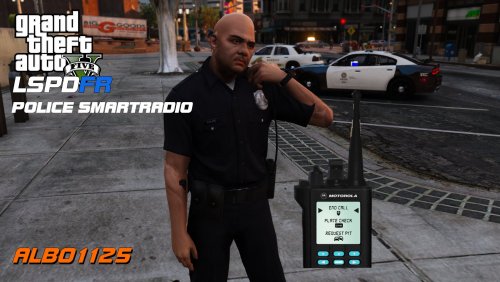 Requirements - some of these are included (credits go to their appropriate authors): LSPDFR 0.3.1.0 (not included) Albo1125.Common 6.5.1.0 or higher (included) Traffic Policer 6.13.6.2 (not included) RAGEPluginHook 0.51 or higher (not included) A legal copy of GTA V version 1.0.1011.1-1.0.1103.2. These are the requirements from the page so I don't think that its required but it may say upon loadup that its recommended, also I never used without AM but it should work
- 1,196 comments
- 127 reviews
-
 No problem, I also noticed that if you put a crap ton of off offences it wont work😁
- 1,178 comments
- 137 reviews
-
-
-
-
-
Will all plugins have to be updated? I'm asking since a few callouts I use were updated in like 2016 but I really like them. For example Wilderness Callouts
-
Go to F:\SteamLibrary\steamapps\common\Grand Theft Auto V\plugins\LSPDFR\PoliceSmartRadio\ButtonSetup , right click either on foot or in vehicle, select edit and make sure that this line is like mine. (You also need arrest manager btw) <Button> <Plugin>Arrest Manager</Plugin> <Name>tow</Name> <Enabled>True</Enabled> </Button>
- 1,196 comments
- 127 reviews
-
 Hey, could someone please help me with the computer flickering. It flickers very often and its kinda annoying. Would be thankful if anyone has a solution.
- 1,743 comments
- 172 reviews
-
-
-
-
-
@SgtDial F:\SteamLibrary\steamapps\common\Grand Theft Auto V\plugins is the folder with the plugins that will show on rage. We place the lspdfr plugins in F:\SteamLibrary\steamapps\common\Grand Theft Auto V\plugins\lspdfr so that they load only after LSPDFR is activated by going on duty. The best way to check is to go on duty and by default press C.
- 1,196 comments
- 127 reviews
-
-
 You need to install a recent game config. I use this one: https://www.gta5-mods.com/misc/gta-5-gameconfig-300-cars
- 779 comments
- 187 reviews
-
 Thats weird, I guess then the last thing I could recommend is deleting all the policer files from game and archives then redownload them.
- 3,646 comments
- 306 reviews
-
Did you edit the ini file? If so, I personally think this is caused by the fact that you edited the traffic policer ini file and you put a lowercase C instead of an uppercase. “[8/14/2018 11:50:31 PM.040] LSPD First Response: Exception message: Requested value 'c' was not found.” Might want to check that in the trafficpolicer.ini file.
- 3,646 comments
- 306 reviews
-
Try posting a rph log of the game crashing. Maybe that will give someone a clue of the reason behind the crash.
- 3,646 comments
- 306 reviews
-
Well maybe the callout required or recommended using the plugin and it tried to open the computer details and you didn’t have it so the game crashed.
- 1,178 comments
- 137 reviews
-
-
-
No, I don’t think so. My reasoning behind that is the line: [7/30/2018 5:14:38 PM.821] LSPD First Response: Exception message: Could not load file or assembly 'ComputerPlus, Version=1.3.0.0, Culture=neutral, PublicKeyToken=null' or one of its dependencies. The system cannot find the file specified. This crash is most likely caused by ComputerPlus. I recommend reposting your log under that file.
- 1,178 comments
- 137 reviews
-
Try a clean install by deleting the files and then redownloading them from this website and then reinstalling it into the game. Then it will prompt you to setup the buttons.
- 1,196 comments
- 127 reviews
-
Try deleting the traffic policer files and redownloading them from lcpdfr.com
- 1,178 comments
- 137 reviews
-
-

- 1
-