Him1250
Members
-
Joined
Everything posted by Him1250
-
I've been doing good, just busy with school and shit. If you got discord, send me a friend request, Sean#1250
-
It's been awhile my dude. Hope everything's going well!
-
You're not going to find any, for free at least.
-
It's god awful and looks absolutely atrocious
-
-
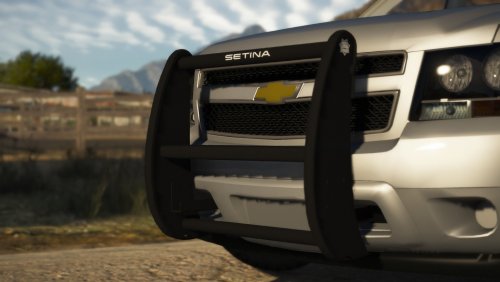 Looks great my dude. Glad to see you giving back to the community.
 -
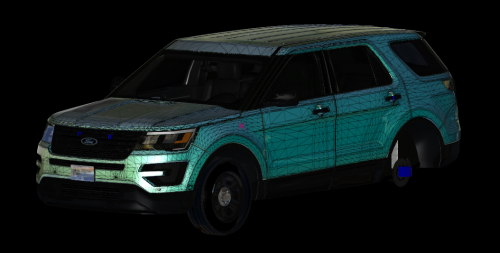 Awesome.
 -
Various screenshots from my FiveM community, Blue Line Gaming. Join here.
-
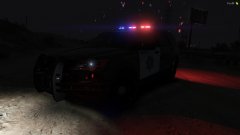
From the album: Blue Line Gaming Community
© Blue Line Modifications
-
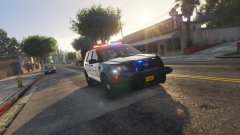 This model is in alpha testing, if you want it then apply for the RP community on my profile.
 -
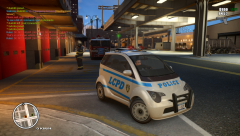 What MP mod is this?
 -
.thumb.png.59abaeed4be5373ff5e0216c305f82d1.png) You from New Mexico?
You from New Mexico? -
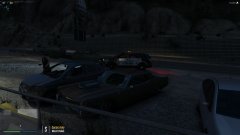
From the album: Blue Line Gaming Community
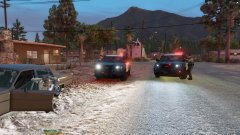
Scene after an active shooter/barricaded subject outside Paleto Bay. -
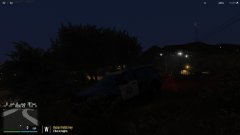
From the album: Blue Line Gaming Community
-
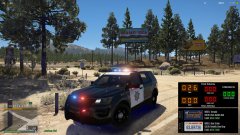
From the album: Blue Line Gaming Community
Deputy Walker is checking his lights while running radar on Joshua Road halfway through his patrol shift.© Blue Line Gaming | Him1250
-
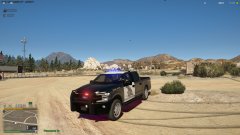
From the album: Blue Line Gaming Community
Deputy Walker tests the lighting equipment on his brand new 2018 Ford F150 SSV.© Blue Line Gaming | Him1250
-
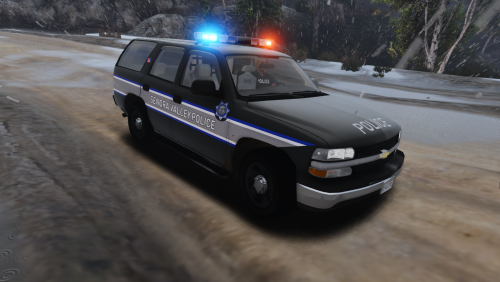 Posting in all caps sure as hell isn't going to make it happen any quicker.
 -
-
There's nothing that I know of that we're able to do in Zmodeler itself, even with ELS and the message board system. It very well could be a possibility but I'm very doubtful unless Cockstar themselves implanted something like that which I don't see happening.
-
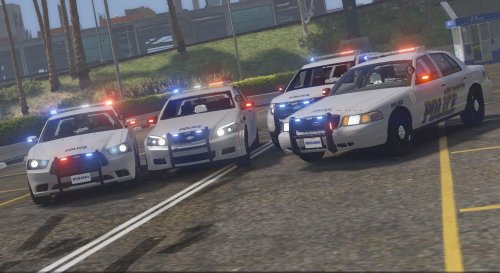 I'm not mad or anything, I was simply asking you to add the credits but thank you!
- 13 comments
- 7 reviews
-
Please post proper credits that were included with the caprice or I'll have the file taken down.
- 13 comments
- 7 reviews
-
-

- 1
-
-
-
-
 Gee I wonder what department this is based off of.../s looks awesome!
 -
I've been transitioning everything over to my discord. Join if you'd like to here: https://discord.gg/Uh6pCGy


.thumb.png.59abaeed4be5373ff5e0216c305f82d1.png)