



Tinman1287
Members
-
Joined
-
Last visited
Everything posted by Tinman1287
-
 Haha no worries. I've been forgetting almost everything lately!
 -
Interested. Did you manage upload a video of it?
-
-
.thumb.png.5429e3e14ca63bfcfabfd4f7db13f3d7.png) Oooh, Aussie cars starting to get reflective textures now. Love it! Hopefully we're getting more!
Oooh, Aussie cars starting to get reflective textures now. Love it! Hopefully we're getting more!- 6 comments
- 3 reviews
-
 Still a 10/10 because fits perfectly with the vanilla GTA physics.
 -
Had a look through and couldn't see if anyone posted anything about it. Loving it so far! Great work with the update! Update: I noticed that I can replace that Stanier with some cars, but not others. Guessing standard cars work but DLC cars don't. As the Buccaneer worked, but the Tulip didn't.
-
 They seem more realistic to me. I'm also using LS Traffic by Cass, so for heavy amounts of traffic in the city and decent amount on the freeways this does seem realistic.
- 366 comments
- 32 reviews
-
 I think I know what he's referring to. Not sure if it happens with vanilla game or only modified traffic, as I use World Of Variety. But some of the bigger vehicles such as trucks, big vans (such as the Boxville) and buses don't actually respond to the players sirens. They'll just keep driving as if you're not even there.
- 24 comments
- 2 reviews
-
None. One is from the original game files, ones from an updated file. Both do the same thing. I didn't have one in update.rpf/common/data, but adding it there is just like replacing the other one. However I just added it there and replaced the other one. Usually what I do when in doubt.
- 366 comments
- 32 reviews
-
-

- 1
-
-
Played a few hours. With and without Clear The Way. Traffic responds nicely to both. Did some code 3 driving through the city, county and freeways. Traffic responded well and it felt like I was actually rushing, not just doing the speed limit! As for chases it works well for that too. I can focus on the person I'm chasing instead of having it look like the whole road is involved in the chase. Adds a much more realistic feel, even just cruising around the city. You still get the occasional idiot, but that just adds to the realism.
- 366 comments
- 32 reviews
-
Something I didn't even know I needed! Traffic in V is just "slightly" chaotic. Calmer traffic would make a much more realistic feel, especially in pursuits. Love the idea, I'll be sure to give it a test!
- 366 comments
- 32 reviews
-
-
- 2
-
-
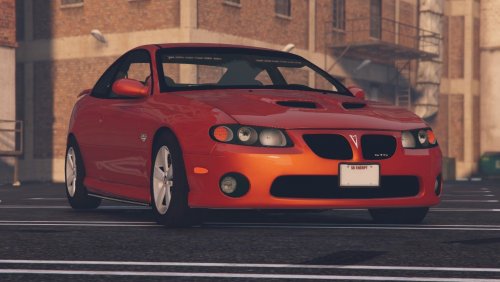 Been using this for a while. Love both versions! Only thing I'd ask for is a version without side runners. Also just a small texture issue in the front fog lights. Don't really notice unless you're taking photos of the car. https://imgur.com/a/nVdUPm8
- 20 comments
- 1 review
-
 Yeah it does with single colours. Shame it doesn't work with dual colours. Looks like I'll be upgrading one day just to use this. 😛
 -
Disregard, misread something. Love the idea, just wish a G19 could handle it.
-
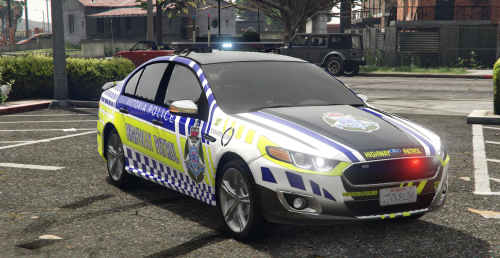 Looks awesome from the screenshots, been waiting for one like this. Going in my game for sure! Any plans on making something similar for the ELS Evoke? Being a Victorian, I'd love to see more.
 -
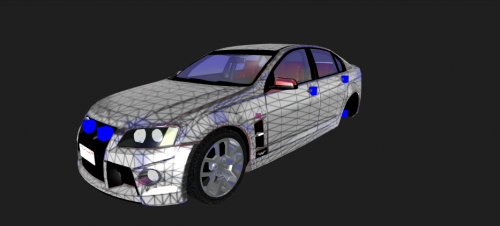 Forza Motorsport 3. This car isn't in Forza Horizon 3. Would be amazing to have the VF Commodore from Horizon 3 though. I did one of these a while ago for GTA IV. Even had someone message me asking to convert it to V. Nice to see other people had the same idea!
- 9 comments
- 1 review
-
-
- 1
-
-
.thumb.png.23b56a0ef426095045adcc2870493be1.png) As a Victorian I say thank you. xD Looks awesome, I'll test this out as soon as I get the chance! Finally starting to see more Aussie cars in V. I might have to hurry my ass up and convert my Monaro and XR8 lol
As a Victorian I say thank you. xD Looks awesome, I'll test this out as soon as I get the chance! Finally starting to see more Aussie cars in V. I might have to hurry my ass up and convert my Monaro and XR8 lol- 27 comments
- 8 reviews

.thumb.png.5429e3e14ca63bfcfabfd4f7db13f3d7.png)
.thumb.png.23b56a0ef426095045adcc2870493be1.png)