ESchell43
Members
-
Joined
Everything posted by ESchell43
-
-
Nice!!!!!!!
-
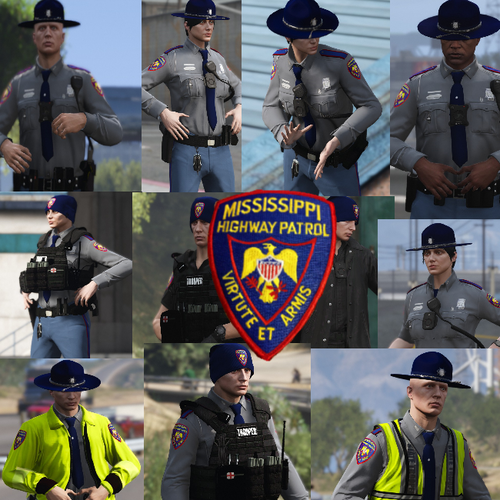 Very cool. One of my good friends is a Mississippi Highway Patrolman, Ray Hall.
- 18 comments
- 2 reviews
-
-
I have the retail version. I will be much more vigilant in backing up and blocking updates next time for sure!
-
Let's hope they don't go after Scripthook or RPH...
-
Thanks!
-
I didn't backup either! I tried to firewall block GTAVlauncher and play offline mode and it worked for a couple of days, but today Social Club said it didn't recognize me and forced me to update. I also updated RPH, and when I try to launch RPH or the vanilla GTAV, scripthook will not let either load.
-
Mine updated today. I tried to firewall block GTAV launcher, and play in offline mode, but Social Club wouldn't recognize me and let me play. So I let it update and updated RPH, but when I launch RPH or the vanilla GTAV, scripthook pops up saying it will not work with this and will not let either load. What have I done wrong?
-
-
-
-
-
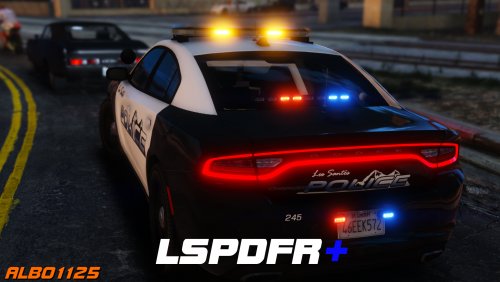 I think your GTA V has updated to version 1.32 as mine has. @Albo1125 will update them soon!
- 1,178 comments
- 137 reviews
-
-

- 2
-
-
Since I updated to 1.32- Arrest manager, traffic policer, and LSPDFR+ are no longer working. It says it is not compatible with the new version. Is there an update for those scripts?