


ofiicer lenton
Members
-
Joined
-
Last visited
Everything posted by ofiicer lenton
-
No I jus turned up the post fx I'm going to try that now I have the shader quality set at high in game
-
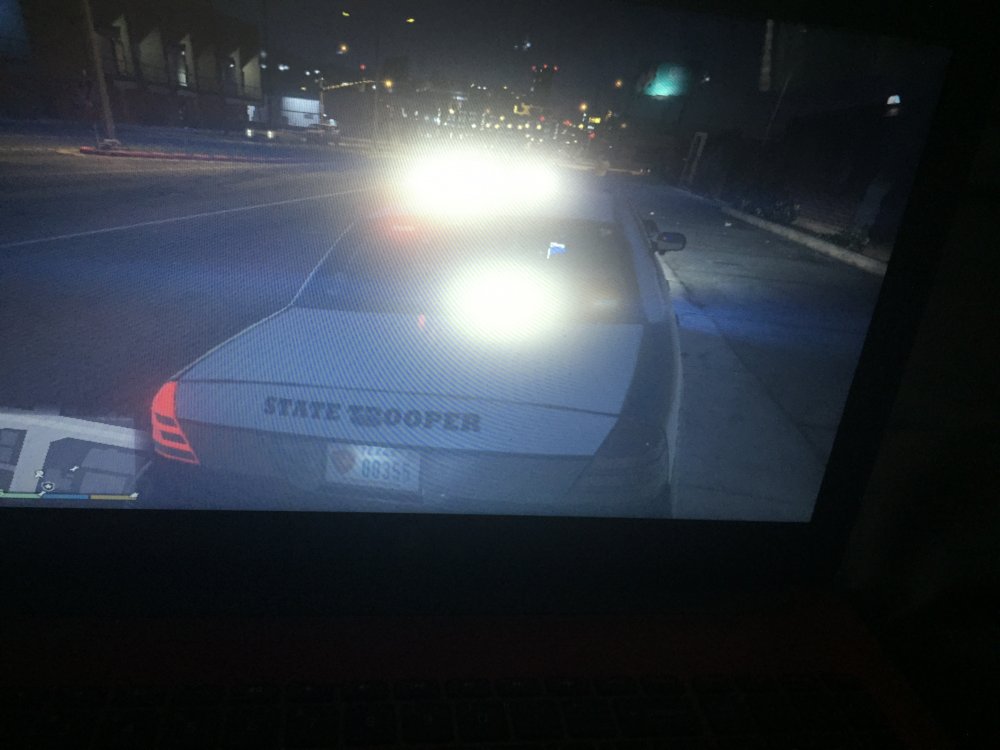
Upclose the lights are showing yellow instead of red and blue but from far my lights are red and blue I've turned up post fx and everything they are bright enough jus not the correct color
-
Installed the new spotlight and corona mod and the lights on the vehicle became yellow upclose but from a distant the lights are perfect and are the correct color can anyone help me
-
I'm having the same issue upclose my lights look yellow but from far they look yellow I have tried numerous things such as putting the post game fix higher and that made it brighter but didn't change the color upclose to red and blue lights
-
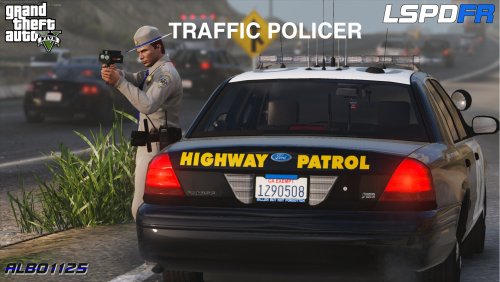 hi albo I'm a huge fan and new to lspdfr I was wondering is this mod updated yet to the rph 51 ??
- 3,646 comments
- 306 reviews
-
also tried the ultra and post fx it stsill didn't work so now I'm going to have to get an entire car without els
-
I'm having the same issue my lights are very very dull I'm going to try post fx on ultra and shaders
-
I'm having the same issue now did you ever fix the problem ???
-
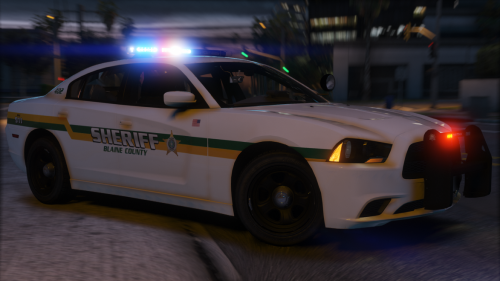 hi I jus downloaded your pack to my game the installing part went very well but I'm having trouble getting the lights to flash brighter I went to vehicles meta like you said to do but where do I apply the window tint to none ???? also every car in the pack lights are like this can you please help me figure this issue out
- 46 comments
- 32 reviews

