
Empire
Members
-
Joined
-
Last visited
Everything posted by Empire
-
 This model is not going to be released to the Public, It's 10-35
 -
From the album: Teds-Beds-peds
-
From the album: Teds-Beds-peds
-
From the album: Teds-Beds-peds
-
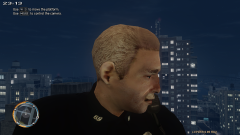
From the album: Teds-Beds-peds
-
-
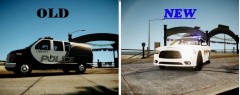 first one is slowing' as it's an van. and that I can't really see what the second one texture is, as I see the font of the car then I do on it's side
 -
From Oz Down Under I like to say Happy Birthday Joyeux anniversaire
-
cool
-
Yes it Helps a bit, but got all of the Modifications and scripts to install, so need around 8gb and i5 is better than Core 2 Duo (which they don't make any-more) All I'm saying that you need a good gaming computer that is higher than the Minimum spec above.
-
I read it NNOOoooo, You should not click on that flipping link
-
Very Strange and weird story
-
YEA, the cars are great, then GTAIV, 6 months for it to come on PC, so waiting and waiting
-
1. Buy the Game of stream or buy it online or in store for an 'PC' disc version 2. You need A good computer to run GTA IV and the modification, A good mid-range gaming pc 3. Play the first mission on GTA IV and save it before you install LCPDFR - and that when you have finished installing GTAIV you need to install GFWL (Games for windows live), and that will replace the Rockstar. 4. as we all now that there are a-lot of TUTORIALS on this site, I suggest that you read and watch those TUTORIALS of how to install scripts and how to use it. As you are an new at this I suggest that you only do LCPDFR.RC2 before installing more modification - like ENB, ELS, Matt van, Fire scripts, - and install in-game-trainer that helps' That's in the TUTORIALS as well. I hope that this helps and other peoples comments above me will help' do the following of what I said and that you will not have to post for help, if you need help about something then post it in the right forums
-
Thanks, now that it all makes sense "now" I just keep using China Green Elvis ENB, us I still like it
-
- thats a Great Tutorial, But I only have room for one, not two or more, if I had space on my SSD, I'll do another copy
-
I'm been reading up about ENB "as there are a-lot of them out there for low and high and PC' so which is coolest or better ENB to use!! at the moment I'm using China Green Elvis ENB for months now, and I really like it' it's the Best ENB I ever used, and the only one that I use. China Green Elvis ENB uses patch 1.0.7.0, as for most ENBs they work great for patch 1.0.3.0 or 1.0.4.0 'But I'm only interested in using patch 1.0.7.0. as well when GTAV comes out in 6 months time on PC, I like to hear you thoughts of what ENB will look like as the new game has updated scripts and patch and so on. -so what's your thought on the best ENB you go for? and what's the best ENB for an high spec PC? -the main Question is!! patch 1.0.7.0 is it the newest patch out there?? or this patch 1.1.1.0 is the newest, or the fact that 1.1.1.0 is for The Ballad of Gay Tony.!! List of the following GTA IV Patch 1.0.3.0 1.0.4.0 1.0.7.0 1.1.1.0
-
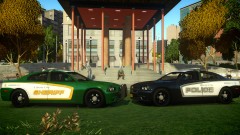 I use a lot of ENB' I think that you ENB is the coolest I ever seen
 -
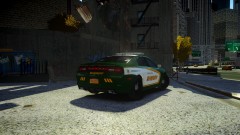 OMG, all of you images are all cool, with great colour and lights combination
 -
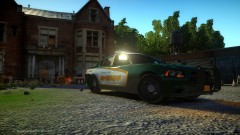 now thats an cool ENB
 -
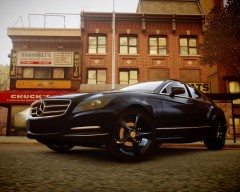 More like an 2.1 Diesel engine
 -
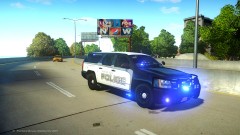 New ENB, is for low end pc' or An High end pc
 -
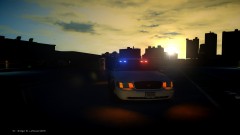 oh yea, that's cool
 -
It's now available to download '?do=embed' frameborder='0' data-embedContent>>
-
I just can't flipping win, that the main fact that I get bad results from people, I have done my best in my free time to create this and create the video for the people of the world, and all I get is bad response
- 9 comments
- 5 reviews