




maddriller
Members
-
Joined
-
Last visited
Everything posted by maddriller
-
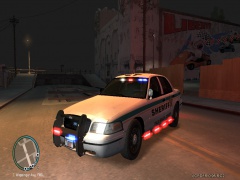
From the album: my vehicles
-
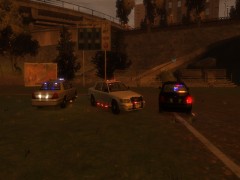 they are BA looking dude
 -
cannot wait to try this out
-
sorry forgot to give credit in this one but did in the other one in tutorials it was confusing for me and I put it on my gallery and started getting comments on how to do it so I just gave a detailed one
-
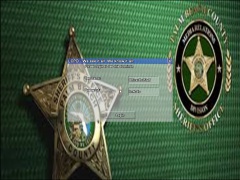
Hey everyone. everyone is asking about how to do it I had crazy problems trying to understand how to do it and I caught it in another area on how to in the comments section so I will break it down in full detail. I especially want to give thanks and his original credit Jay for being the first to put a tutorial on how to do this but It confused me and I want to thank him and not bashing or putting anyone down thanks. Step 1: pick an image that you want and save it to your desktop or pics where ever you prefer Step 2: after you save it rename it from (example: image.jpg or image.png) to PoliceBG you need to make sure it specifically says this Step 3: go to your GTA IV scripts folder open the LCPDFR folder and paste into there. BTW it will show up as PoliceBG.jpg or .png rename it and take the .jpg or .png out of it. on my computer it will say are you sure click yes close all of it and enjoy. Hope it was as thorough and easy to understand you can PM me if you need further help. thanks this is my LCPDFR computer background of the PBSO banner I got off of google images I do not claim original rights or credits to the image
-
thanks never did any type of modding or anything technical like this so all compliments and constructive critism are welcomed
-
Hey everyone I don't know to my knowledge if this is a support or a tutorial topic? I apologize in advance and im sorry. everyone is asking about how to do it I had crazy problems trying to understand how to do it and I caught it in another area on how to in the comments section so I will break it down in full detail Step 1: pick an image that you want and save it to your desktop or pics where ever you prefer Step 2: after you save it rename it from (example: image.jpg or image.png) to PoliceBG you need to make sure it specifically says this Step 3: go to your GTA IV scripts folder open the LCPDFR folder and paste into there. BTW it will show up as PoliceBG.jpg or .png rename it and take the .jpg or .png out of it. on my computer it will say are you sure click yes close all of it and enjoy. Hope it was as thorough and easy to understand you can PM me if you need further help. thanks this I got off of google images its the PBSO banner I put as my background for my computer on LCPDFR I give jay credit and thanks to original post in tutorials and I do not claim original rights to it I only gave some more detail thanks jay :)
-
the tech manager is right I just did it
-
From the album: my vehicles
-
yes please a more in depth explanation is requested please I get what your saying but just is not working thanks in advance
-
-
-
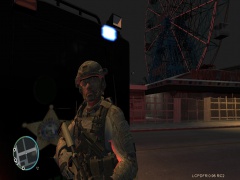
From the album: my vehicles
-
-
-
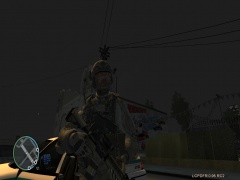
From the album: my vehicles
sandman with bearcat martin co SO with cqb m4 -
-
-
-
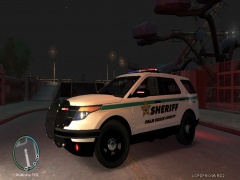 thanks got both off lcpdfr.com no k-9 the Tahoe is a supervisor k-9 I wanted to make my own clan just pbso and fl pd and sheriff units and other people can represent where there from just trying to meet people to play
 -
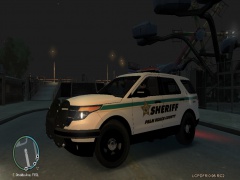
From the album: my vehicles
-
From the album: my vehicles
-
-
-
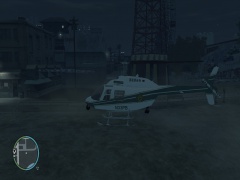
From the album: my vehicles
model found on gta4-mods.com Bell 206 B - Chicago Police Helicopter by Voltrock skin found on LCPDFR.com PBSO CPD by x thunder




