Skip to content
View in the app

A better way to browse. Learn more.

LCPDFR.com

A full-screen app on your home screen with push notifications, badges and more.

To install this app on iOS and iPadOS
  1. Tap the Share icon in Safari
  2. Scroll the menu and tap Add to Home Screen.
  3. Tap Add in the top-right corner.
To install this app on Android
  1. Tap the 3-dot menu (⋮) in the top-right corner of the browser.
  2. Tap Add to Home screen or Install app.
  3. Confirm by tapping Install.

DriftyWood

Members
  • Joined

  • Last visited

  1. Images added to a gallery album owned by DriftyWood in GTA V Galleries
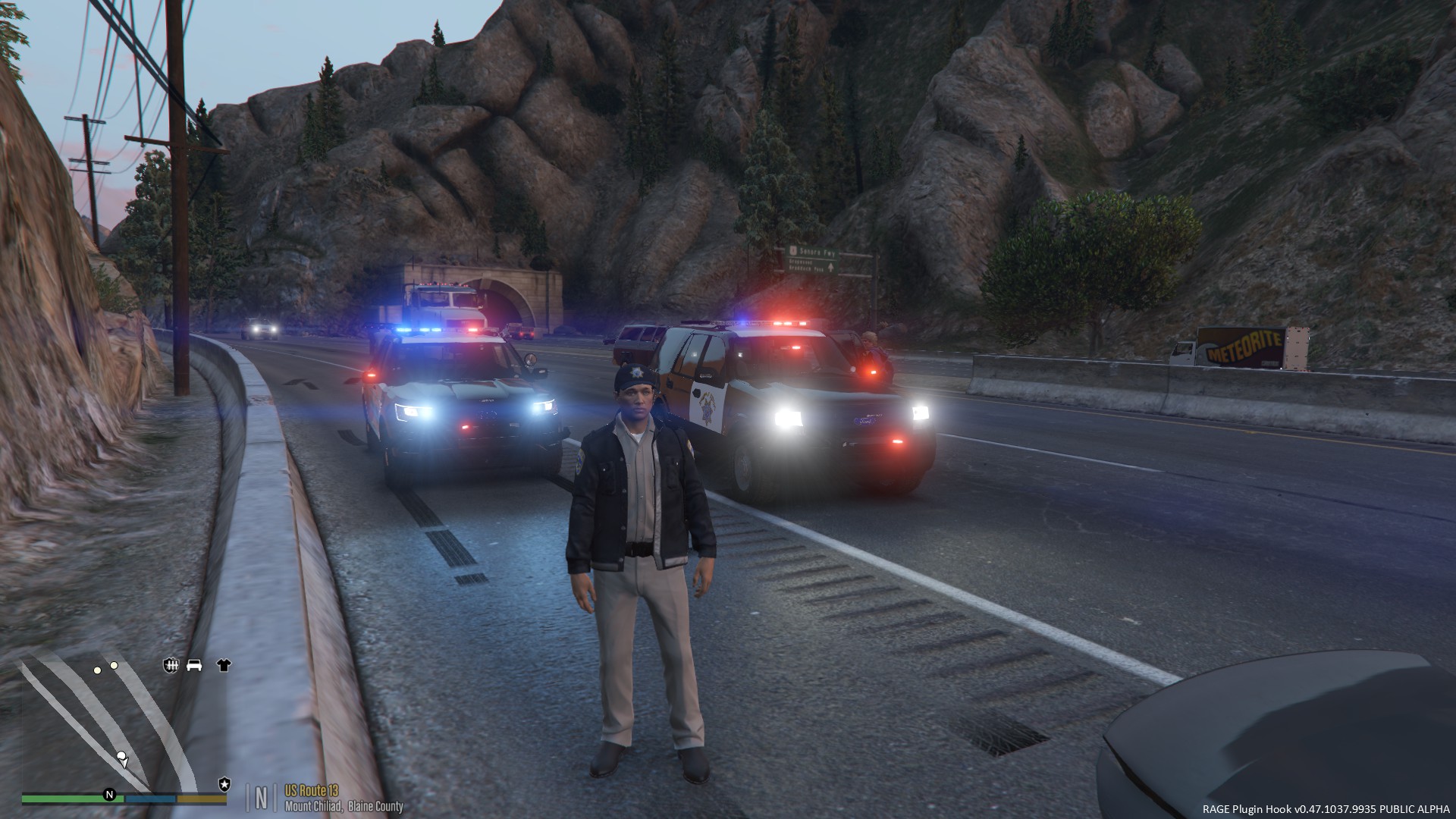
    Here are some pictures of my traffic stops
    TONS of hard work was put into this pack I see, and I'm so happy that you spent so much of your time making it. Thank you @Thehurk!
  2. Love this pack, so thankful that Thehurk worked so hard on this! I have a question about the 2013 Marked Utility. For some reason when I step out of the vehicle on light stage 3 my front FULL steady burns do not activate. I have also tried to reinstall the .xml file for ELS but unfortunately this did not work. The front steady burns are working on my other installed vehicles, like the crown vic. Thanks, hope that someone has an answer to this. :)
    Amazing model, of course needs a few small fixes, but overall it's ready to hit the streets. Absolutely amazing that you spent the time to CHP Lighting patterns! Thank you!
  3. SLR Looking good, cannot wait for the lightbar to come out! :)
  4. THANK GOD A VISION SLR! Cannot wait to use this lightbar setup! Thank you so much for converting this for us!!! :)
    Absolutely AMAZING JOB! The lightbar (vector) is not common, even though the NYPD and LVMPD use it still today! So happy you included this. Would love to see future work with the vector lightbar!
  5. Images added to a gallery album owned by DriftyWood in GTA V Galleries

Account

Navigation

Search

Search

Configure browser push notifications

Chrome (Android)
  1. Tap the lock icon next to the address bar.
  2. Tap Permissions → Notifications.
  3. Adjust your preference.
Chrome (Desktop)
  1. Click the padlock icon in the address bar.
  2. Select Site settings.
  3. Find Notifications and adjust your preference.