


RanditoCarlito
Members
-
Joined
-
Last visited
Everything posted by RanditoCarlito
-
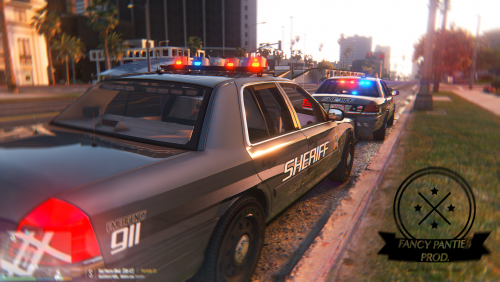 I really love the cars but, sad to say, after a short time it crashed my game and as much as I really love it I had to restore my system back to it's prior installation. I applaud the efforts by those involved but this needs work :>\
- 108 comments
- 11 reviews
-
.thumb.jpg.4066677156985e22489bfecddc2f6c45.jpg) Can't open the file because it say's it's either not a RAR file or the file is corrupted. Numerous other people have all said the same thing for a LONG time now so apparently Bxbugs123 doesn't give a shit about it because there's NO WAY he hasn't seen other people's complaints about this. My three-star rating was from before when it did open correctly but I had to redownload it again only to find it no longer opens. As it is this deserves 0 stars.
Can't open the file because it say's it's either not a RAR file or the file is corrupted. Numerous other people have all said the same thing for a LONG time now so apparently Bxbugs123 doesn't give a shit about it because there's NO WAY he hasn't seen other people's complaints about this. My three-star rating was from before when it did open correctly but I had to redownload it again only to find it no longer opens. As it is this deserves 0 stars.- 376 comments
- 81 reviews
-
-

- 1
-
-
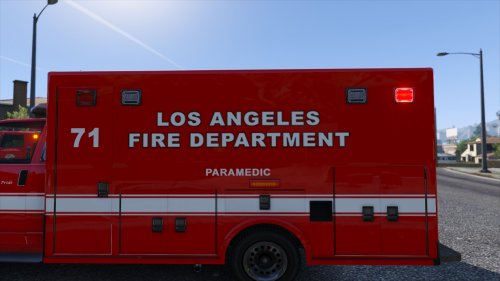 Love this lighting scheme because it more accurately depicts modern-day emergency lighting found on most fire apparatus where I live in Florida. I know BLUE is typically used on fire vehicles in the north east part of the USA and maybe a few other places in the US but I think most areas of the country use RED or combinations of RED/AMBER/CLEAR for Fire/EMS so I'm happy to see this lighting change. LED lighting is a current technology used on emergency vehicles today. Conventional strobes are a rather dated technology and I remember first getting them on a new fire engine back in 1981. Strobes were used heavily on our local fire apparatus and ambulance vehicles all through the 1980's. Changing the lights to LED gives everything a more authentic modern-day appearance. Very well done :)

.thumb.jpg.4066677156985e22489bfecddc2f6c45.jpg)
