
Officer Joey Kuffman
Members
-
Joined
-
Last visited
Everything posted by Officer Joey Kuffman
-
we can talk about pringles now..
-
https://www.lcpdfr.com/downloads/gta5mods/scripts/?since=all_time&page=3 dont know if it works. still but not really callouts.
-
-
-
i run core i7 6500k i tought it was rtx 2080 ram 32 2 tb ssd 1 tb hdd still cant run best grapics mods xD
-
Nice to hear np 😉
-
you should had made a backup before you done somting. thats rule nr 1 lol always make backups. if even your gta doesnt launch without ragehook then there is somting wrong with your install. if you have a steam version you could verify game files. but i should start clean.
-
you prop need to reinstall the game or if you have a backup back it up lol
-
Hi, so when you try to only launch gta v does it launch?
-
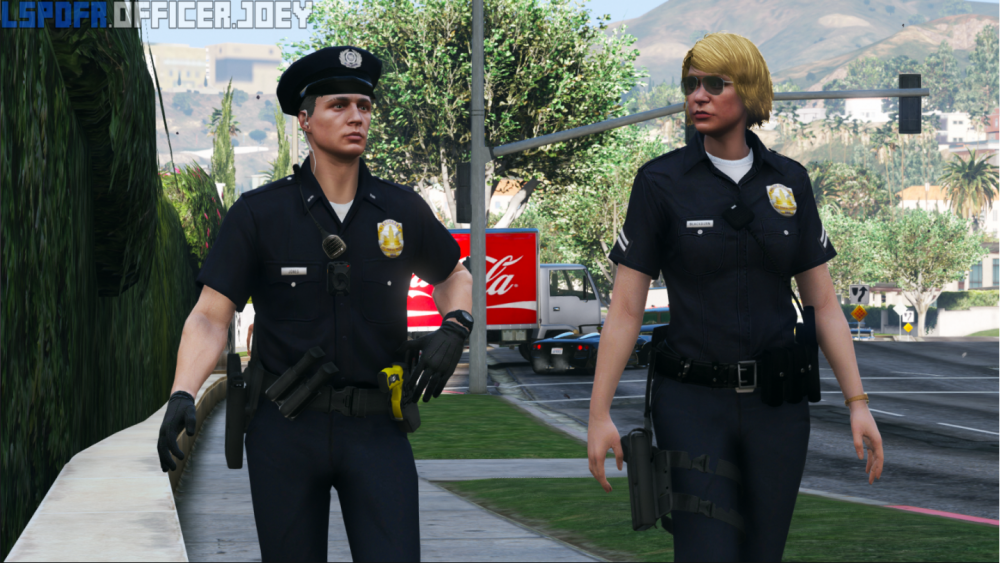
foot patrol. im only able to upload 4mb so i cant post best pictures lol http://prntscr.com/mlywen
-

-
-
it needs to be good 😉
-
Lol man need some weed to calm down? xD
-
Looking good cant wait
-
Yes have you installed ragehook?
-
no only fivem but its not lspdfr
-
https://www.lcpdfr.com/files/file/8303-traffic-policer-breathalyzer-traffic-offences-speed-detection-more/?page=6&tab=comments
-
i suggest you remove the cars again like your game was before
-
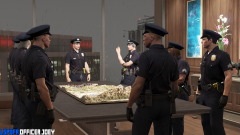
From the album: Officer Joey Kuffman Galleries
© Officer Joey Kuffman
-
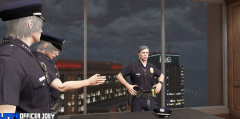
From the album: Officer Joey Kuffman Galleries
© Officer Joey Kuffman
-
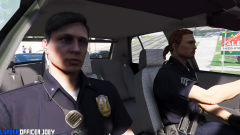
From the album: Officer Joey Kuffman Galleries
© Officer Joey Kuffman
-
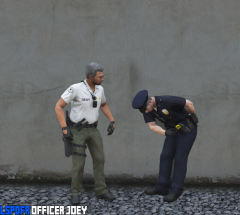
From the album: Officer Joey Kuffman Galleries
© Officer Joey Kuffman
-
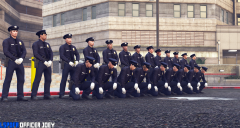
From the album: Officer Joey Kuffman Galleries
© Officer Joey Kuffman
-
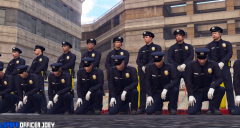
From the album: Officer Joey Kuffman Galleries
© Officer Joey Kuffman