Creators: Due to background reprocessing of files, approvals and file security checks may be delayed. Thanks for your patience.

ASTTrprDillon95
Members
-
Joined
Everything posted by ASTTrprDillon95
-
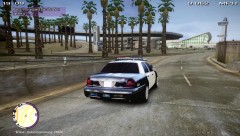 I will get back to you in a bit. I'm using my phone
 -
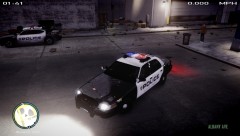 Skin not for release. CVPI :
 -
Ok I have been looking high and low for tutorials on how to model. I want to create a few models from scratch. Anybody know of any tutorials??
-
Thanks... I think I would do this.
-
Ok so I want to have multiple copies of IV for different set up of Police cars. I have seen some people with multple copies of IV installed. They can run them smoothly. I am really clue less anbout this. If anyone can help, our help will be greatly appreciated.
-
is your user account an administrator? If it is you should be able to disable the read only mode.
-
Actually, the reason you are not able to save the file is because the file is on Read-Only mode. Disable it and you can save it.
-
The Simple problem of Corrupted Saved files are due to this SMPA60 error, I believe. LCPDFR does not have any conflict with saved games. Mine works like a charm. The error is caused due to car mods being saved in the parking space. I have tried every saved file i have and there is no conflict. I strongly suggest that if you want to play LCPDFR using a saved file, make sure there is no modded cars parked in the parking space.
-
AND do ensure everything (vehicle.ide and stuff) are correct. If they have mistakes or either deleted lines, the game will not load the vehicle properly.
-
-
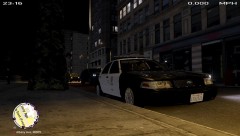
From the album: LCPDFR on Patrol
LAPD CVPI: EVI -
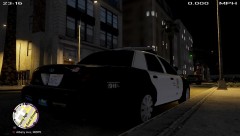
From the album: LCPDFR on Patrol
LAPD CVPI: EVI -
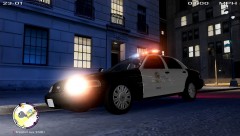
From the album: LCPDFR on Patrol
LAPD CVPI: EVI -
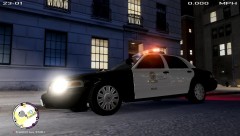
From the album: LCPDFR on Patrol
LAPD CVPI: EVI -
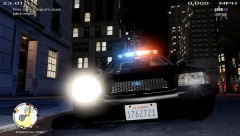
From the album: LCPDFR on Patrol
LAPD CVPI: EVI -
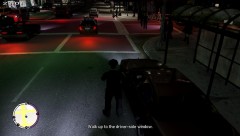
From the album: LCPDFR on Patrol
LAPD CVPI: EVI -
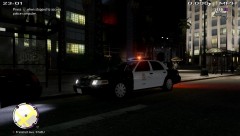
From the album: LCPDFR on Patrol
LAPD CVPI: EVI -
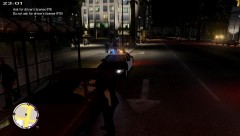
From the album: LCPDFR on Patrol
LAPD CVPI: EVI -
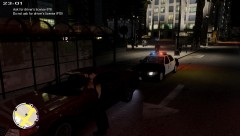
From the album: LCPDFR on Patrol
LAPD CVPI: EVI -
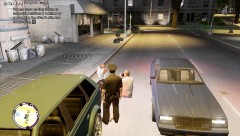
From the album: LCPDFR on Patrol
LAPD CVPI: EVI -
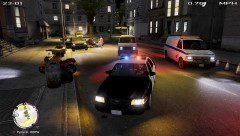
From the album: LCPDFR on Patrol
LAPD CVPI: EVI -
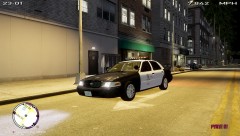
From the album: LCPDFR on Patrol
LAPD CVPI: EVI -
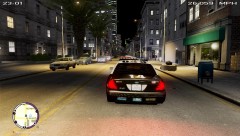
From the album: LCPDFR on Patrol
LAPD CVPI: EVI -
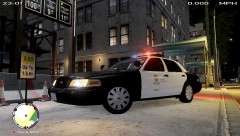
From the album: LCPDFR on Patrol
LAPD CVPI: EVI -
 This CVPI is by Boatinman. Livery is by me. Project Currently on hold. Planned State Of Alaska Livery Pack.