
AlconH
Members
-
Joined
-
Last visited
Everything posted by AlconH
-
That wasn't me by the way.
-
 God Damn Gorgeous.
 -
I'll be on in an hour.
-
Are you a administrator? Is it your computer? Are there other accounts?
-
Are you on administrator account whilst removing the readonly? Reason is, limited users are not allowed to modify the program files.
-
But did you do what I stated above? That is what is causing the error.
-
Make sure you run as administrator (Right Click, Run As Admin) Ensure your COMMON/DATA folders are not Read-only.
-
The site actually does explain the login, but thanks. I haven't received the kicked from error yet, but I only usually get that on the official games which I haven't tried yet.
-
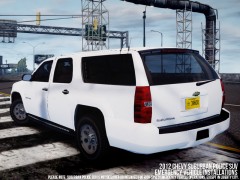
I'm not suprised, they are some real nice cars.
-
Before now, When I wanted to play LCPDFR with my friends, I was having trouble connecting to those along the east coast of america and other parts of the world. By following the steps below, it may improve your chances of getting (and staying) online with your friends as it did for me. Port Forwarding By forwarding your ports via your router, you allow other connections through to be directly sent to your game giving you better, faster connections to others. This helped improve my connection to my friends and may do the same for you. To forward your ports for GTA IV follow these steps: Visit this site, and select the make of your router - portforward.com Next, select your router model. Now, the site doesn't have a tutorial for GTA IV specifically, so select any of the applications in the list. Follow the instructions displayed but instead of the ports shown for the application you selected, forward the ports listed below: UDP 3074 UDP 88 TCP 3074. And that's it! Hopefully this tutorial has helped improve your online gameplay.. Thanks. Please don't PM me for support with your Port Forwarding issues, instead post them here, and I will try to help you. EDIT: Sorry mods, I seriously thought I put this in GTA IV > Support, please kindly move it, Thanks.
-
 And me.
 -
AI driving and police lighting
-
lol, ashling does have a tendency to guess solutions.
-
Yes you can, but make sure the ".wtd" or the ".wtf" are still there afterwards. Also, you'll have to change the name at the start of the handling line that comes with the car.
-
Change it to this: [ POLPATRIOT ] Active = 1 Halogen_Only = 0 Color_Light1L = 1 Color_Light2L = 1 Color_Light3R = 2 Color_Light4R = 2 Color_Light7L = 1 Color_Light8C = 2 Color_Light9R = 1 Offst_SLights = 0
-
If you wish to actually have the taser, go into your GTA IV folder, right click the common folder and unselect "Read-only" then click ok and re-install (Right click, run as admin) with the taser checked.
-
Have you tried removing read-only attributed of the common/data folder and then running the installer as a administrator? Unchecking the taser should be a last resort.
-
-
Anyone online and fancy a game?
-
Nice.
-
Is it working now?
-
you need dsound.dll for the game to work. Put it back and then run the game as administrator, right click the shortcut and click "Run As Admin". This will fix the crash.
-
http://www.youtube.com/watch?v=o76dxitNQUI
-
http://www.youtube.com/watch?v=o76dxitNQUI
-