


bartowsanta
Members
-
Joined
-
Last visited
Everything posted by bartowsanta
-
I am looking for where I can find the emotes that are used in Stop the Ped and Interaction+ that are used for the horizontal gaze nystagmus test. I have had no luck finding it anywhere on its own and need it for something I am working on. Thanks for the help.
-
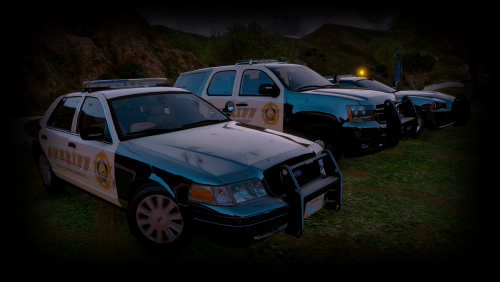 The problem was Custom Visuals which alters the carcols. I reverted back to normal and all is well. If you don't see blue lights this is the fix.
- 445 comments
- 108 reviews
-
I'm having the same issue with the blue lights on the charger and tahoe, the cvpi and FIB cars work just fine. I do not think I have changed any carcols other than what this or the previous OIV file had done. I am also running Custom Visuals mod. Thank you, this pack and your others are excellent and a true plus for the community.
- 445 comments
- 108 reviews
-
 Fantastic mod. Works great, no crashes for me. Looks very similar to the unit I used to run in the early 90's when I was a traffic unit/vehicular homicide officer. The only thing missing is the doppler return sound but that is not that big of a deal as the rest of the mod works great.
- 168 comments
- 29 reviews
-
-
 Has anyone else had the problem of a red sports car with two gun wielding occupants spawning behind you when running radar? When I hit the PageDown key to lower the target speed it instantly spawns that red car and they get out and try to kill me. A new red car appears for every keystroke. I am up to date with all updates. It does not matter what key I bind to the action in the INI file either. Thanks.
- 3,646 comments
- 306 reviews
