
CoasterGreg2104
Members
-
Joined
-
Last visited
-
 I am, yes. I have the vehicle in the police slot in patchday9ng. The VCF file is named POLICE.xml in all caps.
- 45 comments
- 16 reviews
-
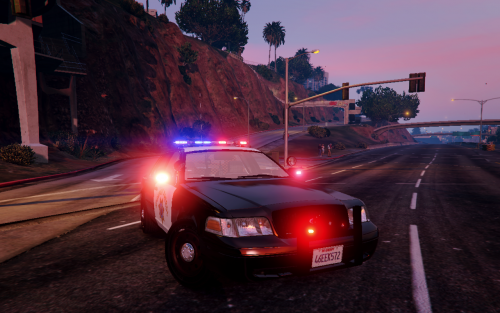
Hey guys. First of all, the model is absolutley AMAZING dunkboi, GREAT JOB! I actually have the pleasure of owning one of these badboys in real life. Ahywho, I am a bit stumped as far as lighting goes, not sure if it's an issue with ELS or not. My issue: When I activate the lighting stage (keyboard J), the one steady burn red light will activate on the Liberty, and that is the only light that works on the entire vehicle. At the full warning light stage (Stage 3), the taillights flash, but I am still only seeing the one steady burn red pod illuminated in the front of the car. I tried installing the vehicle to POLICE in patchday9ng, POLICEOLD1, SHERIFF, and PRANGER, and still no luck :(. If anyone knows what be my issue here, I would really appreciate some help! Thanks! The original screenshot posted here shows the one steady burn light on the Liberty. That is the only pattern I am able to see in GTA.
- 45 comments
- 16 reviews
-
-
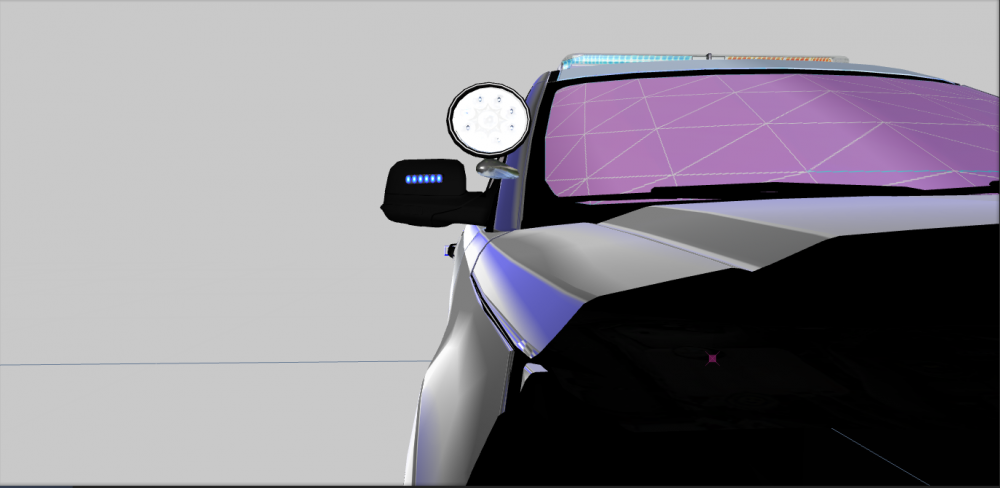
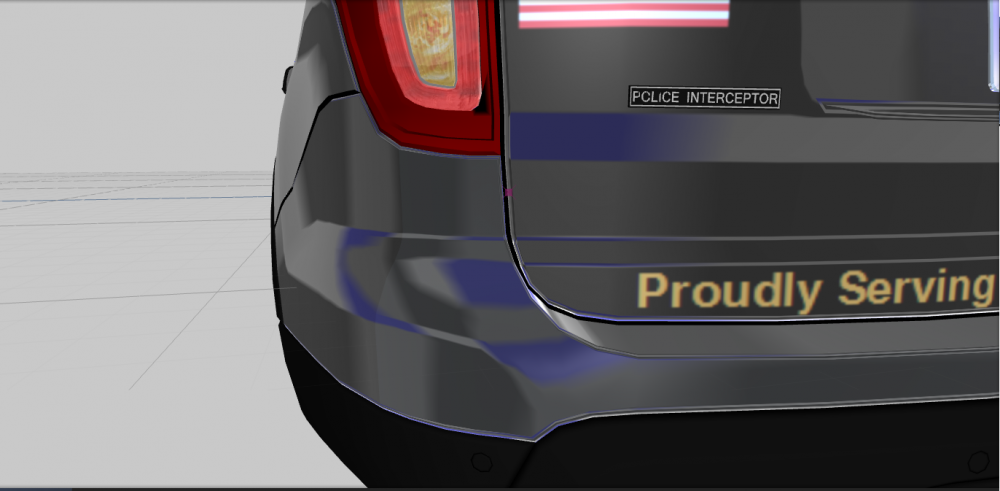
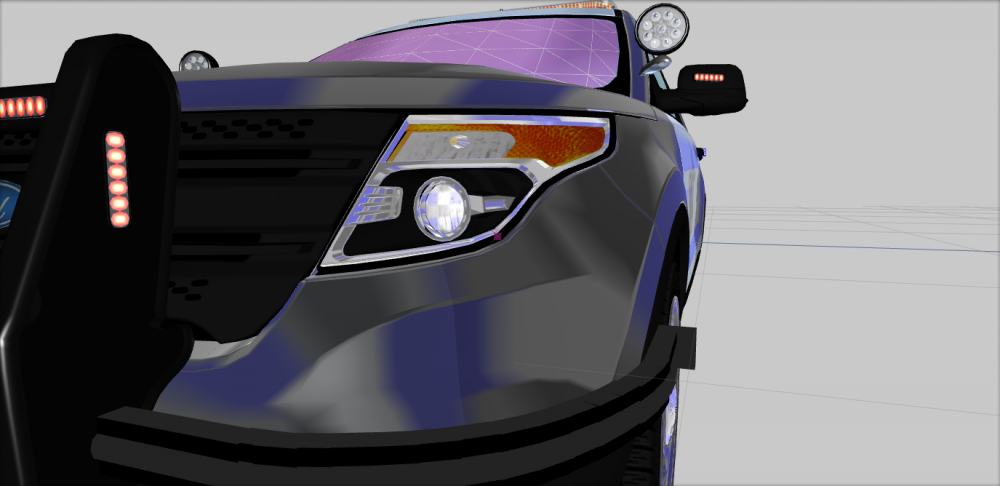
Hello all, This is my very first model. It's been a long road and I've learned alot about Zmodeler. And I hate to ask, but I'm just going to go for it. Any expirienced modeler who would be willing to assist myslef and my modeling partner with our project, (you will be included as an orginal contributor) please PM me. I'll just include a few screenshots of the surprise.