
sixium
Friends of LSPDFR
-
Joined
Everything posted by sixium
-
 Harbor Patrol!
 -
 CPD CPD CPD!!!
 -
Sorry, you are not allowed to ask for game files or previous RPH versions. Most of Albo's mods are already updated for 1180. Just go download the latest version of each.
-
RAM is a little on the low side, but yes, you should be fine.
-
-
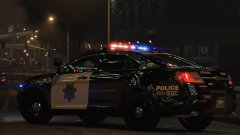 It's currently base NaturalVision Remastered + All Options + ENB and ReShade
 -
This topic has been moved to the appropriate forum. Please post in the correct location in the future.
-
From the album: Los Santos Views
Moar night shots because they're glorious! At the behest of everyone, I'm experimenting with new graphics. Gone are the oversaturated, bright, searing imagery, gone is MemeEnhancer, gone is RADIANCE V. You happy now? This is the beginning of a new visual horizon. 2016 FPI by thegreathah, as featured in a previous gallery post. Enjoy! In other news, what should be my next vehicle for "Frozen"??? =P -
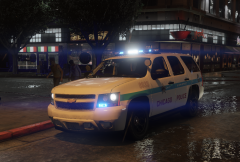 What visual mods do you use? And about the beat tag... it's what always irks me when watching Chicago-based movies or TV shows... they don't have them on film cars =(
 -
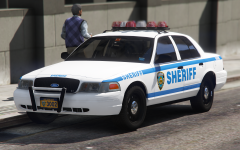 You're "New York Modifications" now? What happened to Attractive?
 -
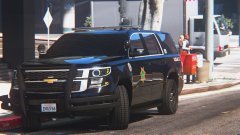 okay
okay -
LSPD SWAT... gotta stay elusive...
-
-
I like it!
-
From the album: Los Santos Views
An elusive LSPD S.W.A.T. Tahoe sighted downtown! SWAT edition of my "Frozen" LSPD livery, on an awesome 2016 Tahoe by thegreathah! =D -
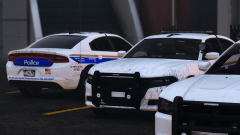 I think the Phoenix image should be switched out to something more appropriate for Los Santos... like a donkey or something.
 -
![Virginia State Police [WIP]](//s3-gallery.int-cdn.lcpdfrusercontent.com/monthly_2017_10/small.EVE-20171020213137_117.jpg.50f25040803ab55ee7e4a48775f6aa5f.jpg) Needs more lights
Needs more lights -
 What is that in their cargo pockets? Is it a notepad? Btw, I'm a fan of black/gold sheriff uniforms, these look very nice, I like em!
- 108 comments
- 19 reviews
-
-

- 1
-
-
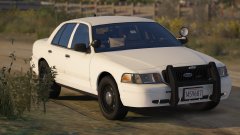 It communicates with Mars.
 -
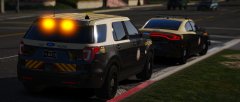 Oh, you guys meant the lights lol. I thought there was a new FHP livery
 -
Whaaatttttt???? PICS plz, are you talking about the "ghost" chargers?
-
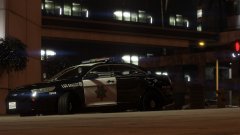
From the album: Los Santos Views
Whoooo!!!! Nighttime!!!! FPI version of my "Frozen" LSPD livery. IN THE NIGHT! For the night is dark... and full of terrors. Ummm, there's daytime shots too tho. 2016 FPI by our own thegreathah! Enjoy! WHAT'S NEXT?!?!?!?!?!?!??! -
Are you talking about regular vehicles or police vehicles? The police vehicles already have that flag in the meta, you do not need to add anything. Use OpenIV to open the vehicle's YTD file and replace the xxxx_sign_x textures with the ones you want to replace them with.
-
This topic has been moved to the appropriate forum. Please post in the correct location in the future.
-


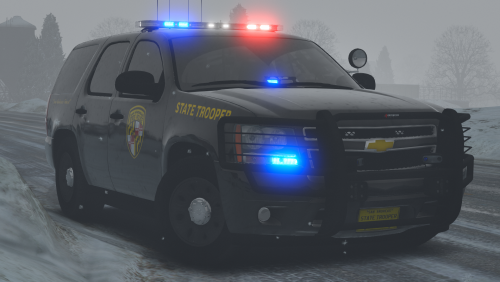
![Virginia State Police [WIP]](http://s3-gallery.int-cdn.lcpdfrusercontent.com/monthly_2017_10/small.EVE-20171020213137_117.jpg.50f25040803ab55ee7e4a48775f6aa5f.jpg)