NewbCrazy
Members
-
Joined
-
Last visited
Everything posted by NewbCrazy
-
You need to get behind the vehicle, press Shift (Blip them), and then activate the third lighting stage (Press Alt J to go right to the third stage, or just hit J three times, and make sure you are somewhat close to the vehicle) If you hit a siren, or the air horn, the person driving will most likely drive forward into a wall.
-
It appears so far only 1 vehicle supports scene lights that I know of (The slicktop 2016 explorer). If the option in the Ctrl P menu doesnt show Takedowns, its simple, the vehicle doesnt offer it. You need to activate the third lightstage (Lightstage 3, or press J 3 times) for it to initiate a traffic stop.
-
 ELS Traffic Control is simply when you are behind a vehicle and you blare your siren at it, it moves. During pursuits and traffic stops, using a secondary horn (I think its only secondary and air horn) the vehicle in front of your will move. I do traffic stops just fine without activating my air horn or a secondary siren (I simply activate the third lightstage, and thats it. No siren or AH). As for in pursuits, as long as your main siren (Press 1) is on, they wont do anything crazy... atleast for me.
- 2,661 comments
- 234 reviews
-
Sorry if this has been asked before, but does anyone know if there is a way to change between different lighting formats in game? I know it was possible in GTA IV, and i am not sure if it was done in ELS V.
- 2,661 comments
- 234 reviews
-
-
-
-
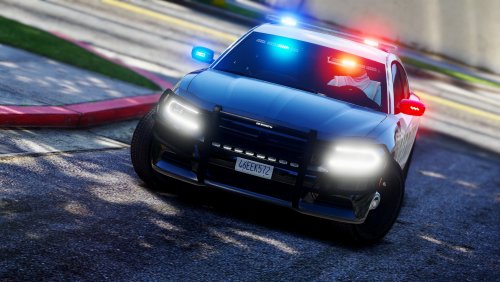 An amazing model, not only because it is made for ELS, but also because it has the perfect amounts of lights, and is simple yet beautiful. Great work!
- 61 comments
- 14 reviews
-
-

- 1
-
-
@DevinKanMods Go do some research before attacking a modeller... Ablazes charger was released 5 hours ago, MrPotatos was released 15 hours ago. There is no copying going on here... If things are similar, its not because modellers are copying eachother, its because they made a vehicle they like and want to release it to the public. Oh, and this is what "King County" is (It only took a simple google search...): http://www.kingcounty.gov/
- 61 comments
- 14 reviews
-
-
- 8
-
-
So pumped!!!
-
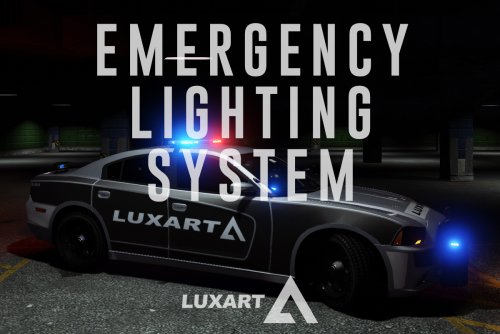
Hopefully the 2 Luxart pictures in the gallery means something... ;)
-
 Maybe its coming out in 4032.... Sorry to kill everyones hopes and dreams :)
 -
-
 If you are new to this, please make sure you installed it correctly. Follow the readme provided. If you double checked and made sure it was installed correctly, open this, found in your gta v directory. http://prntscr.com/dksxcv Then copy and paste it into a spoiler on that forum post linked above.
- 166 comments
- 75 reviews
-
Provide your log in the forum linked above. As far as i am aware we havnt had many reports lately of people crashing.
- 166 comments
- 75 reviews
-
-
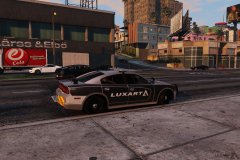 Or it could just be a massive teaser and his skin was made in 12-2016, or he is releasing the skin in 12-2016... Maybe bugs is updating the charger in 12-2016? ;)
 -
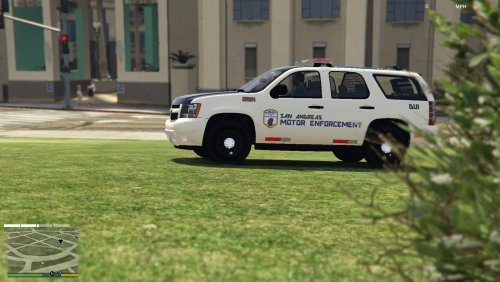 Something tells me the model was removed by staff even though the traffic stick was removed. I think this is just a reupload, even though he updated it yesterday stating the stick was gone. Not 100% sure though ;)
- 20 comments
- 3 reviews
-
-
- 1
-
-
Snow Via trainer works fine for me... try updating your trainer, or getting a different one?
-
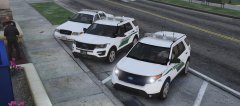 What a beauty!
 -
 The issue to this is because there is no audio hash. Go to your vehicles.meta and add replace your audiohash with this: <audioNameHash>POLICE3</audioNameHash>
- 157 comments
- 28 reviews
-
Sad to see everyone having issues with the LPC Editor... I have no issues with it that you guys are reporting... Oh well. Worth a shot, right?
- 166 comments
- 75 reviews

.thumb.jpg.53e6566fc11617e23f7fb13f2792cbbe.jpg)