



rndNO.png.69316d0c18a1ff2dccccc5bb8b858b0c.png)
medic4523
Members
-
Joined
-
Last visited
Everything posted by medic4523
-
Ah! Thank you for these. I used Albos tool to create a custom DLC with all the meta files... it was just missing the carcols. I'll give this a shot. Thank you!
-
That location is an encrypted carcols.ymt - How did you edit it?
-
I have a "custom" carcols.meta file that I would like to add to a DLC that did not come with one (Albo's add-on dlc). I have added the carcols.meta to the common/data folder. I have added lines to the content and setup2 xml files to direct where to look for the carcols.meta; however, it is not reading the carcols file. Guidance? Please and thank you
-
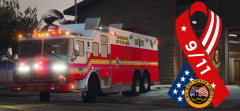
From the album: medic4523 Screenshots
-
 Yeah, I do plan to release them. The release might be a bit different than pictured here, still playing around with some setups.
 -
From the album: medic4523 Screenshots
-
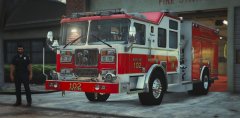
From the album: medic4523 Screenshots
-
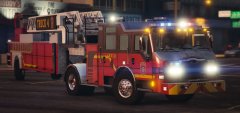
-
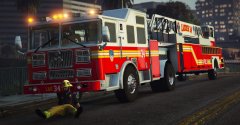
From the album: medic4523 Screenshots
-
There is a lot of touch-up work to go yet, but I'll make sure that is on the list. Thanks
-
I will not!
-
From the album: medic4523 Screenshots
This model is still very much a WIP... but it's finally in a presentable fashion. -
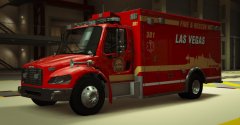
From the album: medic4523 Screenshots
-
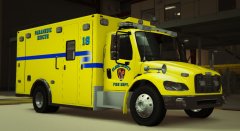
From the album: medic4523 Screenshots
-
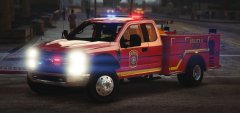
From the album: medic4523 Screenshots
-
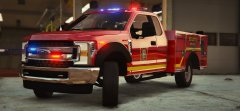
From the album: medic4523 Screenshots
I'll play with the wheels more later... move the singles out, or use duals? -
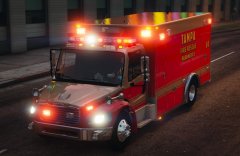
From the album: medic4523 Screenshots
-
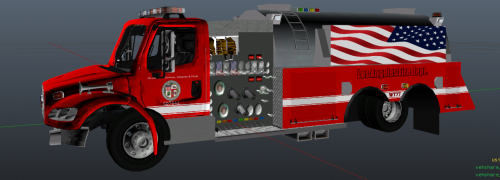 Looks good! Flip the flag on the driver's side though, the stars should always be pointed toward the front.
 -
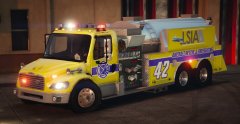
From the album: medic4523 Screenshots
R* Editor made the front wheel messy... it really doesn't fold in half like that... -
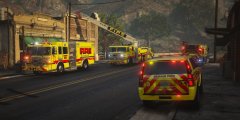
From the album: medic4523 Screenshots
Blaine Fire Chief 11, Engine 11, Engine 31, Ladder 31, and Tender 10 make quick knock-down on a fire contained to a rooftop HVAC unit in Grapeseed. -
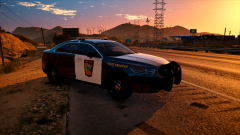 As a Minnesota resident, I say yes, release.
 -
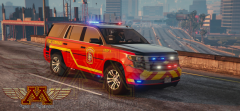
From the album: medic4523 Screenshots
-
 There is a way! I'm at work right now and don't have access to my files, BUT look at the sample documents included with the Better EMS download... I think Parks had that very thing in the sample.
- 783 comments
- 86 reviews
-
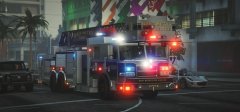
From the album: medic4523 Screenshots
-
rndNO.thumb.png.c29b8238a5f60bc4aa83dc5b27158e8d.png)

