



rndNO.png.69316d0c18a1ff2dccccc5bb8b858b0c.png)
medic4523
Members
-
Joined
-
Last visited
Everything posted by medic4523
-
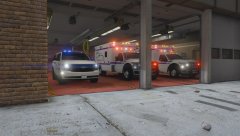
From the album: medic4523 Screenshots
-
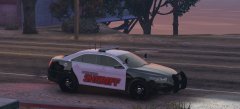
From the album: medic4523 Screenshots
-
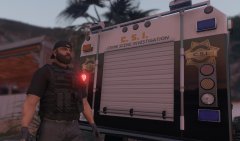
From the album: medic4523 Screenshots
-
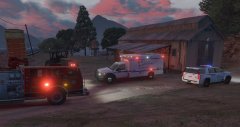
From the album: medic4523 Screenshots
-
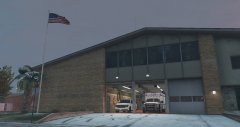
From the album: medic4523 Screenshots
-
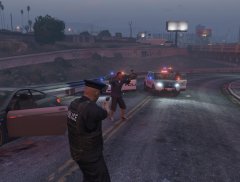
From the album: medic4523 Screenshots
-
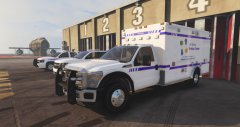
From the album: medic4523 Screenshots
-
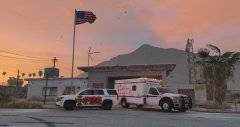
From the album: medic4523 Screenshots
-
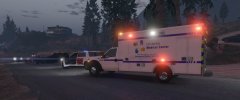
From the album: medic4523 Screenshots
-
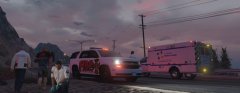
From the album: medic4523 Screenshots
-
-
-
-
-
-
-
-
-
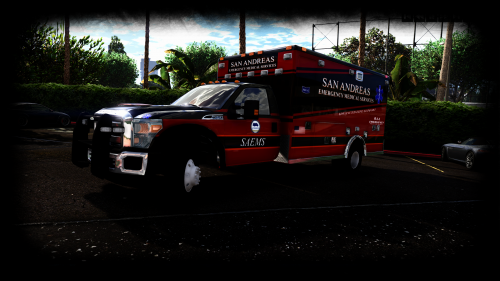 If you set that line to "auto" then you pretty much have an on/off button. Press J, all lights on; press J again, all lights off. I've set my fire/EMS rigs to auto mostly. Rarely do those type of apparatus use a three stage system. So, if you set it to "auto," you get an emergency master type function.
- 209 comments
- 40 reviews
-
The ELS config is set to "invert," where stage 3 comes first. "<LstgActivationType>invert</LstgActivationType>" Change "invert" to "manual" for the traditional order.
- 209 comments
- 40 reviews
-
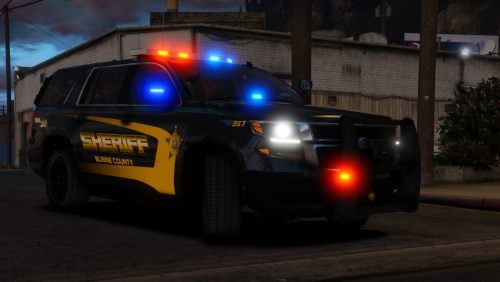 Love the Tahoe, but for some reason can't get the light-heads on the push-bar to work.
- 38 comments
- 21 reviews
-
-
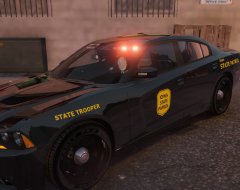
From the album: medic4523 Screenshots
-
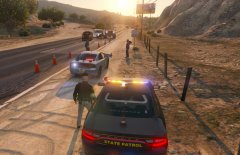
From the album: medic4523 Screenshots
-
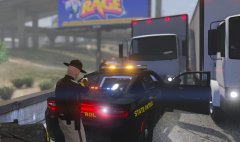
From the album: medic4523 Screenshots
rndNO.thumb.png.c29b8238a5f60bc4aa83dc5b27158e8d.png)



