


Joe C Wilson
Members
-
Joined
Everything posted by Joe C Wilson
-
-
-
-
-
-
-
-
GTA 5 LSPDFR #89 - Drug Deal Shooting | SAHP '18 Charger via @YouTube
-
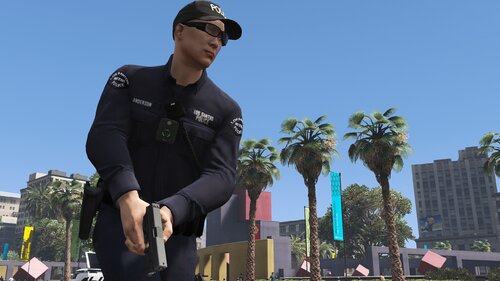 It sounds like you are wanting to replace the EUP uniforms with real life ones. You can find something like that here. I only include what's installed to EUP and SUP as not everyone uses custom EUP etc.
- 942 comments
- 23 reviews
-
-
-
-
-
-
-
-
GTA 5 LSPDFR #88 - Rockford Hills Pursuits | SAHP '21 Utility via @YouTube
-
-
-
-
 Great mix of calls, and it also has a good majority of new and exciting ones too. Good job!
- 91 comments
- 12 reviews
-
-

- 1
-
-
GTA 5 LSPDFR #87 - Terrorist Attack | LSPD Metro '20 Utility via @YouTube
-
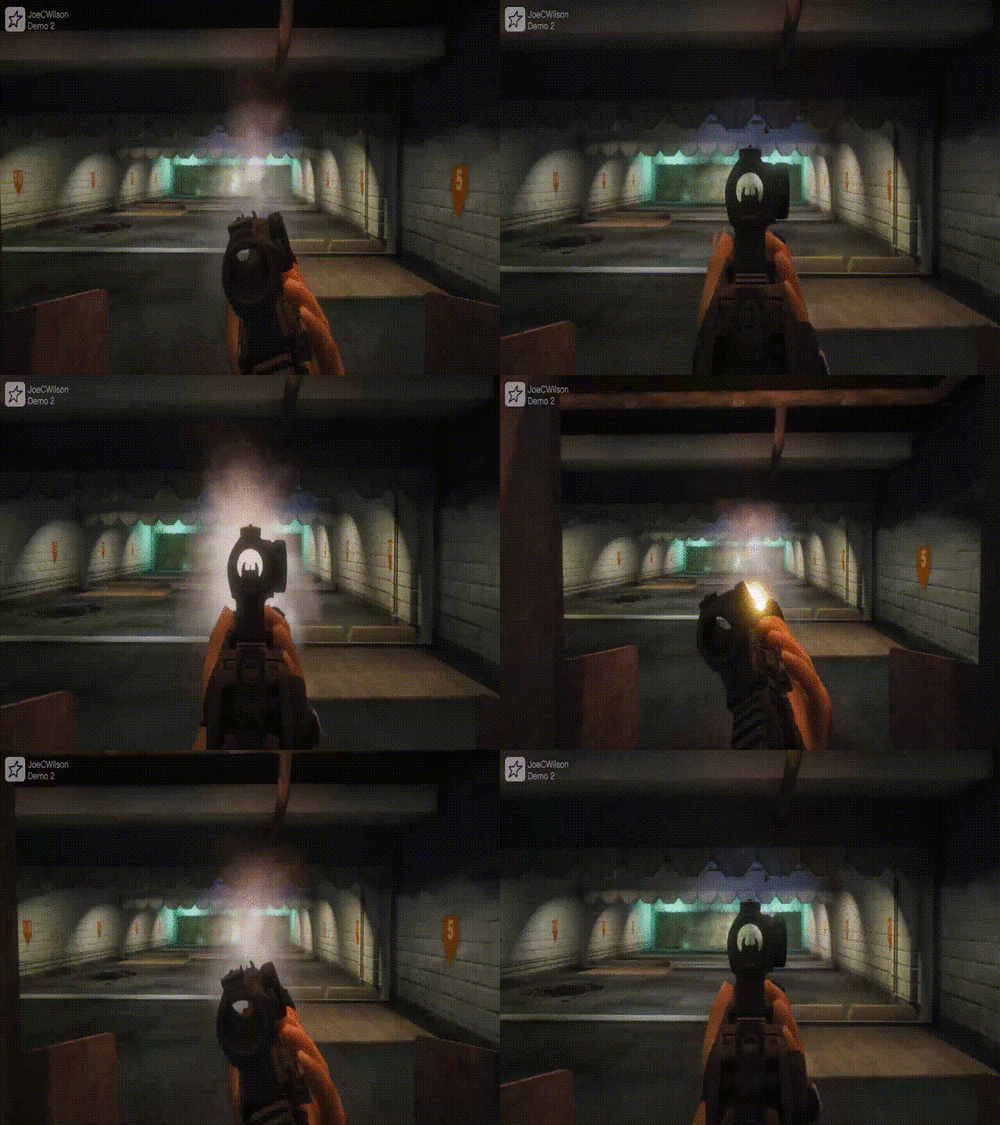 I think I changed first person lt offset, first person lt rotation offset, first person as third person rng offset, and first person as third person lt offset. Each number in all of the offsets I mentioned should be the same. You could copy and paste each offset with the weapon you are trying to edit. I hope this helps.
- 56 comments
- 2 reviews
-
-
- 1
-
-
-

.png.20e069cc5e57b84cc01bc38a79a74835.png)
.png.e012e88873ead86a70414f0d52430c61.png)
.png.ec313709c1c7cc996b2d2abf38dd4e7e.png)
.png.e35fff382f5f94083bd0b3835b315a85.png)
.png.6d57a576ab4a29a191ae783681259ff0.png)
.png.a938355720d538bfc0942af0e9f6e57c.png)

.png.bd9174a1a2fa5d4fa891d3d9a3123804.png)


