


Reddington
Members
-
Joined
Everything posted by Reddington
-
This topic has been moved to the appropriate forum. Please post in the correct location in the future.
-
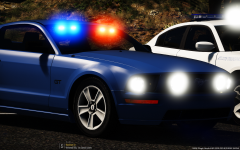 pfft, I wasn't asking the year, silly! I was asking whose 'cause I want it. 😛
 -
This topic has been moved to the appropriate forum. Please post in the correct location in the future.
-
This topic has been moved to the appropriate forum. Please post in the correct location in the future.
-
Thank you for doing this, but I'm a tad bit confused about the ISP motto there on the side. Lore friendly?
-
-
-
Both look amazing! Thank you.
-
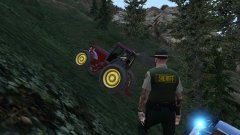
From the album: Red's LSPDFR chaos
-
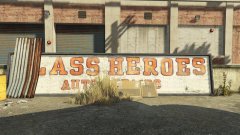 Agreed, I love finding the easter eggs. I'm sure it will, I'm more so just curious where it's taking place.
 -
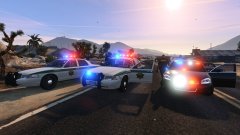 Jedahdiah's 🙂
 -
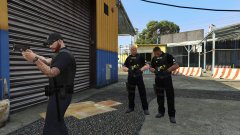
From the album: Red's LSPDFR chaos
-
From the album: Red's LSPDFR chaos
-
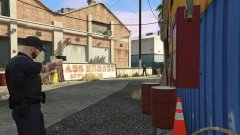
From the album: Red's LSPDFR chaos
-
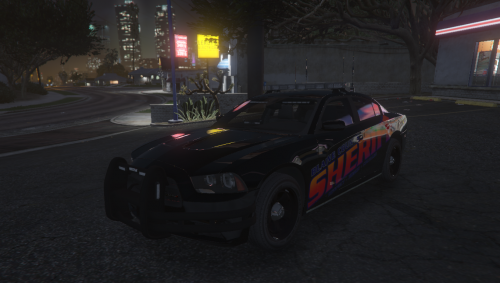 Aww, RIP. I was hoping for a BCSO slick top Challenger with this pack. 😛 Oh well, I can still use the versions from your other file.
- 20 comments
- 4 reviews
-
FBI files are a Challenger. 😛 [Edit] I see what happened, you unintentionally included your Challenger with this pack. lol
- 20 comments
- 4 reviews
-
Just so you're aware, I think you forgot a VCF. There's no "FBI" VCF for the Challenger.
- 20 comments
- 4 reviews
-
Ohh, which Mustang is this?
-
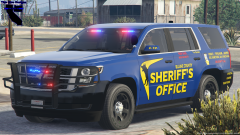 ohhh, I really, really like this.
 -
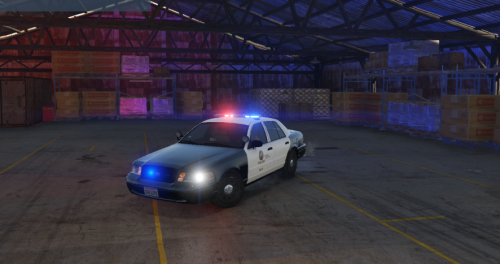 @DAVIRE Just so you're aware, there is no difference in terms of liveries with ELS and non ELS. A livery will work for any car - regardless of ELS - as long as the texture and base model match.
- 15 comments
- 4 reviews
-
You're welcome. 🙂
-
From the album: Red's LSPDFR chaos
-
From the album: Red's LSPDFR chaos
-
From the album: Red's LSPDFR chaos
-
This topic has been moved to the appropriate forum. Please post in the correct location in the future.


