



wantedelf
Members
-
Joined
-
Last visited
Everything posted by wantedelf
-
-
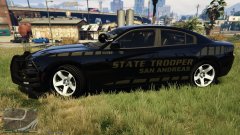 It's not my work i just edited the texture to San Andreas Highway Patrol. It was in the FHP pack by TaylorSwift So i can't make it available for download. I just us it in my game..
 -
 yeah my BAd... I.was just looking for it somewhere else...just overlooked that damn credit button......😙
- 17 comments
- 3 reviews
-
-
-
 Don't SNEEZE !!!
 -
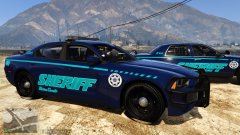
From the album: Sheriff's Dept.
Sheriff -
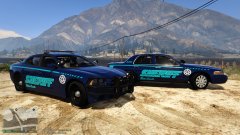
From the album: Sheriff's Dept.
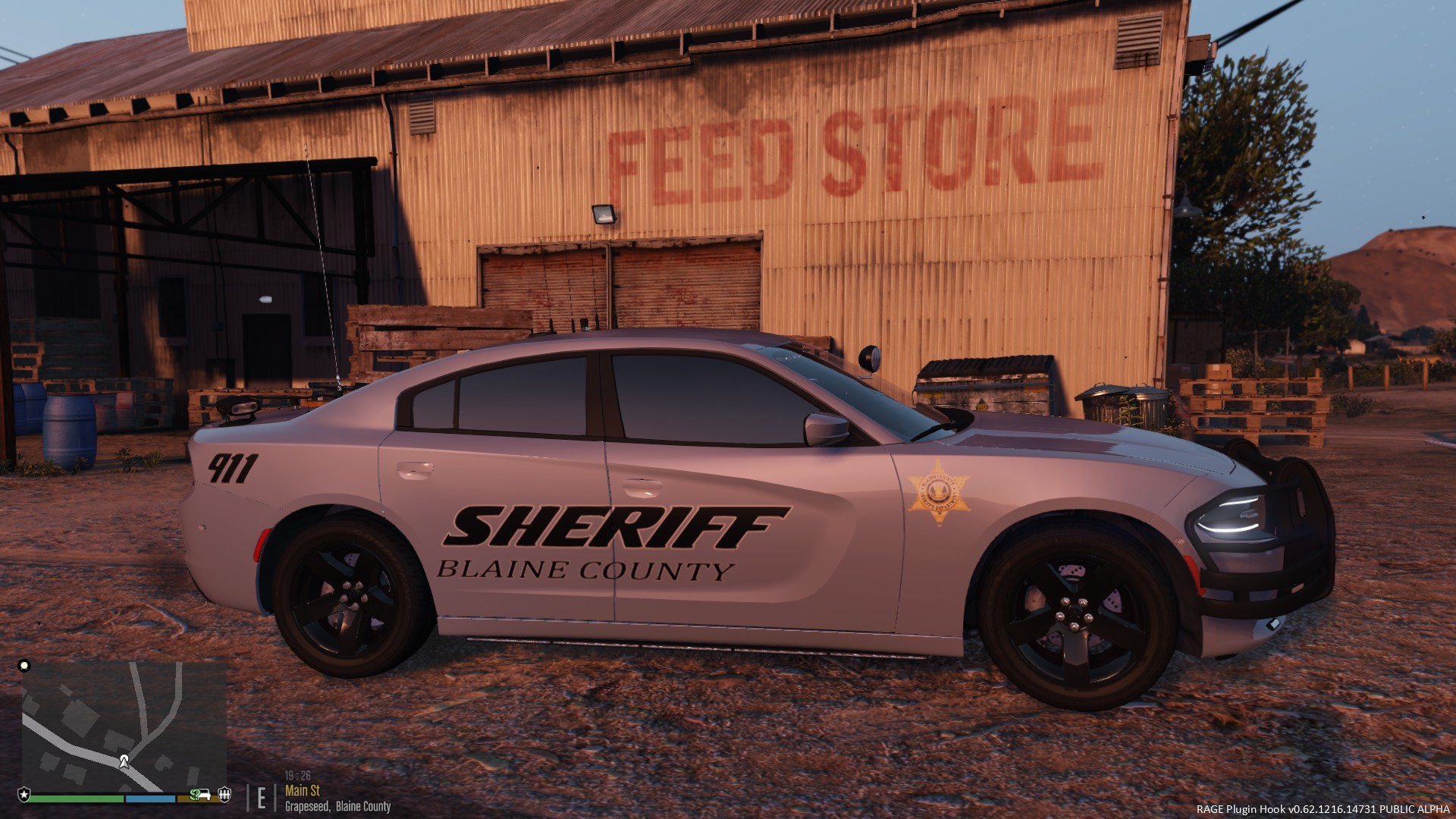
Blaine County Sheriff Patrol. -
.jpg.d2a7413a07e719fc668326a9440f213f.jpg)
From the album: Sheriff's Dept.
Might not be so lucky next time.......... -
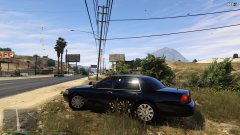
From the album: Sheriff's Dept.
Any minute now..... -
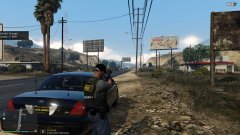
From the album: Sheriff's Dept.
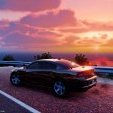
Good morning Blaine County -
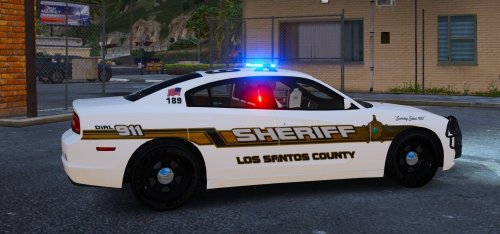
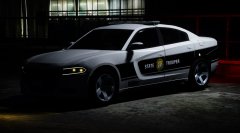 Being from N.C. gotta say that charger is SWEEEEEEEET. Is it out for the public or is that a private one. love that style lightbar....
 -
-
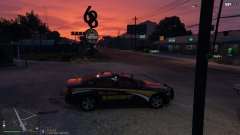 So it won't let me send them through PM... And it won't let me send them here.. Might be able to send them to an e-mail address So it won't let me send them through PM... And it won't let me send them here.. Might be able to send them to an e-mail address
 -
yep i will get them together and send them to ya
-
Only made it for that one charger..But would be glad to send it to ya or if you have a car you would like to have it on send me a link to it and i will fit it to it if ya would like. Only made it for that one charger..But would be glad to send it to ya or if you have a car you would like to have it on send me a link to it and i will fit it to it if ya would like.
-
From the album: Sheriff's Dept.
Waiting......... -
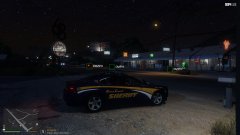
From the album: Sheriff's Dept.
Looking to fill that quota -
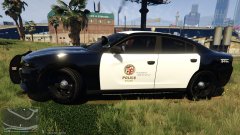
From the album: Police Department
My LAPD texture fitted to a charger by JJdawkins.... -
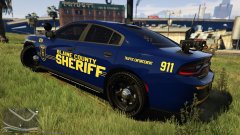
From the album: Sheriff's Dept.
SHOUT OUT to @JJDawkins for letting me try out this sweet ass charger !!! Of course i edited the lights to all blue and switched out the texture with one i made, but the car is on point once he releases it to the public you need to get it you won't be disappointed.... -
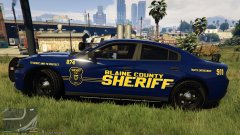
From the album: Sheriff's Dept.
SHOUT OUT to @JJDawkins for letting me try out this sweet ass charger !!! Of course i edited the lights to all blue and switched out the texture with one i made, but the car is on point once he releases it to the public you need to get it you won't be disappointed.... -
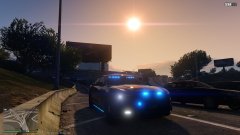
From the album: Sheriff's Dept.
SHOUT OUT to @JJDawkins for letting me try out this sweet ass charger !!! Of course i edited the lights to all blue and switched out the texture with one i made, but the car is on point once he releases it to the public you need to get it you won't be disappointed.... -
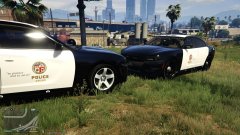
From the album: Police Department
LAPD chargers with my texture.... -
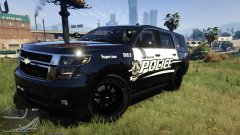
From the album: Police Department
-
From the album: State Troopers
Just an edit of the texture that came on the FHP pack by TaylorSwift. Edited to San Andreas for my game preference..


.jpg.d2a7413a07e719fc668326a9440f213f.jpg)
