PeterU
Members
-
Joined
-
Last visited
Everything posted by PeterU
-
-
 This is an unhelpful message. If you are experiencing the same issue as others, it is useful to confirm this by providing a logfile and explanation of what is happening.
- 546 comments
- 103 reviews
-
-

- 2
-
-
-
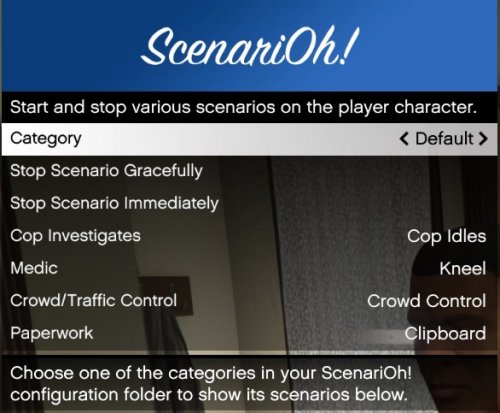 ScenariOh! is a modification to help with roleplaying that lets you start various scenarios (animations + props) on the current player character. Before you ask, this is and always will be a Rage Plugin Hook modification for single player. I will not make this compatible with multiplayer modifications. Important: by using the modification, you agree to the terms and conditions in LICENSE.txt as included in the originally downloaded package from LCPDFR.com. Installation ScenariOh! is a Rage Plugin Hook modification, not an LSPDFR modification. You must therefore copy the files in this package to your GTA V directory\plugins folder. To load the plugin on demand, open the Rage Plugin Hook console (default F4) and type: LoadPlugin "ScenariOh.dll" If you would like the plugin to be loaded by default when you start Rage Plugin Hook, open RPH’s settings (hold down Shift when starting RPH) and, in the Plugins tab, tick the plugin to add it to your RPH startup script. Then click Save and Launch. Usage Once the plugin is loaded, press the key combination (default Right Ctrl + S) to open the menu. Scroll between the different Categories using the first menu item. This allows you to have distinct menus for different roleplaying types — e.g. a cop Category and a medic Category, for example. The next two menu items allow you to stop the current scenario (which will return control of your character to the keyboard/controller input). Stopping the scenario gracefully make take some time, as the “exit” animations will be played before returning control to you. The remainder of the menu shows you the scenario lists available to you in the current category. Scroll through and find a desired scenario, then press Enter to start it. Esc will close the menu. Customization! Oh my! For more information on customizing ScenariOh!, including adding your own selections of scenarios to the menu, see the readme file in the downloaded package. License All files copyright (C) 2017 PeterU unless otherwise stated. RAGENativeUI.dll is copyright (c) 2016 Guad, alexguirre and is licensed as follows: https://github.com/alexguirre/RAGENativeUI/blob/master/LICENSE.md Throughout this document: "The Modification" means this downloadable package, and also any and each file contained within it. "The PC Single-Player Mods Statement" means the statement released with that title by Rockstar Games on June 23rd, 2017. If you do not agree to this license, then you have no legal right to use the Modification, as the original work of the Modification author(s) is protected by copyright. Using the Modification constitutes making a copy (even if this copy is only into temporary storage, such as RAM). This Modification is intended to be compliant with the PC Single-Player Mods statement from Rockstar Games: https://support.rockstargames.com/hc/en-us/articles/115009494848-PC-Single-Player-Mods Rockstar Games believes in reasonable fan creativity, and, in particular, wants creators to showcase their passion for our games. After discussions with Take-Two, Take-Two has agreed that it generally will not take legal action against third-party projects involving Rockstar’s PC games that are single-player, non-commercial, and respect the intellectual property (IP) rights of third parties. This does not apply to (i) multiplayer or online services; (ii) tools, files, libraries, or functions that could be used to impact multiplayer or online services, or (iii) use or importation of other IP (including other Rockstar IP) in the project. This is not a license, and it does not constitute endorsement, approval, or authorization of any third-party project. Take-Two reserves the right to object to any third-party project, or to revise, revoke and/or withdraw this statement at any time in their own discretion. This statement does not constitute a waiver of any rights that Take-Two may have with respect to third-party projects. By loading Grand Theft Auto while this Modification is installed in the game directory you agree the following: · You shall defend, indemnify and hold the Modification author(s) harmless from any and all claims, injuries, damages, losses or suits, including attorneys' fees, arising out of or in connection with the Modification. · You shall neither engage in nor attempt to engage in any action to which the PC Single-Player Mods Statement above does not apply. For example, you may not attempt to load the Modification or any part thereof during a multiplayer session. · You shall respect the rights of the Modification author(s) and third parties. · You shall not provide material support (including but not limited to payment, publicity) to individuals or organizations who fail to respect the rights of the Modification author(s) and/or third parties. · You shall not use any part of the Modification for any purpose other than: - Executing it, unmodified, inside a validly licensed instance of Grand Theft Auto V - Customizing configuration files (.ini, .xml) for your own personal, non-commercial purposes · You shall obtain specific written permission from the Modification author(s) before commencing any other use of the Modification. If any of these conditions are unsatisfactory to you, your only option is to remove any and all copies of the Modification from your computer.
- 11 comments
- 16 reviews
-
-
-

- 15
-
-
I'm very happy to support this effort and have made a $25 donation. It's wonderful to see an opportunity to bring our communities together to make a difference and I hope others will be able to contribute what they can.
-
If you used the upgrade package, I don't include the .ini so it doesn't overwrite your existing settings. Therefore the instructions tell you to look at your own PeterUCallouts.ini file which won't be updated. My bad! You can add the below under the [KeyBindings] heading -- instructions are in the comments beginning with ; ; PeterUCallouts has a helicopter camera mode, which is useful during helicopter-based callouts. However, ; you may already have a plugin which provides this. So, you can choose whether or not the key bindings below ; are enabled. EnableHeliCamKeybinding=OnlyIfNotDuplicate ; Options are: ; Always -- always enable the helicopter camera keybindings (as long as you are in a helicopter!) ; OnlyIfNotDuplicate -- will only enable the helicam keybindings if you do not already have another ; OnlyDuringCallout -- only when an appropriate PeterUCallouts callout is running and another plugin does not offer a helicam ; Never -- disable ; ; Default: EnableHeliCamKeybinding=OnlyIfNotDuplicate ; The key to press to enable the PeterUCallouts HeliCam. Must be pressed with the HeliCamToggleModifierKey below, ; unless that is set to None. Will not function at all depending upon the EnableHeliCamKeybinding setting above. HeliCamToggleKey=U ; Default: HeliCamToggleKey=U ; The modifer key to press with the key above to enable the PeterUCallouts HeliCam. Will not function at all depending ; upon the EnableHeliCamKeybinding setting above. HeliCamToggleModifierKey=ControlKey ; Default (Control key): HeliCamToggleModifierKey=ControlKey I expect this will be an issue with LSPDFR itself. It's probably best to use UnloadPlugin "LSPD First Response.dll" from the console, or remove it from the list of plugins to start at RPH startup, if you don't plan to play LSPDFR in a given GTA session.
- 546 comments
- 103 reviews
-
-
- 1
-
-
I think this is actually an issue that is an interaction with LSPDFR and Arrest Manager. If you call for suspect transport with Arrest Manager, sometimes LSPDFR also sends a backup unit to pick them up, but the Arrest Manager units will already have done so. This isn't something Albo can fix in Arrest Manager, I don't think, as it's LSPDFR sending many backup units -- neither my plugin nor Arrest Manager can control them! I have definitely had that issue long before implementing this option. I think the correlation must be a red herring in this case. If you can pin it down any further, do post another comment. I will put this on my list of things to look at.
- 546 comments
- 103 reviews
-
I suppose it is possible that there isn't a navigation mesh inside the bank to outside, so the ped won't be able to follow it outside. You may have to gather some coordinates to guide them from inside to outside, using a series of `GoStraightToPosition` tasks. Once outside, you can probably then have them FollowNavigationMeshToPosition to a position nearby the vehicle. (Note that a ped needs to be quite close to a vehicle already before EnterVehicle will work). Bonus question: the speed argument is in metres/second. 2 m/s is about 4.5 mph, so will only be a brisk walk! I find using MathHelper.ConvertMilesPerHourToMetersPerSecond helpful when setting speeds. In GTA terms, 9-12 mph should invoke running.
-
There aren't any PeterUCallouts crash lines in these log files. If this is a whole game crash, it is very likely to be a custom vehicle or ped model which is causing the problem. It would be worth opening a thread in https://www.lcpdfr.com/forums/forum/888-support-information/ and stating the vehicles and peds you have installed.
- 546 comments
- 103 reviews
-
Does this happen every time you start it, or only sometimes? The problem is occuring when PeterUCallouts uses the Traffic Policer API, but I have not seen this issue before. Could you try a fresh install of Traffic Policer to see if this makes a difference?
- 546 comments
- 103 reviews
-
If you installed the new install package correctly, you should see no errors.
- 546 comments
- 103 reviews
-
As has been mentioned by others (@viperwolf), the upgrade package should only be used if you had an installation of the previous version. If you have ever skipped a version, you will need the NEW_INSTALL download, as you can only upgrade from the immediately previous release.
- 546 comments
- 103 reviews
-
The new features specifically give you new Traffic Stop questions you can ask if the driver whom you pull over has flags such as suspended license etc. There is no action it takes with the court system.
- 546 comments
- 103 reviews
-
Thanks for providing a log file, but I don't see a run of Insecure Vehicle Load in this particular log file! Are you able to reproduce the issue, look in the log file for InsecureVehicleLoad and send that?
- 546 comments
- 103 reviews
-
-
- 1
-
-
You will want to use the global PeterUCallouts.ini — it is just loose in plugins\LSPDFR, not in the PeterUCallouts subfolder. If, in that file, you don't have a Keybindings section, just create one like this: [KeyBindings] MakingProgressTowardsNavGoalWarpKey=T MakingProgressTowardsNavGoalWarpModifierKey=RMenu Was this a whole game crash or an LSPDFR crash?
- 546 comments
- 103 reviews
-
You could use the `REMOVE_WEAPON_FROM_PED` native: foreach(WeaponDescriptor weapon in playerPed.Inventory.Weapons) { uint hash = weapon.Asset.Hash; if (weaponsList.Contains(hash)) { NativeFunction.Natives.x4899CB088EDF59B8(playerPed, weapon.Asset.Hash); // the hash of the native comes from http://www.dev-c.com/nativedb/func/info/4899cb088edf59b8 } }
-
An update to my update checking mechanism. Now I run the actual HTTP requests inside a non-GameFiber Thread, which means the game doesn't drop frames while we wait for the HTTP response. https://gist.github.com/LSPDFR-PeterU/952de66a4f17b838d3870bdaabb6c43b
-
Are you able to share the code for the Computer+ integration wrapper class you have? Do you have any references to ComputerPlus or ComputerPlus.API anywhere other than in the wrapper class? It sounds like there is a reference to the ComputerPlus or ComputerPlus.API namespaces that is outside the wrapper class, which would cause the system to try to bind to that assembly when it is not there.
-
Thank you for the feedback. I definitely welcome detailed and constructive criticism as well as praise! I think there's more explanation/narrative that could be added to "..Trying to Board Flight", and your comments on the user experience and prompts are very valuable. It's easy to lose sight of how someone will come at the callout for the first time when you've run through it literally 100+ times for testing purposes! The GPS instruction is telling you that (undercover) officers already GPS tracked the suspect's vehicle, so that's why you already get a blip for it. If you have Darkmyre's Search Warrant installed, this gives you the ability to find some evidence on the suspect or in their vehicle that might determine whether or not to arrest them. If you've got a log from the failure to drive away, I could look to see if that was a bug. I know that sometimes the game doesn't have sensible navigation paths in parking lots, so it might be that the suspect couldn't figure out how to drive out of there.
- 546 comments
- 103 reviews
-
If you post a RagePluginHook.log file, we might be able to determine exactly what is going wrong. What do you mean by "my callout's list"?
- 546 comments
- 103 reviews
-
In which callout do you see this issue with the blip not being removed correctly? Is it all of mine? Do you see the issue with any others? Blips that have been created by LSPDFR or LSPDFR plugins will sometimes not be cleaned up properly if LSPDFR does crash. I don't believe there is currently a way to resolve this, other than for plugins to try their hardest not to crash LSPDFR (I do my best!) ;)
- 546 comments
- 103 reviews
-
This isn't a helpful issue report. Please provide some more details about when this issue occurs, if it is consistent or not, etc. A log file is also essential if you want anyone to be able to help resolve an issue. I'd love to fix any issues, but I'm going to need some more details!
- 546 comments
- 103 reviews
-
The Simple Trainer ini file (trainerv.ini) enables you to change the key bindings. You need to scroll down in that file to "Explanation and List of Keycodes", determine the key code for the key you want instead and then update that key code under the [KeyBindings] section.
-
The Take Statement feature is a roleplay feature. At this time it just plays the animation and updates your LSPDFR+ statistics (if installed) with the number of statements you have taken. Future callouts may make more use of the feature!
- 546 comments
- 103 reviews
-
Please provide a RagePluginHook.log file (in your GTA V folder/Logs), so this issue can be looked at. Please provide a RagePluginHook.log file (in your GTA V folder/Logs), so this issue can be looked at.
- 546 comments
- 103 reviews