
AImedSangheili
Members
-
Joined
-
Last visited
Everything posted by AImedSangheili
-
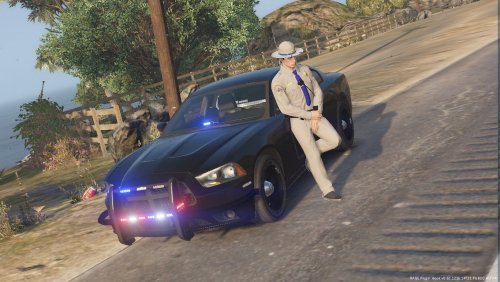 So I'm not sure if it's just my game but I get these light orbs above (or under in the Chargers case) the vehicles when I walk a few feet away from them with the lights on. It's not a major thing but I figured I'd go ahead and mention it. Other than that I absolutely love these cars and I can them in my game for a very long time.
- 33 comments
- 10 reviews
-
.thumb.png.facfc3f0bf4f434cf1c2363c0791f2f0.png) I haven't seen it in game but one thing I can see in the screenshots is that there's a 6.4L Hemi badge before the front doors, the issue is Hellcats have their own unique symbol and don't use the 6.4, they use a slightly smaller supercharged 6.2L V8. Just some input, otherwise it doesn't look too bad.
I haven't seen it in game but one thing I can see in the screenshots is that there's a 6.4L Hemi badge before the front doors, the issue is Hellcats have their own unique symbol and don't use the 6.4, they use a slightly smaller supercharged 6.2L V8. Just some input, otherwise it doesn't look too bad.- 11 comments
- 3 reviews
-
-
Haha yeah, anytime man
-
Sounds awesome, good luck!
-
It's not released at the moment but they're working on it.
-
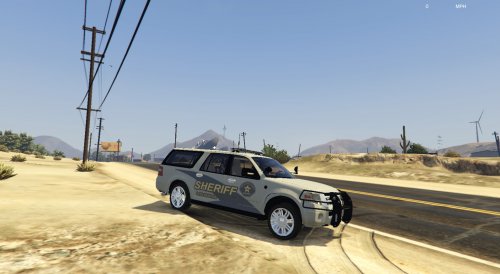 It's awesome we finally have an Expedition for GTAV, I also really like the Colorado State Police inspired state trooper skin. Nice work!
- 48 comments
- 17 reviews
-
I didn't think it was possible but I'm even more excited for this truck now, it looks amazing, awesome work dude.
-
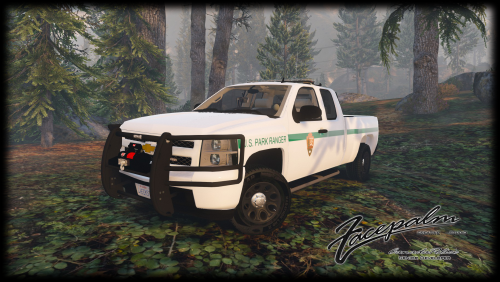 This is probably one of my favorite vehicle models, the lights look stunning, especially at night. Honestly my only complaint would be the fact that the grill is always white but it's such a miniscule detail that I stopped noticing it. This is such a great model I'd rate it higher if they'd let me.
- 87 comments
- 23 reviews
-
That Dodge is beautiful.

.thumb.png.facfc3f0bf4f434cf1c2363c0791f2f0.png)