


Officer Carpio
Members
-
Joined
-
Last visited
Everything posted by Officer Carpio
-
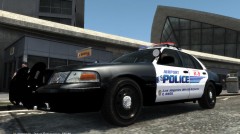 Release it come on, i really want this texture and i cant find it nowhere else :(
 -
-
-
-
Hey Tim, why is ELS not working on the coroner van and the LAFD squad car? i replaced the coroner van with speedo.wft and .wtd and replaced the lafd squad car with feroci2.wft and .wtd
- 126 comments
- 54 reviews
-
-
that is actually a pretty good idea, cuz it does get annoying when they ram into your car while in a traffic stop lol
-
-
-
-
-
oh and the strooper wont load, i use simple native trainer (SNT) to load the strooper model but it crashes, and when i try to call for noose backup it also crashes, why?
- 126 comments
- 54 reviews
-
dude this is awesome!!!! but their missing the push bumper, but not a lot of LAPD police cruisers have the push bumper but it would look cool on them :( but still it looks awesome Thanks!
- 126 comments
- 54 reviews
-
i think i did the same because everytime i load up the noose car the whole game crashes, and only on that car
-
@sgFitz when you open resident.rpf click on RESIDENT on the top left and the list should pop out
- 5 comments
- 11 reviews
-
Can i change the name police.wtd and police.wft to another name? because i dont want to change the police car i have already for police.wtd and police wft
- 9 comments
- 3 reviews

