


jackscrj
Members
-
Joined
-
Last visited
Everything posted by jackscrj
-
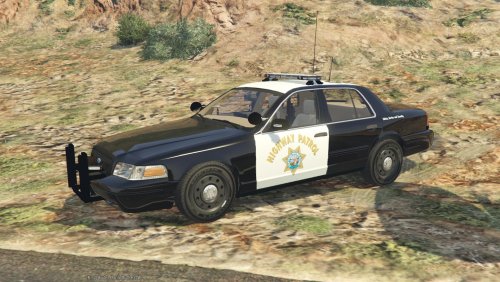 Awesome job man! A carvariations.meta and vehicles.meta template would be very appreciated if you can get around to it. The rockwell vehicles do have radar 'domes' installed in the dash area (edit not sure actually, I seem to recall it having one but eh?), the control unit definitely is integrated within the rockwell system. (ridealong)
- 137 comments
- 25 reviews
-
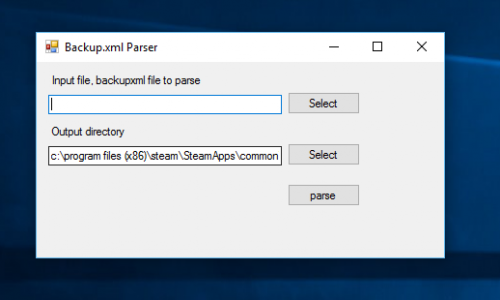 its for if you want to add chance tags to vehicle sets or vehicles so instead of typing to give police a 80% chance of spawning and police2 a 20% chance <vehicle>police<vehicle> <vehicle>police<vehicle> <vehicle>police<vehicle> <vehicle>police<vehicle> <vehicle>police2<vehicle> you can just type <vehicle chance="80">police<vehicle> <vehicle chance="20">police2<vehicle> and this tool will convert it to the to the above 5 lines inorder for it to work with lspd .3
 -
are you clicking parse? added hopefully more clear directions " select your custom backup.xml file, and your output folder then click parse, it should create a new file in the output folder named backup.xml or will overwrite backup.xml if it is contained in the output folder. " if that doesn't work let me know.
-
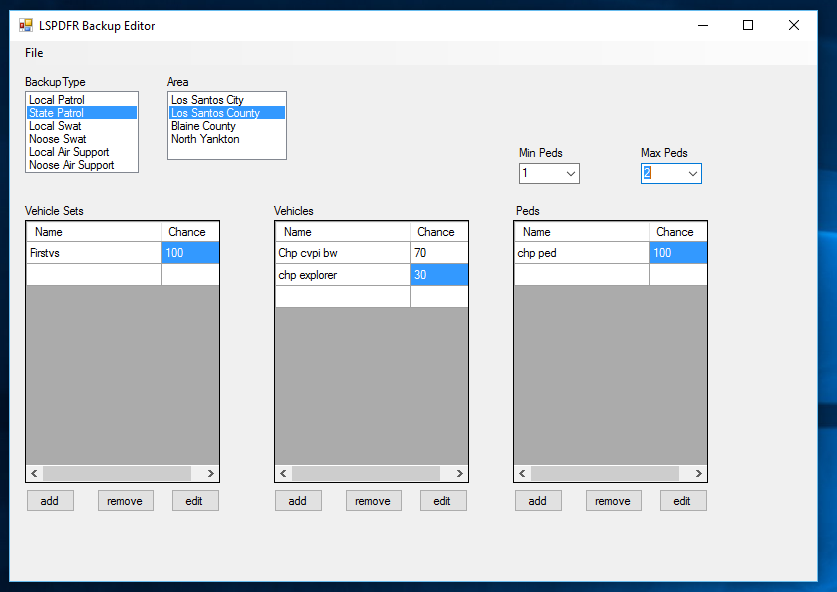
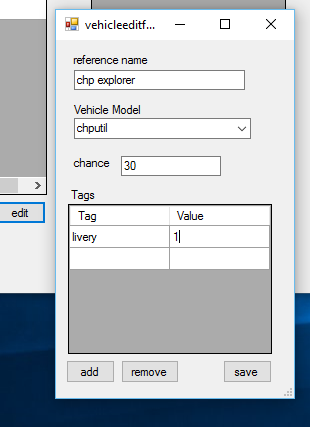
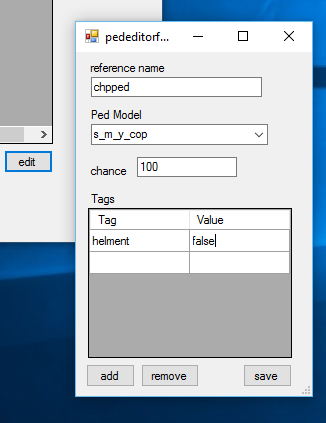
I made some mock-ups of what a gui editor might look like. Main window you select a backup type and an area and then are presented with a vehicleset list selecting a vs will populate the vehicles and peds tables. clicking edit under the vehicles and peds will open the respective edit dialogs (two additional photos). Any feedback (critical included) or suggestions is welcomed.
-
Well, I don't see any syntactical errors. Maybe verify all the models used can spawn when called by name in a trainer its possible maybe a model name is entered wrong somewhere or maybe it doesn't exist in your game. I doubt this is a problem but maybe it doesn't like the min='6' on some of the numpeds.
-
Cool thanks for the feedback. I started designing something a bit and its not the easiest thing to plan. But since it sounds like people would like it I'll put the effort into it. Don't expect it tomorrow. I do have other student obligations to attend too. ;) Obviously it'd be worthless if it's less intuitive than just editing the xml. for tags such as <Ped comp_shirt="1" comp_decals="1" comp_pants="0" prop_head="0" helmet="True">s_m_y_hwaycop_01</Ped> what would you think of having a table say like tag | value comp_shirt | 1 that you could edit/add/remove lines from same thing for vehicles, If I had a list of all the possible tags for peds and vehicles I guess I could make a table with all the values and if you don't want to use one you just leave it blank? I think I'll do some mock-ups and post the screenshots to see what you guys think is most intuitive. Might have those tomorrow.
-
I said before I was considering making a graphical editor, this is not what I meant. In other words would you be interested in a gui tool where you didn't have to touch the xml at all.
-
I'm going to update it with a file choosing gui within an hour. Edit: Done, Ok guys final update for a while... barring in any bugs. I added a gui file chooser to try and make things easier.
-
Well you guys were correct, vehicle chance tags were not supported. So I updated my xml parser to do those as well. If you guys do check it out, can you let me know if my directions are confusing.
-
Ops you guys are right... Disregard my earlier comment. I can probably add it to my backup parser if you'd like.
-
Yes, it is supported by lspdfr by default. Check the default backup.xml for an example.
-
No problem, at first I didn't realize what an awesome addition the backup customization was. @Kilyin just to clarify there are a few distinctions, I think you are aware of this but for others reading: A vehicleset and a vehicle are not the same thing. <vehicleset> <vehicles> <vehicle chance="30">police<vehicle> <vehicle chance="70">police2<vehicle> </vehicles> ... </vehicleset> Is possible in the original. The request was to allow chance tags on the <vehicleset> to allow for easier editing. So I made a tool as a work around.
-
Sam's response: Each <vehicle> in a <vehicleset> has the ability to be tagged with <vehicle chance="80"> say. The main issue here was if you want to have your car <vehicleset> spawn with certain peds and your bike <vehicleset> spawn with a single ped with helmet say. But you wanted the car to spawn 75% of the time vs 25% of the time for the bike say.
-
I created a tool that parses a "nicebackup.xml" file that includes vehicleset chance tags and creates the proper amount of duplicates to get the desired effect. I'm considering making a graphical editor for backup.xml but that will take some more time.
-
This is a simple program I wrote to allow easier configuration of vehicle set chance and Vehicles now too. I have created a gui now, so you may choose to have the files where ever. <VehicleSet chance="66"> ...</VehicleSet> <VehicleSet chance="33"> ...</VehicleSet> Take the backup.xml the tool creates and place it in your gtav/lspdfr folder if you didn't select that folder initially. How to use: select your custom backup.xml file, and your output folder then click parse, it should create a new file in the output folder named backup.xml or will overwrite backup.xml if it is contained in the output folder. Warning this tool is made for windows only. Since I don't have developer certificate, you will most likely get a windows security prompt when trying to run my program. Simply click more info and run anyway. It accepts .xml files only the formatting should be the same as the default backup.xml with only the addition of vehicle set chance tags and vehicle chance tags. Please comment with any bugs you find. What it does exactly: Since all vehicle sets (within an area) have equal probability it will duplicate vehicle sets in order simulate the chance probabilities. eg in the case of nicebackup.xml looking like <VehicleSet chance="66"> <Vehicles> <Vehicle chance="70">police</Vehicle> <Vehicle chance="20">police2</Vehicle> <Vehicle chance="10">police3</Vehicle> </Vehicles> <Peds> <Ped chance="80">s_m_y_cop_01</Ped> <!-- Chances must add up to 100 --> <Ped chance="20">s_f_y_cop_01</Ped> </Peds> <NumPeds min="1" max="2" /> <!-- Number of peds that will respond (minimum and maximum) --> ...</VehicleSet> <VehicleSet chance="33"> "set two content" ...</VehicleSet> the tool will produce backup.xml looking like <VehicleSet> <Vehicles> <Vehicle>police</Vehicle> <Vehicle>police</Vehicle> <Vehicle>police</Vehicle> <Vehicle>police</Vehicle> <Vehicle>police</Vehicle> <Vehicle>police</Vehicle> <Vehicle>police</Vehicle> <Vehicle>police2</Vehicle> <Vehicle>police2</Vehicle> <Vehicle>police3</Vehicle> </Vehicles> <Peds> <Ped chance="80">s_m_y_cop_01</Ped> <!-- Chances must add up to 100 --> <Ped chance="20">s_f_y_cop_01</Ped> </Peds> <NumPeds min="1" max="2" /> ...</VehicleSet> <VehicleSet> <Vehicles> <Vehicle>police</Vehicle> <Vehicle>police</Vehicle> <Vehicle>police</Vehicle> <Vehicle>police</Vehicle> <Vehicle>police</Vehicle> <Vehicle>police</Vehicle> <Vehicle>police</Vehicle> <Vehicle>police2</Vehicle> <Vehicle>police2</Vehicle> <Vehicle>police3</Vehicle> </Vehicles> <Peds> <Ped chance="80">s_m_y_cop_01</Ped> <!-- Chances must add up to 100 --> <Ped chance="20">s_f_y_cop_01</Ped> </Peds> <NumPeds min="1" max="2" /> ...</VehicleSet> <VehicleSet> "set two content" ...</VehicleSet>
