
MattBravo
Members
-
Joined
-
Last visited
Everything posted by MattBravo
-
 What are the names of each GTA vehicle to use in the audiohash for the Tau/ Charger/ Vic so that I can do it manually?
- 28 comments
- 2 reviews
-
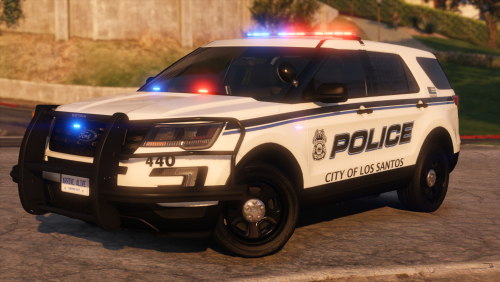
 Question, would you ever consider changing the wheel texture to be more realistic? Like the ones on this explorer:
 -
 Is there any better handling line to use with the FPIU besides Police3? Even with that handling line the Explorer easily flips on turns.
- 47 comments
- 16 reviews
-
Love it. Very unique lighting on the FPIU. Cant wait to see what else you have in store.
- 47 comments
- 16 reviews
-
I dont know for sure. That may possibly be the issue. I dont see how it would be, but it could be.
-
Do you use VisualV?
-
 Love that lightbar! Any FPIUs in this pack?
 -
 Could you do some for t0y's VBPD pack? Thanks (Also if you could include an all blue version that would be awesome)
- 16 comments
- 4 reviews
-
So for some reason the taillights on the right 2 explorers are grayed out compared to the far left one. I pretty sure they are all the same base model and i'm 100% sure they weren't like that before I had to update everything for the new GTA update, and I don't see why any changes to files in update.rpf would change the taillights of two of the explorers but not the other one. Far right model: t0y's 2014 FPIU from https://www.lcpdfr.com/files/file/19580-sandy-shores-police-department-pack-els/ Middle model: Gump's 2014 FPIU from https://www.lcpdfr.com/files/file/17288-small-town-pd-2014-fpiu-els/ Far left model: Slendis' 2014 FPIU from https://www.lcpdfr.com/files/file/19581-rockford-hills-police-department-pack-bhpd-els/ Thanks in advance.
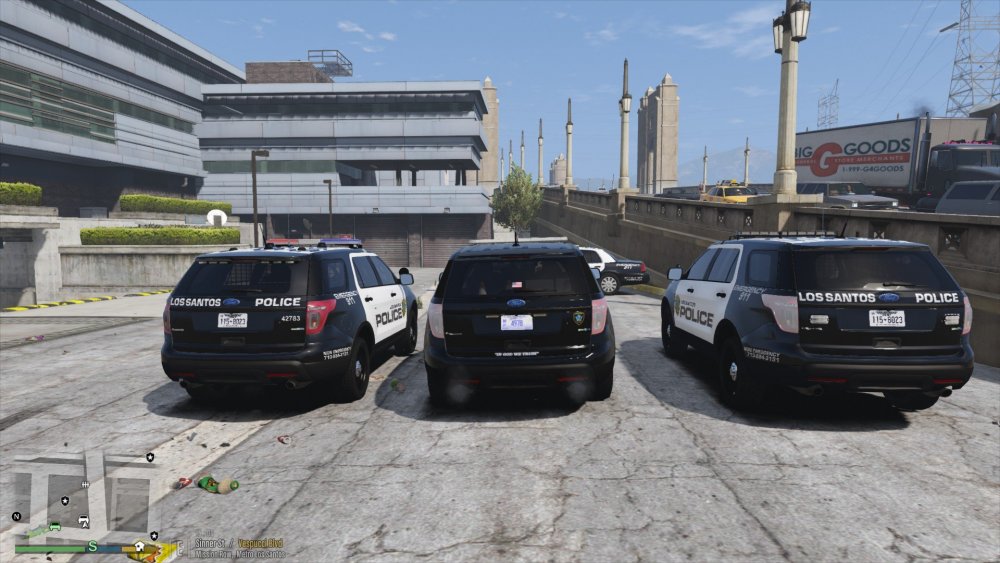
-
-
-
-
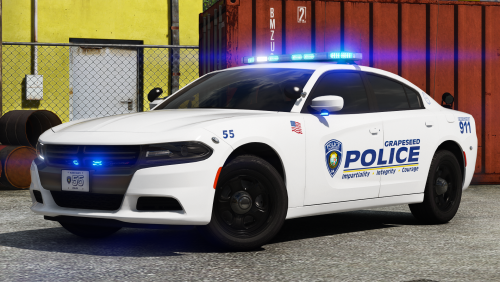 Such an amazing model. You should do more of these single car releases with custom light setups like this. Definitely my favorite ever release from you.
- 17 comments
- 12 reviews
-
-

- 1
-
-
-
 YES glad to see you back t0y
 -
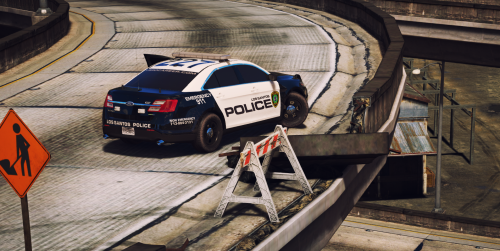 Looks awesome man. Cant wait to see what else you have planned for this pack. I really need a black and white mega pack in my life lol.
- 51 comments
- 13 reviews
-
-
- 1
-
-
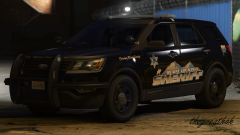 How am I just now seeing this? Best 2016 FPIU ive seen yet.
 -
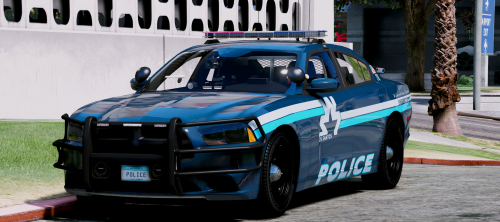 Yeah I assumed so. Although I did initially test it with the skin that comes with it and the plate is still a solid (orange) color.
- 32 comments
- 35 reviews
-
Noticed one issue with the Silverado is the plate just being a solid color. Not sure if its an issue with the template because any other Izick template based skins are different than this one. Tested a few skins from some skin packs and everything is the same except the location of the plate.
- 32 comments
- 35 reviews
-
-
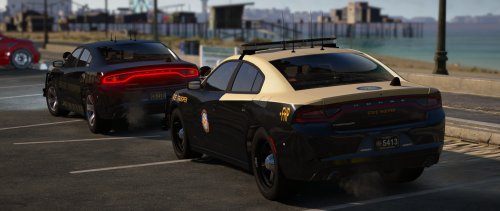 Not sure if you just forgot to update the files but the VCF for the slicktop is still missing and the white rambar issue is still there.
- 76 comments
- 55 reviews
-
Im having a problem where the rambar is all white on the slicktop. Im using the unmarked skin from the ghost folder so im not sure if that is causing it but even changing the car color to black does nothing.
- 76 comments
- 55 reviews
-
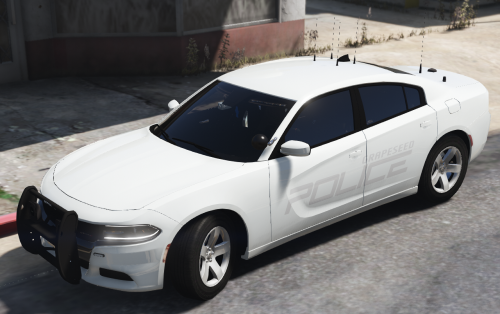 Love this charger but would it be possible to fix the ELS file as well as add an unmarked skin so we can use it for more than just grapeseed?
- 22 comments
- 12 reviews
-
-
 Yup im having the exact same issue. Had this vehicle installed before and just replaced those files with the new ones and that started happening. Issue with the update.
- 53 comments
- 17 reviews