
9Lincoln20
Members
-
Joined
-
Last visited
Everything posted by 9Lincoln20
-
Does anyone know which is the best and easiest install LAPD Crown Vic for GTA 5???
-
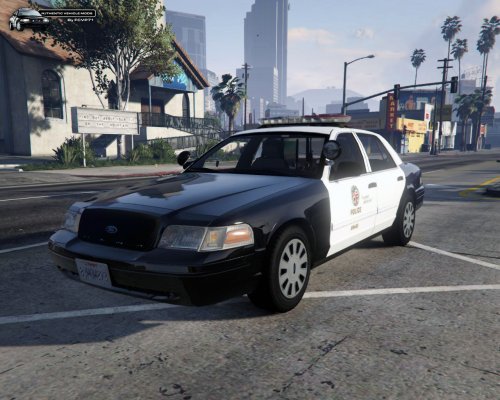 I need help installing this car. I followed the instructions as contained in the read me and I proceeded to the location x64e.rpf/levels/gta5/vehicles.rpf. I then replaced the police.yft and police.ytd files with the .ytf and .ytd files from the download. I double clicked both files to make sure the LAPD Crown Vic was there and it was with full textures. However my problem is when I load the game GTA 5 is asking me to download a 1.97GB update. I complete the download however the LAPD Crown Vic is not in the game and the stock standard stainer is in the game instead. How do I install this car and get the game to play without updating. I have done 3 1.97 GB downloads now. Any help is appreciated.
- 139 comments
- 38 reviews
-
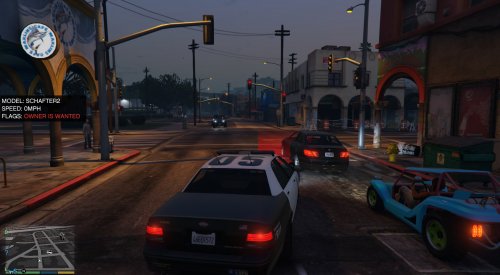 Ok I'll try that. Do I still need to type "LoadPlugin SpeedRadar" into my startup.rphs file. I have other mods like breatherlyser, spotlight, code 3 call outs
- 101 comments
- 40 reviews
-
I can't get this mod to work. I have changed my startup.rphs file to include "LoadPlugin SpeedRadar". I have installed both the dll file and ini file to C:\Program Files\Rockstar Games\Grand Theft Auto V\Plugins\LSPDFR Any suggestions. I haven't copied all the contents of the speed radar folder into main directory cause I don't want to overwrite the startup.rphs file. Please help.
- 101 comments
- 40 reviews