NicholasCage
Members
-
Joined
-
Last visited
Everything posted by NicholasCage
-
I save the finished product as a png. My issue is that it looks amateur even whilst I'm working on it. I know the reason why it looked blurry, I had the image too big. Thus a lower quality. I have to redo everything including the badge. I just found a video, that might have solved all my problems. Stand by!
-
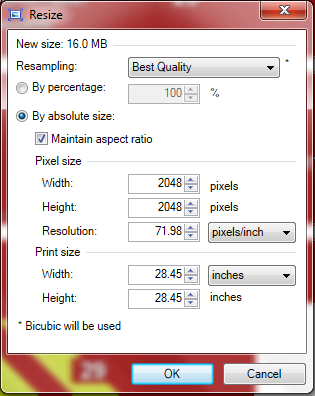
Thanks Patchy, not what I need though. But close, I found another website, 600 DPI is for a High Res InkJet Printer, so I assume I should use 600DPI? Okay I'm positive I need 600 DPI for the resolution, I should be set now... I hope.
-
I don't think my computer could handle that. I could do 4K in the future when I upgrade. I'd be happy with 2K for now, what setting should I use for that? I know that it's (2048x2048) but what about the resolution pixels/inch? Also, thanks for the reply!
-
This question is for anyone experienced in making textures! I made my first skin and of course the settings were wrong as parts are blurry. I can't seem to find any good tutorials or information anywhere. What settings should I have when making these textures so that I can achieve a high quality end result. I would like to be able to produce 2K skins if possible. I'm using Paint.net to make them. I have attached a screenshot of someone's 2K texture, with settings opened in Paint.net. Are these the settings which will give me a 2K texture also? I hope this thread will be of use for not only myself, but others who want to start making their own skins. Thank you in advance.
-
-
.
-
Sorry, I've never seen that before! No it looks amazing
-
Only thing is the alignment of that light, other than that it looks great! Good work! Can't wait!
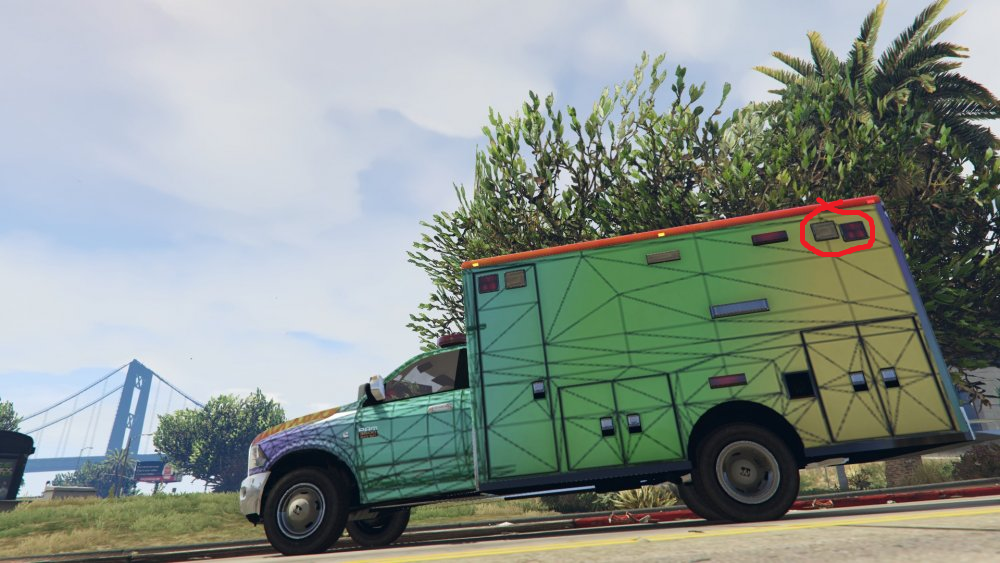
-
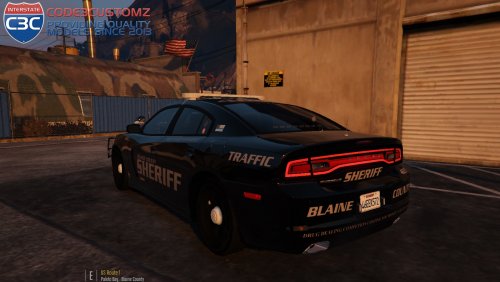 When Gump uploads a sweet new file, but you play console.. Amazing work as usual!
- 34 comments
- 17 reviews
-
-

- 2
-
-
It looks amazing already! When mods started coming out I was hoping for exactly this, you're making dreams come true ;D
-
-
-
 Literally gonna have nothing but your vehicles installed, incredible work Carperino! The thirst for that Tahoe is real
 -
-
-
-
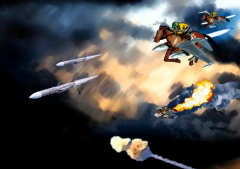 Haha thank you :P
 -
My rendition of Night Witches Fly by Sabaton. ;D
-
-
-
-
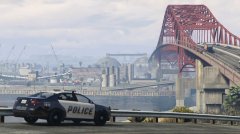
From the album: Snapmatic Gallery
-
-
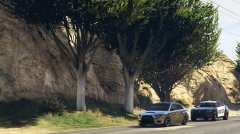
From the album: Snapmatic Gallery
-
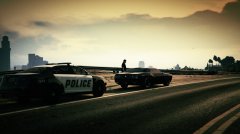
From the album: Snapmatic Gallery