
Cj24
Members
-
Joined
-
Last visited
Reputation Activity
-
 Cj24 got a reaction from SHERIFF/EMS/FIRE for a gallery image, LVMPD CVPIAdded equipment and sixium's liveries.
Anybody interested in an updated version of my old unmarked LVMPD FCV as well?
-
Cj24 got a reaction from bfaith1407 for a gallery image, New and Old
-
Cj24 got a reaction from Black Jesus for a gallery image, New and Old
-
Cj24 got a reaction from Chippy for a gallery image, New and Old
-
Cj24 got a reaction from BErad1502 for a gallery image, LVMPD CVPIAdded equipment and sixium's liveries.
Anybody interested in an updated version of my old unmarked LVMPD FCV as well?
-
Cj24 got a reaction from OfficerFive0 for a gallery image, LVMPD FS VisionFS Vision made by KevinDV, LEDs and traffic advisor by Kygo, Opticom by Cj24.
-
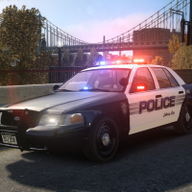
Cj24 got a reaction from SHERIFF/EMS/FIRE for a gallery image, LVMPD Crown Vic
-
Cj24 got a reaction from GreenAid for a gallery image, LVMPD CVPIAdded equipment and sixium's liveries.
Anybody interested in an updated version of my old unmarked LVMPD FCV as well?
-
Cj24 got a reaction from Mikofiticus for a gallery image, LVMPD CVPIAdded equipment and sixium's liveries.
Anybody interested in an updated version of my old unmarked LVMPD FCV as well?
-
Cj24 got a reaction from GreenAid for a gallery image, LVMPD Crown Vic
-
Cj24 got a reaction from FluxHD for a gallery image, LVMPD CVPIAdded equipment and sixium's liveries.
Anybody interested in an updated version of my old unmarked LVMPD FCV as well?
-
Cj24 got a reaction from ASTTrprDillon95 for a gallery image, LVMPD CVPIAdded equipment and sixium's liveries.
Anybody interested in an updated version of my old unmarked LVMPD FCV as well?
-
Cj24 got a reaction from sixium for a gallery image, LVMPD CVPIAdded equipment and sixium's liveries.
Anybody interested in an updated version of my old unmarked LVMPD FCV as well?
-
Cj24 got a reaction from Crizby for a gallery image, LVMPD CVPIAdded equipment and sixium's liveries.
Anybody interested in an updated version of my old unmarked LVMPD FCV as well?
-
-
Cj24 got a reaction from pineapplefishes for a gallery image, LVMPD Crown Vic
-
Cj24 got a reaction from ScrimpyData for a gallery image, LVMPD Crown Vic
-
Cj24 got a reaction from sixium for a gallery image, LVMPD Crown Vic
-
Cj24 got a reaction from EFox for a gallery image, LVMPD Crown Vic
-
Cj24 got a reaction from TheRealNoodle for a gallery image, LVMPD Crown Vic
-
Cj24 got a reaction from RoegonTV for a gallery image, LVMPD Crown Vic
-
Cj24 got a reaction from McAwesome6934 for a gallery image, LVMPD Crown Vic
-
Cj24 got a reaction from FCV96 for a gallery image, LVMPD Crown Vic
-
Cj24 got a reaction from ASTTrprDillon95 for a gallery image, LVMPD Crown Vic
-
Cj24 got a reaction from BErad1502 for a gallery image, LVMPD Crown Vic