Sc0tlandIsMyCountry
Members
-
Joined
-
Last visited
Everything posted by Sc0tlandIsMyCountry
-
 SHERUFF
 -
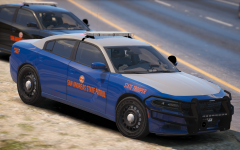 moisttttt
 -
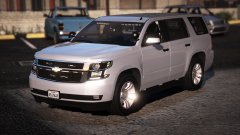 is it?
 -
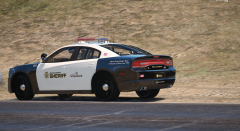 ily son
 -
 i love it babi pls release
 -
.thumb.png.a8f56bdfe4aa7517ee4660233dc163a7.png) Hey bud amazing work on this especially for it being your first script! Only things I could find with it that I didn't like is that it forces your character model everytime you generate a callout and the fact that the callouts need to be triggered manually. Aside from those two nitpicks great job!
Hey bud amazing work on this especially for it being your first script! Only things I could find with it that I didn't like is that it forces your character model everytime you generate a callout and the fact that the callouts need to be triggered manually. Aside from those two nitpicks great job!- 101 comments
- 19 reviews
-
-

- 1
-
-
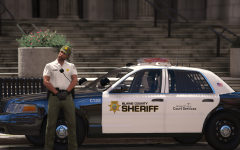 looks amazing bby
 -
-
-
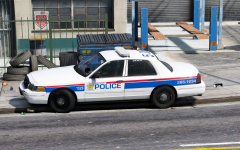 you never fail to impress bby ;)
 -
-
From the album: aids
-
From the album: aids
-
-
If they didn't include any VCF file you can just copy another one and rename it to whatever model that the vehicle is assigned to but I would double check that you didn't miss the VCF for that car.
-
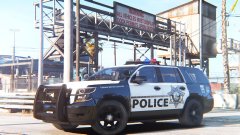 I want.
 -
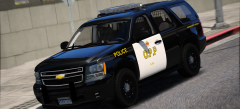 lookin good ;)
 -
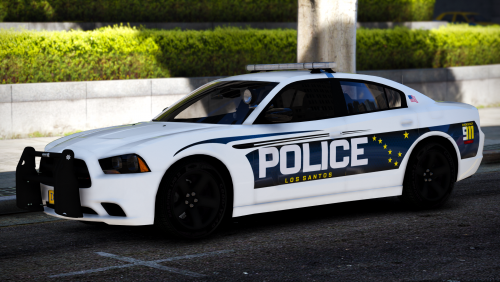 Great pack despite kids complaining about the lack of a CVPI. keep up the good work bby ;)
- 14 comments
- 15 reviews
-
-
- 4
-
-
Have you ever added any modded sirens?
-
-
You gotta install a vehicle that is ELS enabled bud. If you look under the download button of any vehicle mod scroll down till you see "ELS Compatibility" Check if it says yes/no to tell if it's ELS enabled.
-
Just gonna drop some more cringe.

-
Rednecks has some ambient events of hicks beating each other with shovels and other objects. Quite funny too watch that is till they turn on you.
-
I have both i.e LSPD is LSPD BCSO/LSSO is their respective agencies but state and federal are CHP, FBI, DHS, USMS, Game Wardens etc etc.
-
.thumb.png.a8f56bdfe4aa7517ee4660233dc163a7.png)