ImRamboRoss
Members
-
Joined
-
Last visited
Everything posted by ImRamboRoss
-
-
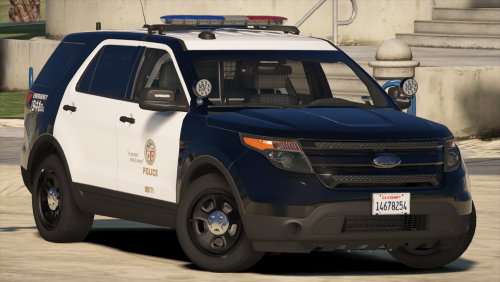 Where would that texture go? In the same area as the car mod itself? And thanks for the reply
- 563 comments
- 116 reviews
-
-
Is there any way to tone down some of the bloom? I'm using the Improved Spotlight and LED by GravelRoadCop which makes the vanilla police cars have much better lighting, but with this model, the light is so bloomed I can barely see where I am driving. I like using the Explorer, but I can barely use it at night. I can't post a pic because the website is not letting me.
- 563 comments
- 116 reviews
-
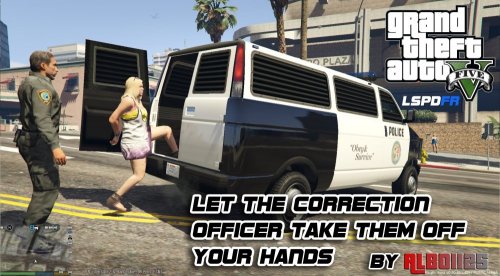 The previous version of Arrest Manager worked fine for me, however, 5.1.1.0 in LSPDFR 0.3 freezes my game when I go on duty. Just thought I should report this bug.
- 1,915 comments
- 242 reviews
-
-
It Appears to be working now, the game was just bugged multiple times. Thanks
-
I am having trouble detaining individuals since the new update. Originally, you could hold right D Pad or hold E and detain someone to check ID or cite them. It doesn't seem to work anymore, have the controls changed?
-
-
-
I really like the model, but the lightbar is a little off. It doesn't seem as bright or flashy. Other than that, the car is beautiful
- 563 comments
- 116 reviews
-
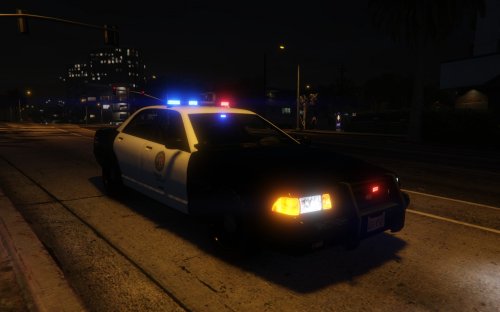 Great mod, but I want to remove the lights from ALL cars and leave just the Stanier. The problem is, I can't figure out how to do so. Any help would be appreciated.
- 28 comments
- 13 reviews