
OfficerBlackjack
Members
-
Joined
-
Last visited
Everything posted by OfficerBlackjack
-
I use DS4Windows and it works pretty well. Some of the controls are different but you can use it.
-
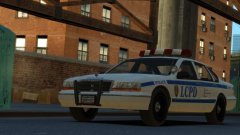 Ohh. I love that Premier one day for V I hope.
 -
 Brilliantly Made. Easily allows me to have separate Highway Patrol Cruisers and more slots to run more agencies or vehicles.
- 1,510 comments
- 85 reviews
-
-
 Sweet Celestia! Some amazing shit right there
 -
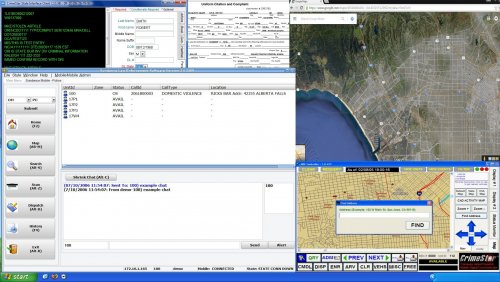 Grew up with XP. Still by far the greatest OS I've used. Brings back so many happy memories with this.
- 3 comments
- 7 reviews
-
-

- 1
-
-
-
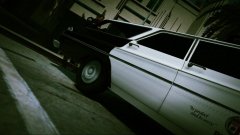 Yep so far it's just an ingame test run but it's already passed those so hopefully we can get some new wheels and get the interior sorted out.
 -
From the album: V Shots
A Sergeant goes through his checklist to ensure his Supervisor Unit has everything that is required before he begins his Morning Shift. Circa 1975 Original Model By Fled Converted To IV By Malemute Converted To V By Monomachos Fitted To LAPD Specification By 11john11 & OfficerBlackjack. Model Is Currently A Work In Progress And Will Be Released Once Finished. -
I could be wrong but I think FHP use Mastercom B.
-
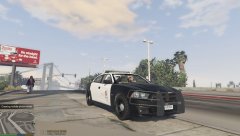 This was way back in January I think back before I got my 750 Ti which I need to replace because it's crap too.
 -
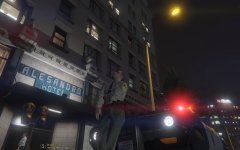
From the album: V Shots
-
-
From the album: V Shots
-
-
mods\update\x64\dlcpacks\patchday9ng\dlc.rpf\x64\models\cdimages\patchday9ng.rpf is where the model for s_m_y_cop_01 is now located.
-
I love that mic over the shoulder. Adding on with the shoulder mic animation it does help if there is something there that actually looks decent and no the default crappy one R* did.
-
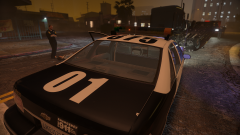 Damn
Damn -
Thanks Rockstar for your minimal update that breaks half of the game more like
-
Another update which I didn't notice and It caught me out too. I can't really seem to find why though.
-
Is there a reason why you haven't updated it as it says?
-
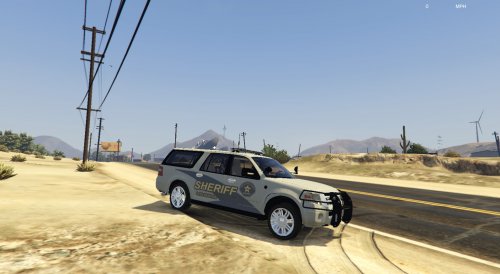 Love this model at lot. I just ignore the bugs and it is fine. Will be in my game for a while now. Not considering replacing anytime soon.
- 48 comments
- 17 reviews
-
Not I know of really.
-
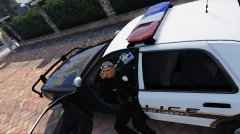 It's a older Liberty Police skin i'm using as a placeholder as their is not a texture pack for the Florida based overhaul that I am working on with a friend. And I believe the CVPI is F5544's one.
 -