Compeast
Members
-
Joined
-
Last visited
Everything posted by Compeast
-
I'd move my ass to Vice City! =D
-
-
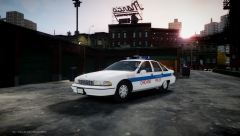 Wait, how the... How the F did the pilars get white? O.o Should be a 91.
 -
First of all I think it's good you do this for others. This way you can learn more yourself and expand skills. Second, you shouldn't even care for the reputation system. If you think that a number in either red or green says something about the person, you're wrong! You're doing good, but duck the +1... =)
-
From the album: Work in action
Another part of the pack done! -
So, Kanye gave his daughter her own SAMP Server? =P
-
I have the same issue but in Bohan. Whenever I drive into the same lane, crash. I know how you guys must feel, but there seems to be no fix. Reinstalling is no option, patching, nothing. I experienced the same with Grand Theft Auto San Andreas years ago. At a certain spot, always a crash, yet no fix. Except reinstalling the computer, that worked...
-
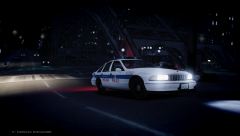
From the album: Work in action
This spot always reminds me of Chicago! -
Happy birthday =D
-
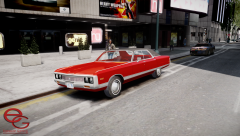
From the album: Released
To really touch up New York! -
-
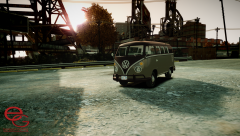
From the album: Released
=D -
He's a she. =)
-
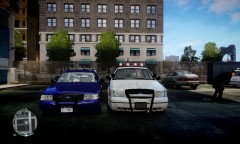 Or giant. Right one seems way too high!
 -
-
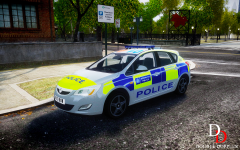 Police is allowed to violate rules in order to perform their duty. ;)
 -
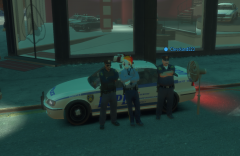 Wow, you really like that gay horse, eh? =D
 -
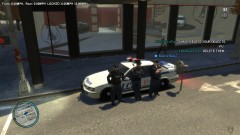 GOD DAMMIT, CHRIS!
 -
-
Okay, don't forget credits and pictures. =)
-
Then why make a topic?
-
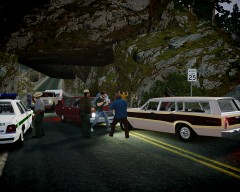 You're gonna love what I'm working on right now then!
 -
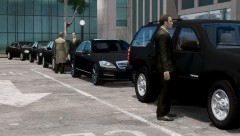 Who died?
 -
Siberian Husky German Shepherd Golden Retriever
-
Shit, this is amazing! Time to make you more classics! =D