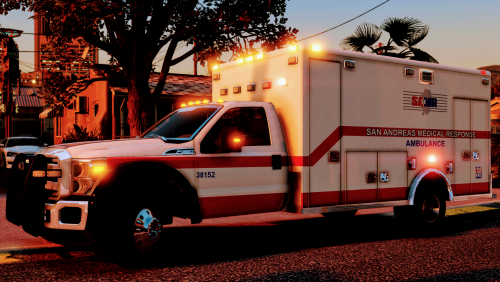

Skin Works
Members
-
Joined
-
Last visited
Everything posted by Skin Works
-
I'm not looking for help necessarily, otherwise I'd ask on their website, however am wondering if anyone else is having the same issue. The game will load up fine even using Rage, but its not actually working. Get in game and nothing. No menu for Rage. No plugins loaded. But it still loads the game through it. I have the boxed version of the game and am thinking that has something to do with it. Cheers!
-
Just started having this error today and only when I try to view the galleries. Just heads up. Thanks
-
-
No. It has done that for me for a while now. However I am getting antsy. Hopefully its updated soon.
-
-
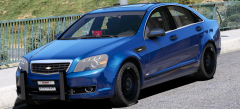 Yes. Yes. Yes please! Which model, would love to have a skins for this model.
 -
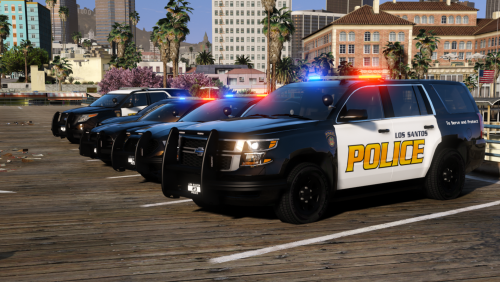 Damn! My game better start working so i can use these! I'm assuming a 5/5 is the correct rating for your work. Awesome.
- 101 comments
- 49 reviews
-
I would love to stand strong with everyone. I have unfortunately lost my openIV and well, as we know, can't redownload.
-
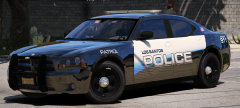 Lost my OPENIV. Bus still want this charger.
 -
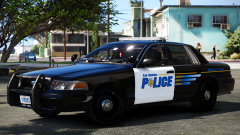 This may slow us down but we will never stop modding! Viva la resistance!
 -
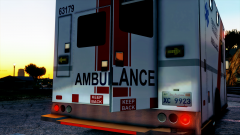
From the album: Skin Works Designs
-

From the album: Skin Works Designs
Model by pimDSLR. -

From the album: Skin Works Designs
Unless they're illegal... -

From the album: Skin Works Designs
Fantastic model by thegreathah! -

From the album: Skin Works Designs
-

From the album: Skin Works Designs
-
 DAAAAAMN! Need this charger!
 -
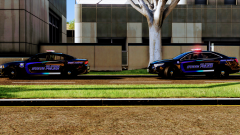
From the album: Skin Works Designs
State Police had to be called. -
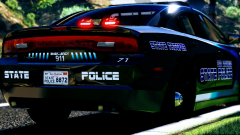
From the album: Skin Works Designs
-
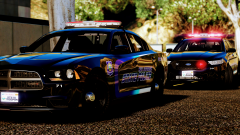
From the album: Skin Works Designs
-
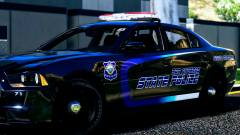
From the album: Skin Works Designs
Model also by t0y. -
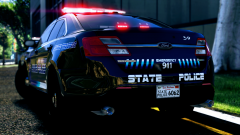
From the album: Skin Works Designs
-
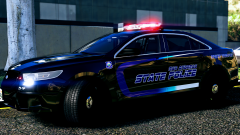
From the album: Skin Works Designs
Model by t0y. -
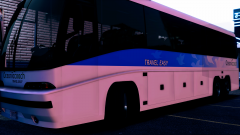
From the album: Skin Works Designs
-
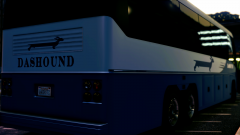
From the album: Skin Works Designs