
Skin Works
Members
-
Joined
-
Last visited
Everything posted by Skin Works
-
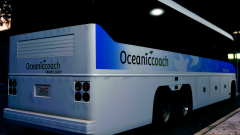
From the album: Skin Works Designs
-
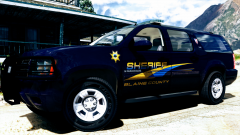
From the album: Skin Works Designs
-
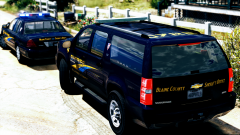
From the album: Skin Works Designs
Model by J.J Dawkins. -
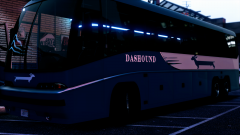
From the album: Skin Works Designs
-
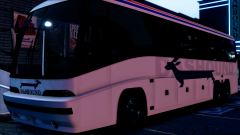
From the album: Skin Works Designs
-
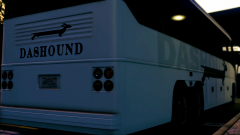
From the album: Skin Works Designs
-
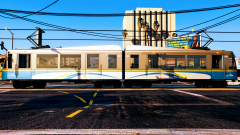 Amen man. EXPO LINE!
 -
From the album: Skin Works Designs
-
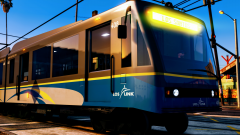
From the album: Skin Works Designs
Yes, still some fixes to do. -
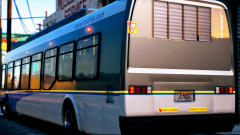
From the album: Skin Works Designs
... Just excited to finally be back at this. -
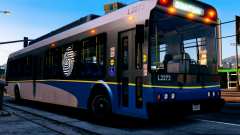
From the album: Skin Works Designs
Shout out to @Mr.JonnhyCZG for the help in the early stages of these skins. Thanks man. -
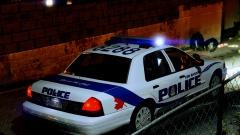
From the album: Skin Works Designs
-
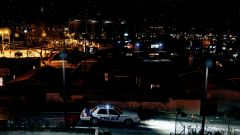
From the album: Skin Works Designs
Model from AccurateStudios, steinberg4145. -
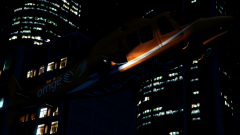
From the album: Skin Works Designs
-
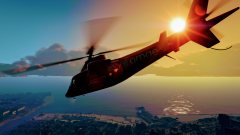
From the album: Skin Works Designs
-
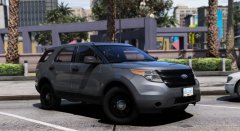 See if I can't get some pics of this one.
 -
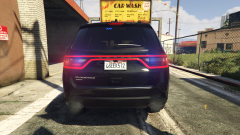 Damn! I hope this can be released some day, soon. Been hoping this would make it into the game. Hate this vehicle as a civilian vehicle but love it as a police vehicle. Great work!
 -
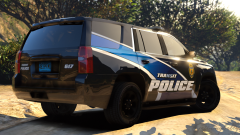 Awesome! Thanks man. Great timing as I have ordered parts for my computer and should up and running soon.
 -
Thats awesome! Where did you find the window templates for this model? I haven't been able to track them down anywhere. Unless they have been right under my nose.
-
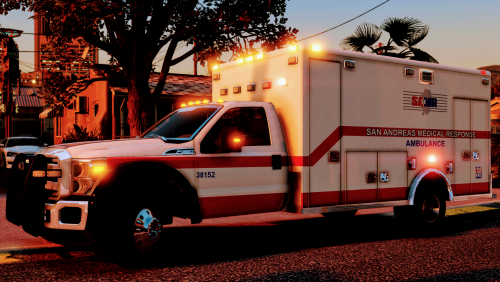 Cheers man. Glad you like them. I plan to add more soon once I actually have computer.
- 6 comments
- 3 reviews
-
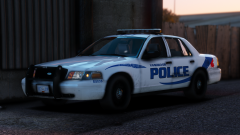 Just love the paint jobs all round. Can't wait for these either!
 -
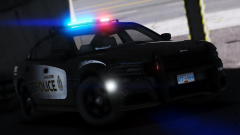 Fantastic looking! Can't wait for these!
 -
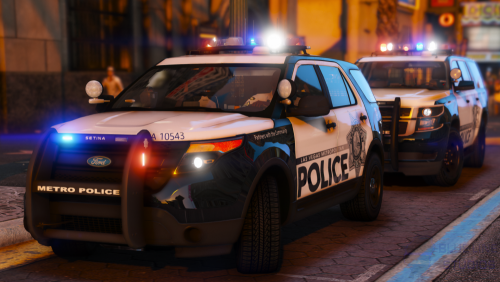 UGH! And I can't even use them right now! NOOOO! They look fantastic, been following these. Thanks for sharing!
- 67 comments
- 25 reviews
-
 Ugh... Ugh. All I can muster. I've been worn down into a caveman and can only show my appreciation for these models and your hard with by a series of indistinguishable noises. Damn these good!
 -
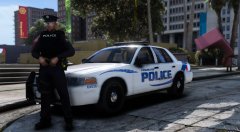 Hell yes!!! A heads up, I may not be able to get you pictures of one of these. I have yet to see a single CVPI.